Adding “sticky notes” to any page
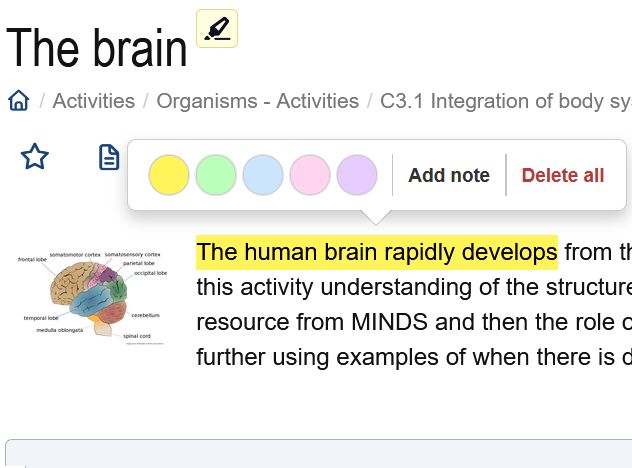
All students with student access can now personalise their view of website pages by adding notes to a page or highlighting selected text on any page and adding an annotation ("sticky note").
Annotations will be saved and will be displayed whenever the user revisits the page.
This page gives stepwise details on how to do this. Note:This is a feature only for students( or teachers) who are logged into the site.
Adding a simple “sticky note” to a whole page
Add and save your own notes to any page simply by clicking on the sticky notes icon.
This image shows the icon and the dialogue box which appears.
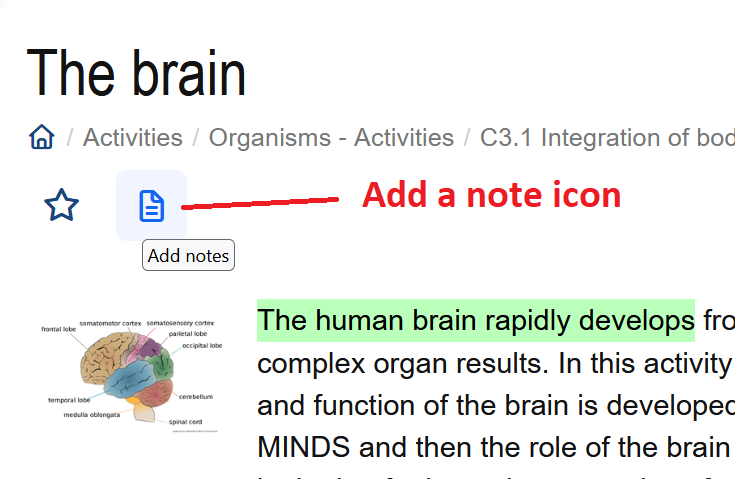
Then write your note in the popup box, and click save.
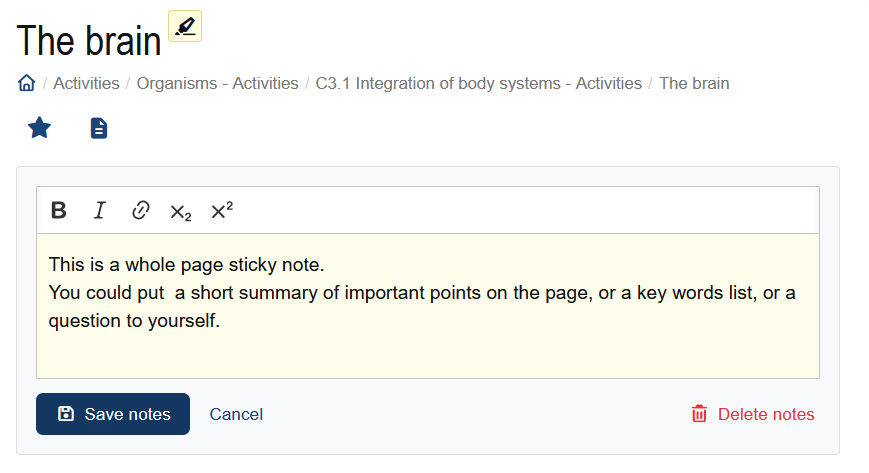
The page becomes a favourite (starred) page and the note icon shows on the page title.
Highlighting and annotating specific text with a "sticky note"
Users can highlight text, write notes and save these annotations directly on the page. This is like adding "sticky notes" to a paper text book, and it works on any page.
Note:This feature is available only for students who are signed up to student access in an active teaching group.
How to highlight, and write a note on the annotation
- Go to any page and highlight some text. A highlighter icon will appear by the highlighted text.
For example:

- Next, click the button with the highlighter icon.
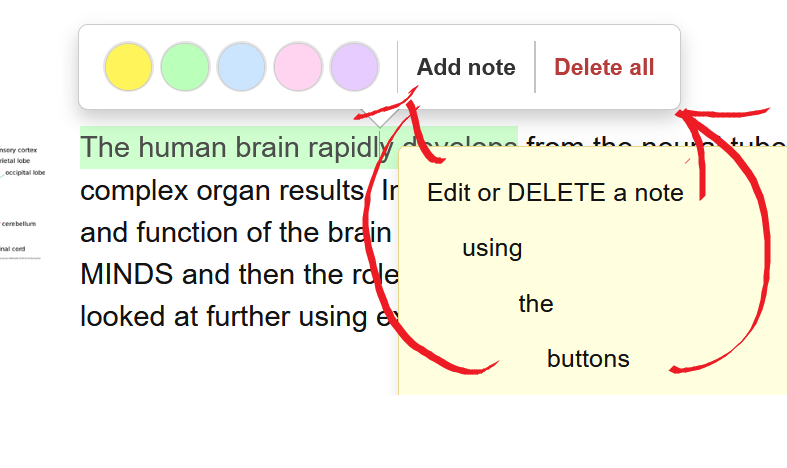
Options will appear to change the highlighting colour, add a note, or delete the highlighting
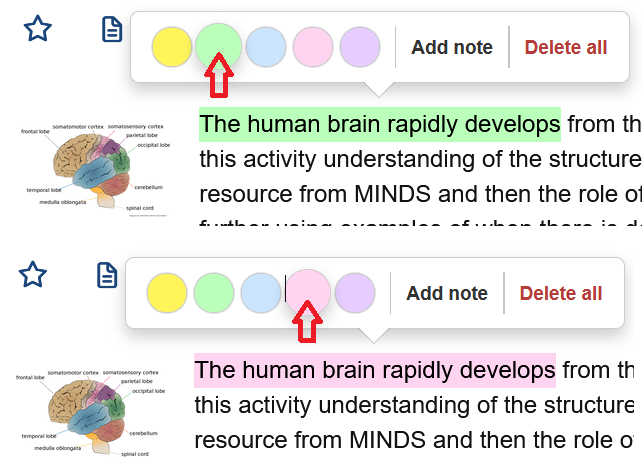
- Click on “Add note” to write an annotation that will be visible when you hover over the highlighted text.
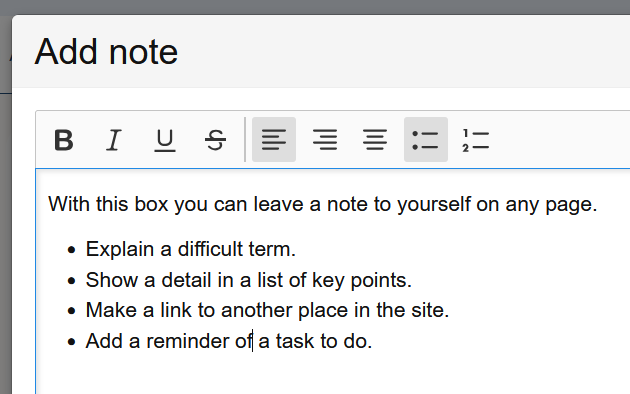
How to see the notes you've written
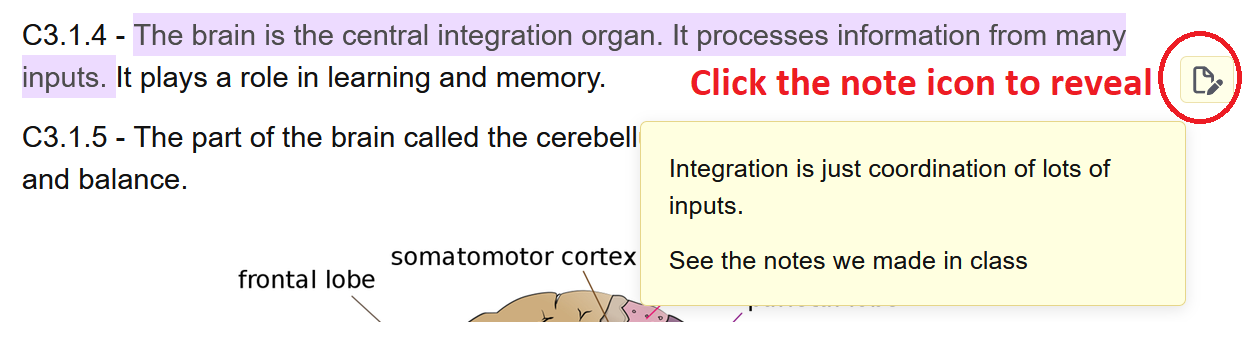
If a highlighted text has an annotation, a highlighter icon will appear at the end of the highlighted section.
Placing your cursor on this will bring up the annotation below it.
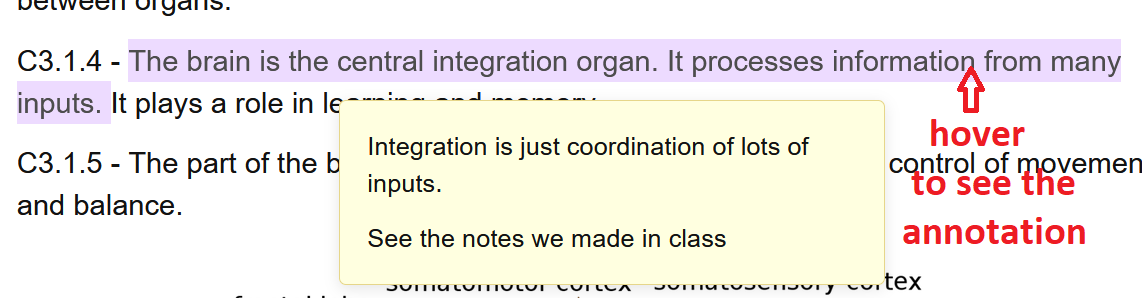
The annotation will also appear when your cursor covers any part of the highlighted text.
Whenever you return to the page you will be reminded that it contains your highlighted text as the page heading will have a highlighter icon next to it.

How to remove a highlight or a note
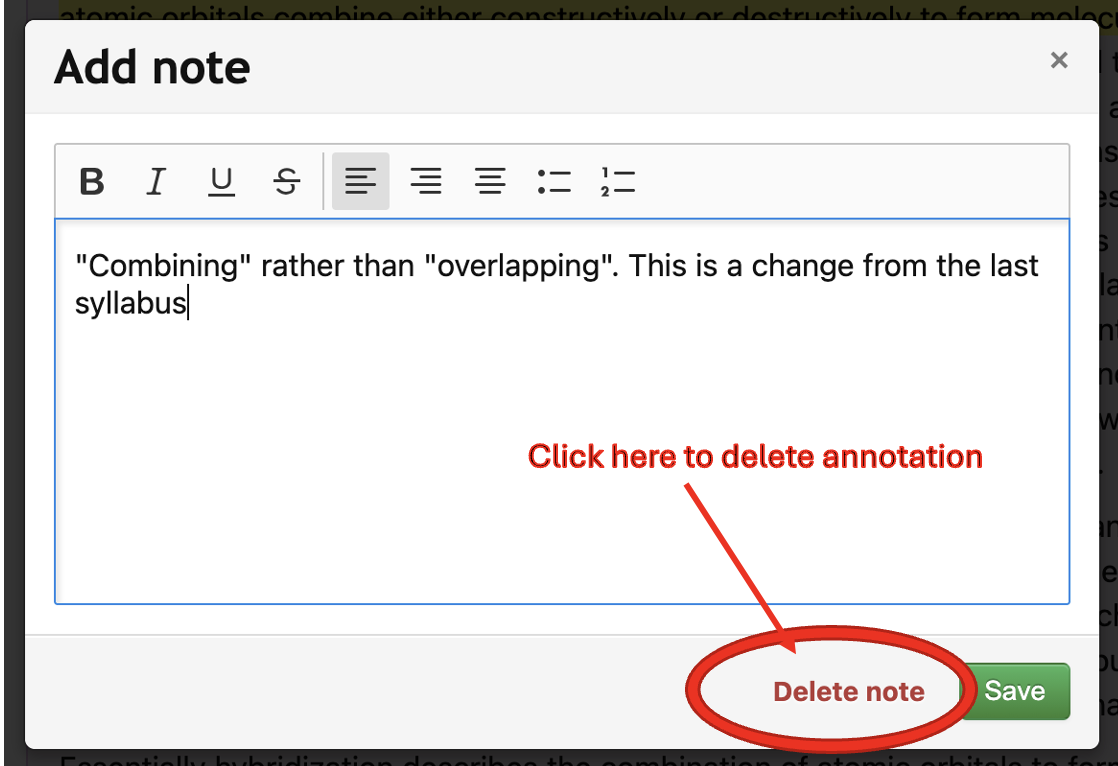
Annotations can be removed without deleting the highlight by clicking on the pen icon next to the annotation
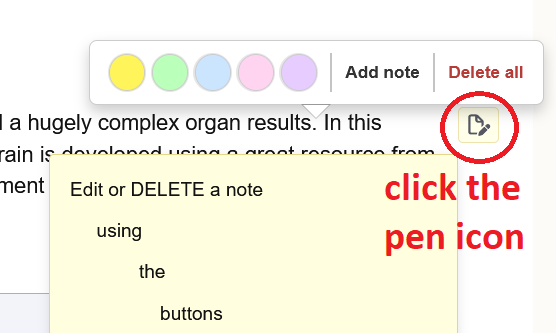
Then click “Add note”,
then selecting, “Delete note".
To delete both the highlighted text and the annotation, click on the highlighted text and then select “Delete all.”.
The highlighter reminder on the page heading will also disappear, if there are no other “sticky note” highlights on the same page.
Colour coding your notes
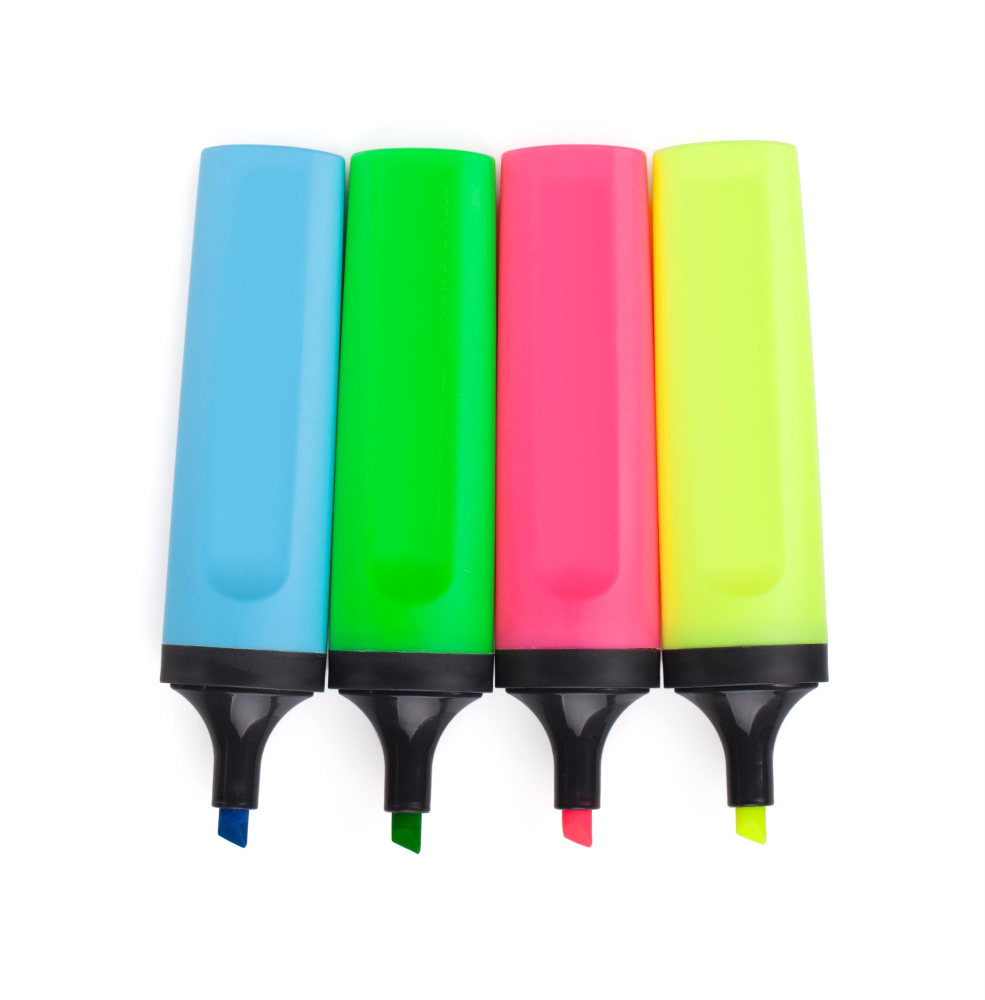
Use your “sticky notes” to improve your learning.
Colour-coding your notes can help you recall information and better organize the information that you are learning. However, this is only effective if you are consistent in the way that you assign the colours.
Using too many different colours can be more detrimental than beneficial to your learning. Therefore, select a limited set of colours and categories.
Finally, research shows that adding sticky notes with your own comments on them helps most to create memories.
So why not start using this feature.
Three colours is probably enough
There is no “best way” to organize your highlighting. Choose your own categories since this should reflect your own study strategy.
Using colour-coding helps to reduce cognitive load. It allows you to visually scan and pick up relevant information faster.
One suggestion might be:
- Colour 1: Definitions of key vocabulary
- Colour 2: Examples to remember
- Colour 3: Unanswered questions to find out about.
One final piece of advice - less is more!
It is so easy to become a super-highlighter! Remember, you do not need to highlight every definition, every example, or every unanswered question. For example, rather than highlighting a whole section, highlight the one example that you can best explain. Then, create a sticky note on this highlight with a summary in your own words, while the reading is still fresh in your mind.
Do not highlight whole paragraphs. Although in the beginning of the course many of the topics will feel new to you, try to highlight just a few key words, those that are new to you or that you feel that you need to remember. Remember, sometimes less is more.
Many thanks to John Crane, the author of the InThinking Psychology website, for sharing this suggestion which I have adapted for Biology.