Setting student tasks
Now that you have created your groups, you can begin to assign tasks. This will allow to assign and grade quizzes, written tasks, and other assignments. Below you will find a step by step process on how to do this. You can also click on the help button in the upper right corner.
To set tasks for students you can either watch the video below or follow the step-by-step process below:
In this method you can browse the site. When you see a page you like, you can assign it to your group by following the steps below.
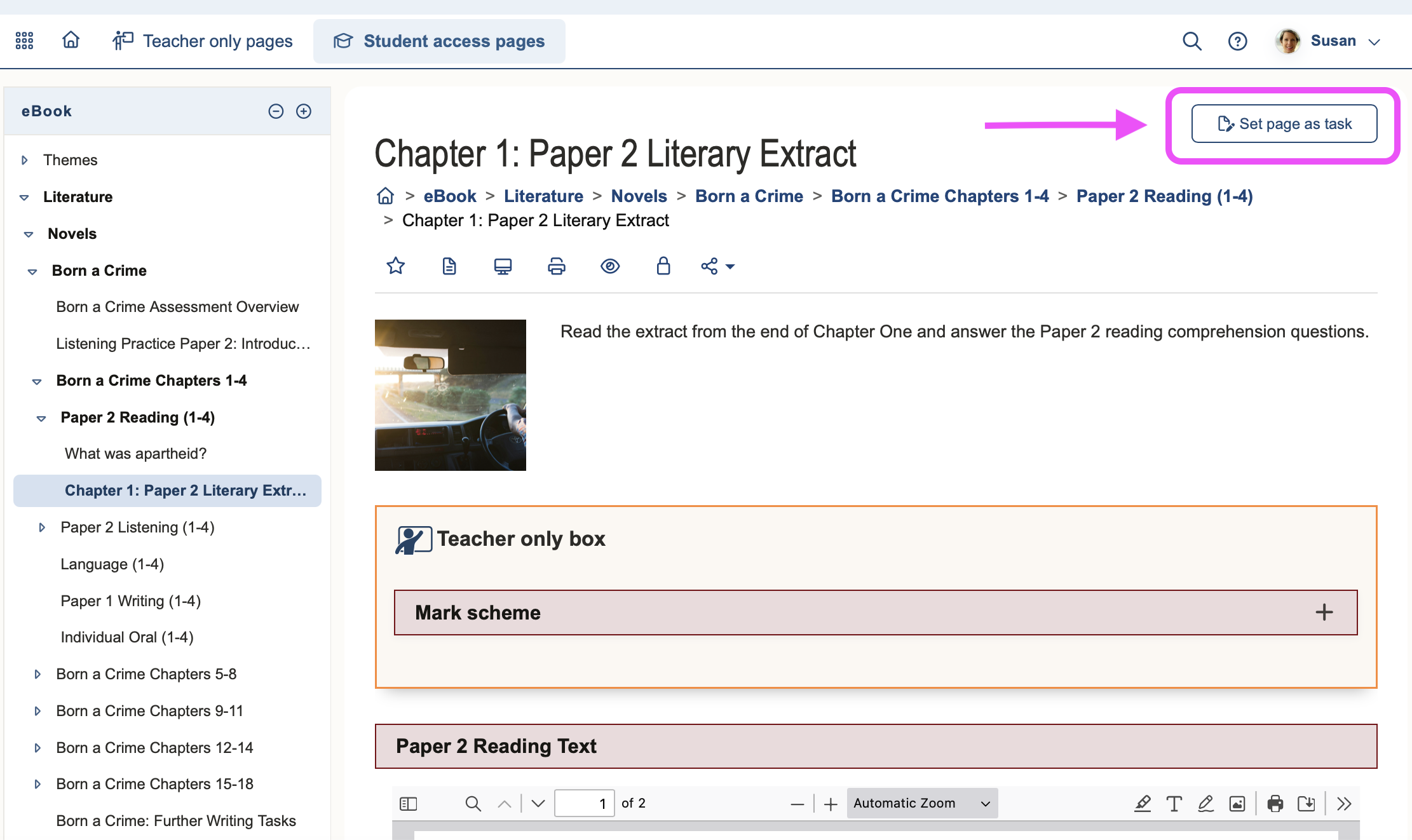
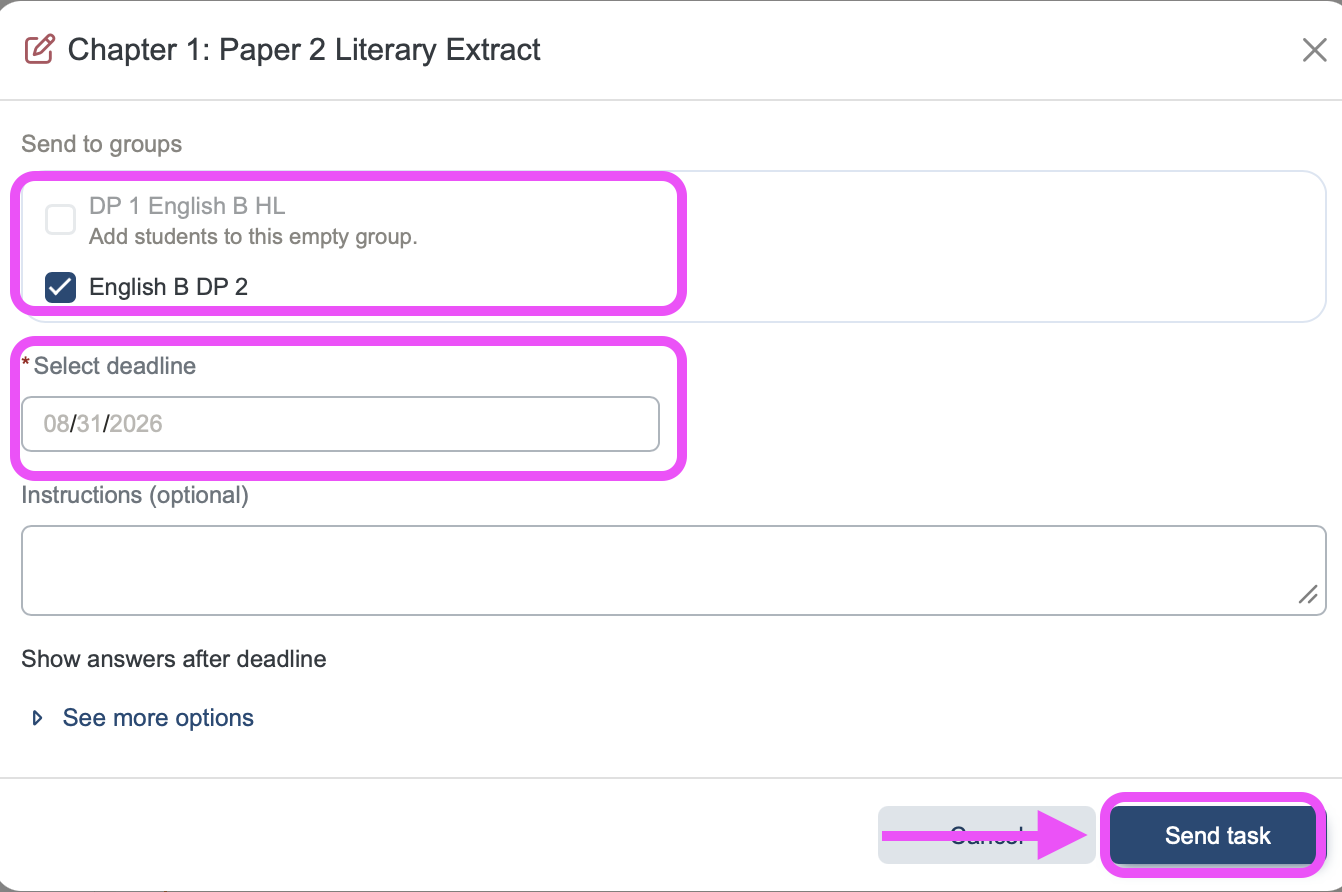
Once you have selected the task you want to assign, you will need to assign it to the group or class you want. From here you can set a deadline for the task and add any additional instructions.
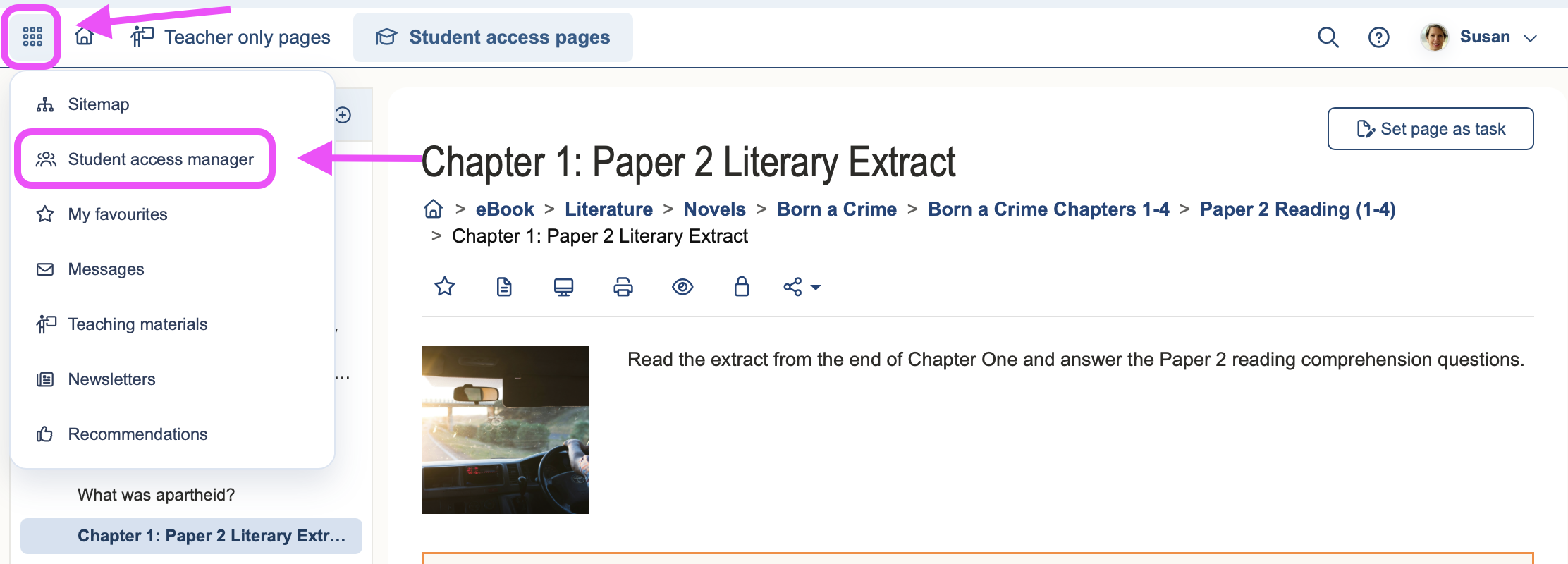
In this method, you will go to the home base in the waffle icon - Student Access Manager. From here you can access all your groups, mark and manage tasks, and assign new tasks.
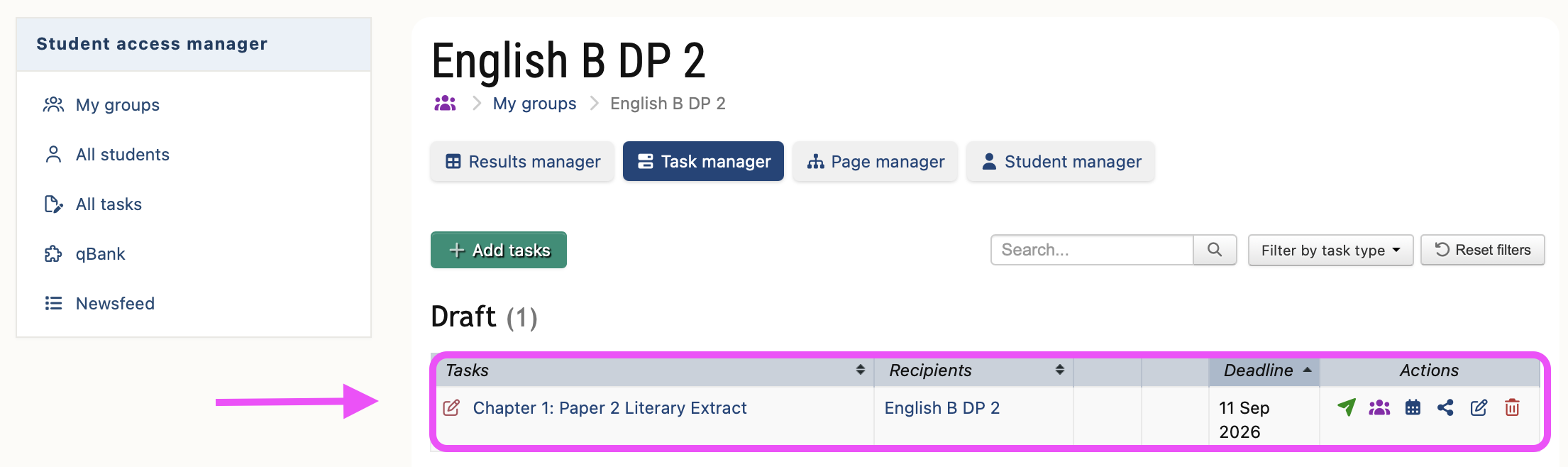
From here, you will click on the “Task Manager” and then the green “Add Tasks” icon.
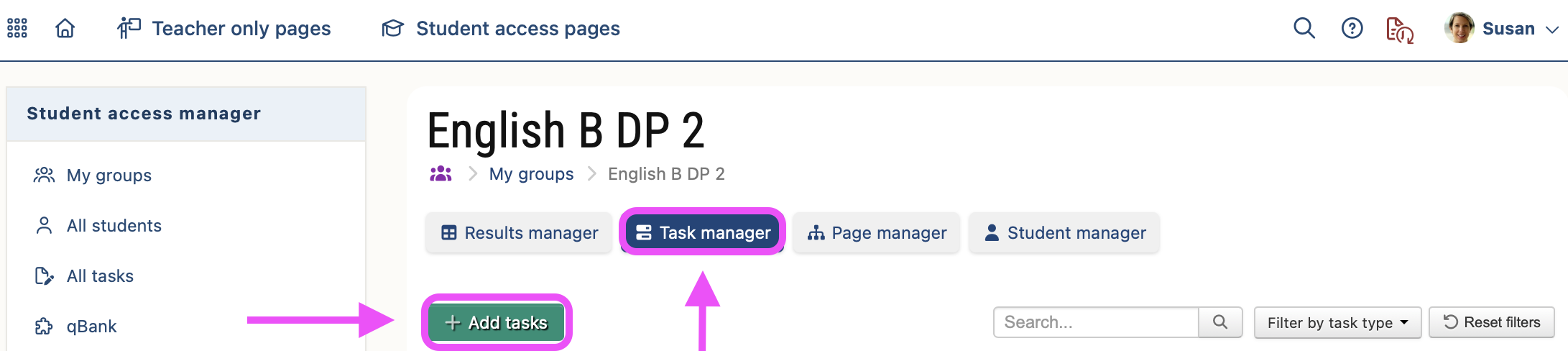
Now you can filter the types of tasks you want to assign. You can search for written tasks with the puzzle icon or quizzes with the pencil symbol.
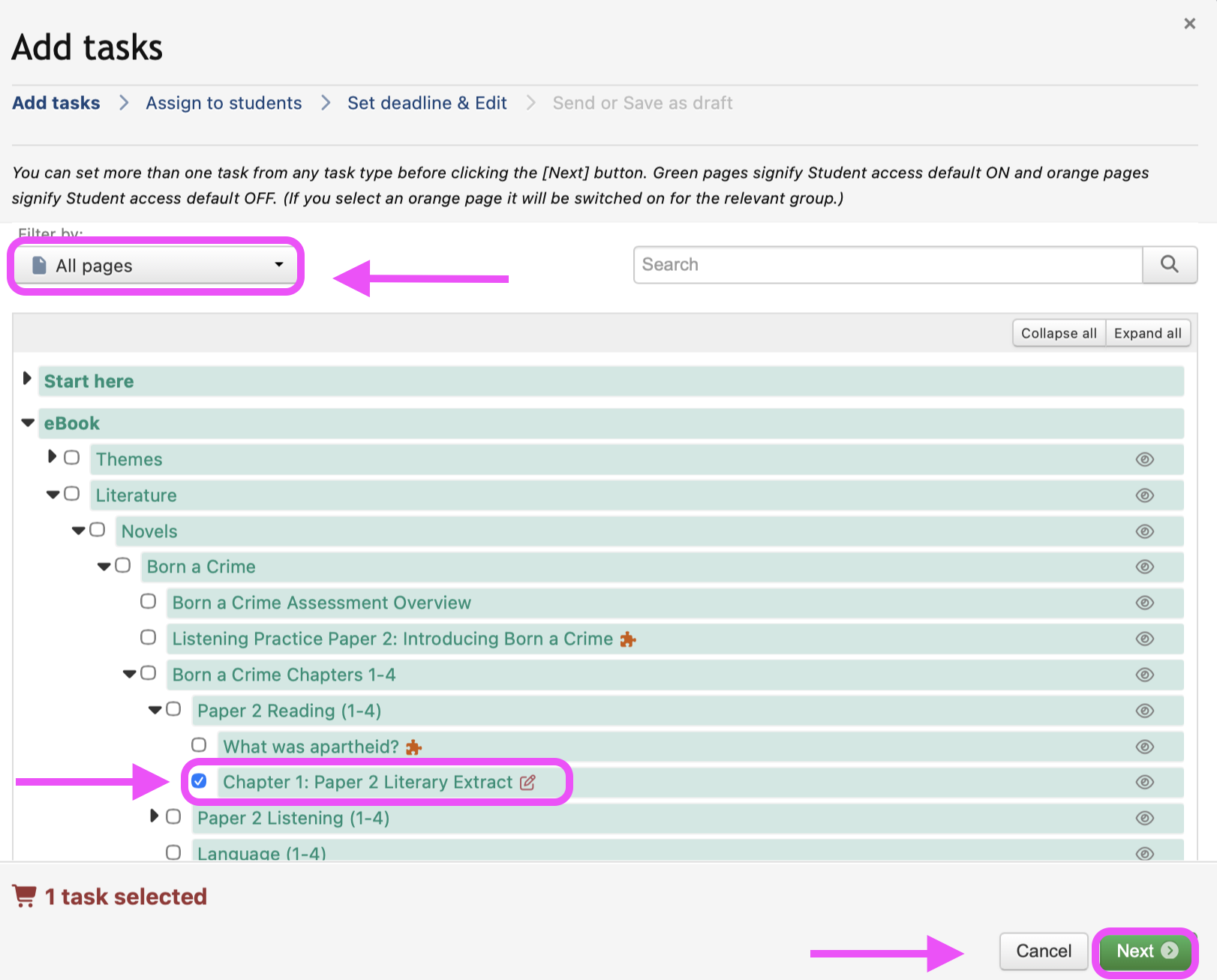
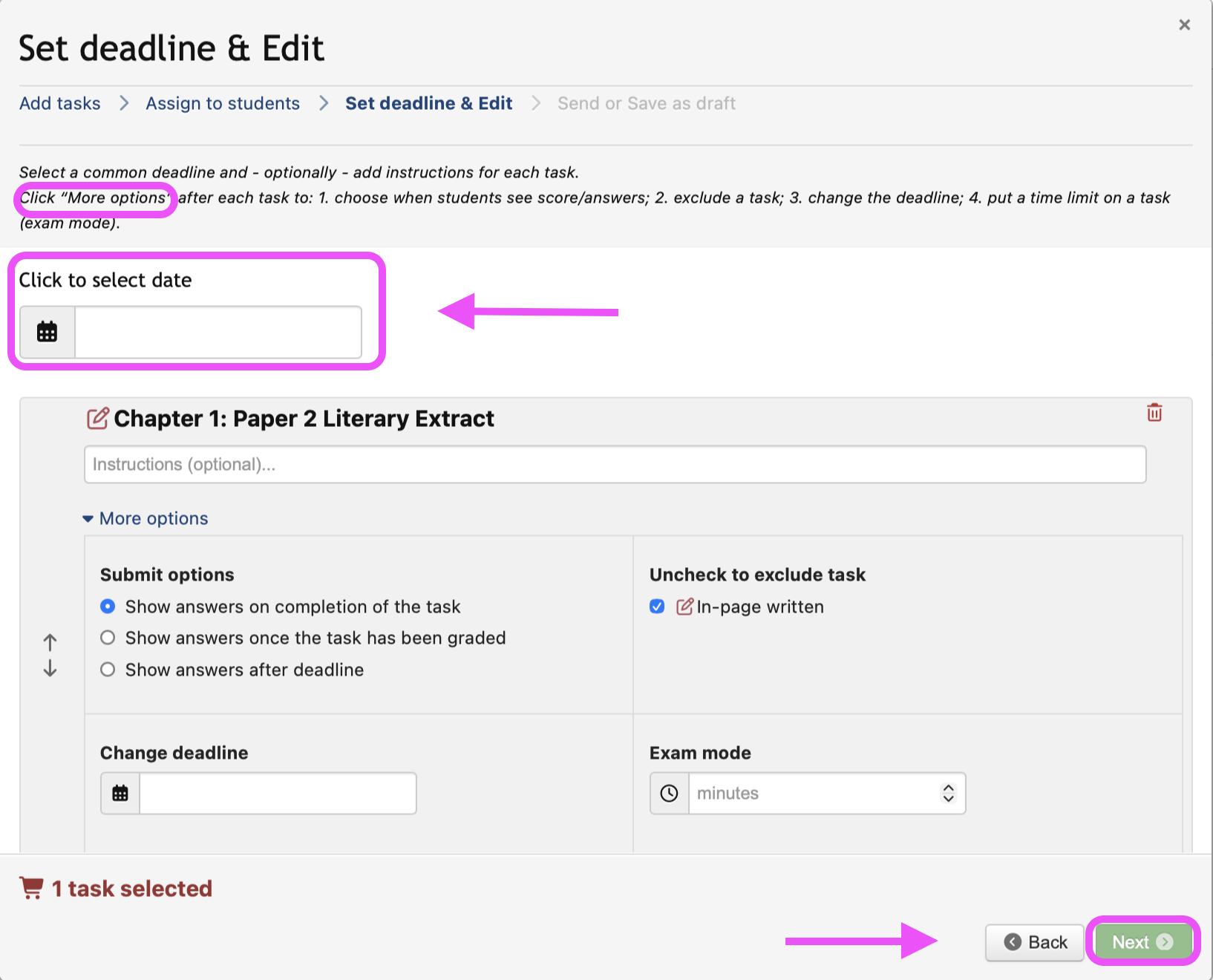
Once you click on next, a pop-up window will appear. You can set the task due date. Also, click “more options” to be able to:
choose when students see their score or answers
exclude a particular task
change the deadline
put a time limit on task for exam mode.
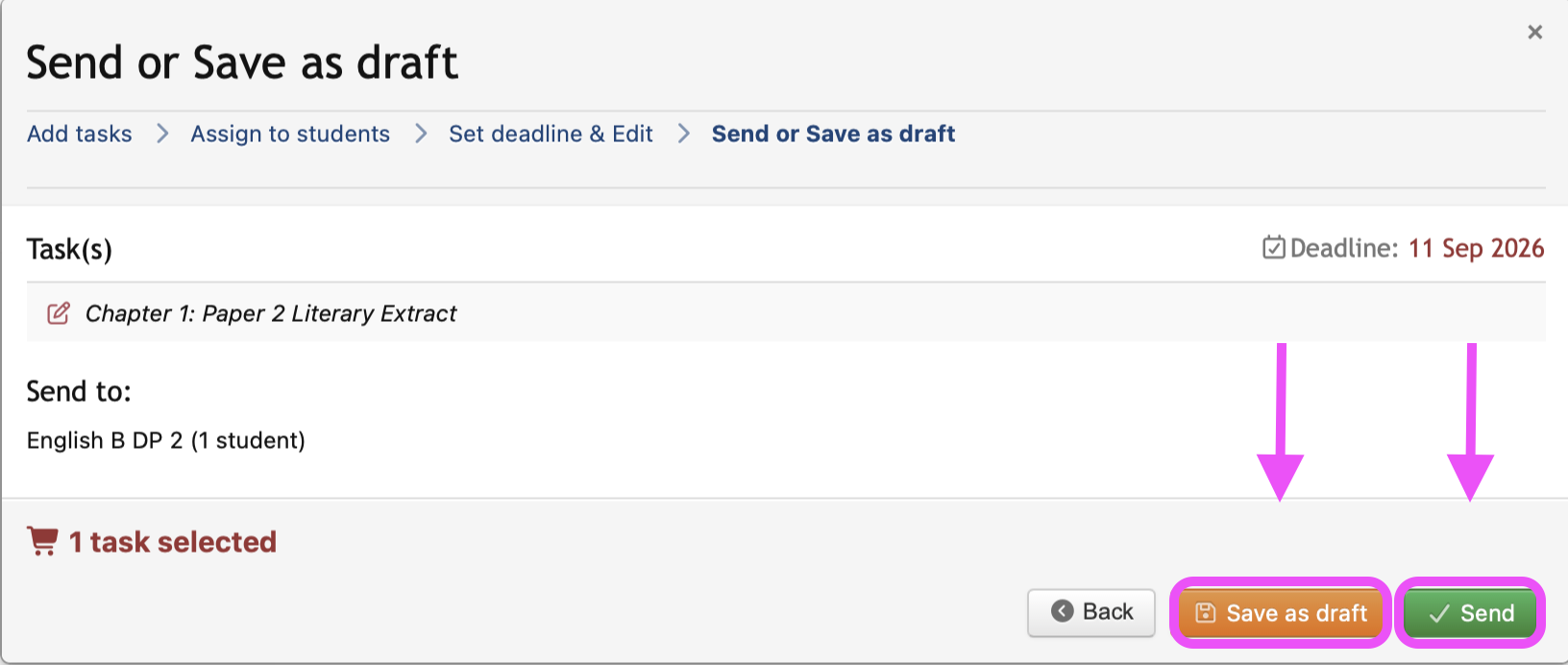
Now, you can either save it as a draft to assign at a later date, or click send to assign immediately.
Once the task is assigned, you can manage it in the Student Access Manager. From here you can mark, give feedback, extend the due date, or delete the task.
All materials on this website are for the exclusive use of teachers and students at subscribing schools for the period of their subscription. Any unauthorised copying or posting of materials on other websites is an infringement of our copyright and could result in your account being blocked and legal action being taken against you.