The top navigation for each of our subject sites standardly shows two “mega menus”: Teacher only pages and Student access pages. (Note that the Heads & Coordinators site and the Librarians site do not have Student access pages.)
When you click either of the headings, “Teacher only pages” or “Student access pages”, you immediately see their main sections and sub-sections. Clicking the [+] next to a sub-section reveals its child pages. If those child pages also contain children, the can be seen by clicking a further [+]. In this way, you can access any page on the site directly from the relevant mega-menu.
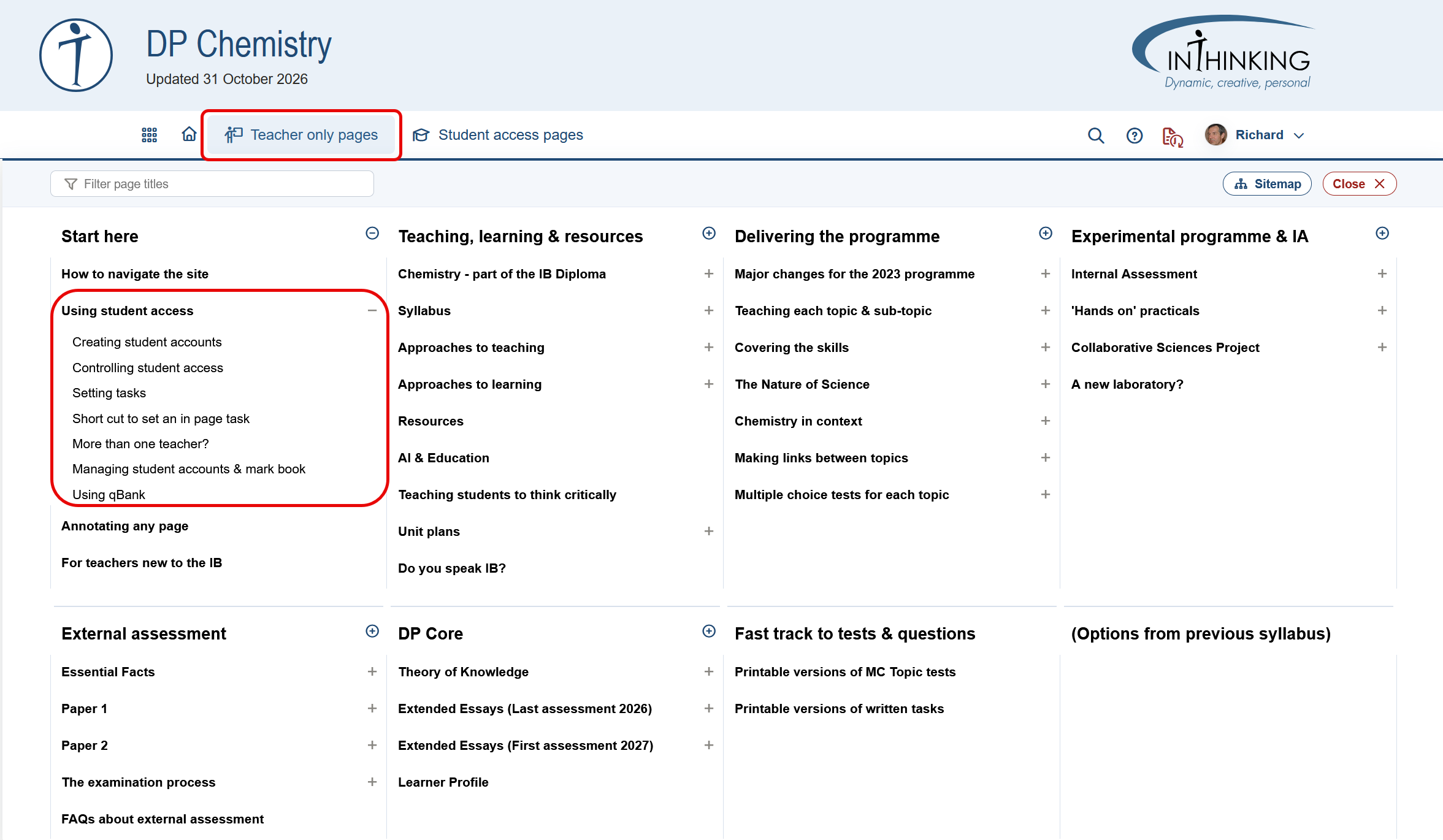
In the example below, showing “Teacher only pages” for Chemistry, the [+] next to “Using student access” has been clicked to show its children.
Note:
1. If you click directly on the title “Using student access” rather than the [+], you will be taken to that specific page.
2. To close a sub-section, click the [-].
3. To open all of the pages in a section, click the [+] in a circle next to the relevant title. To close all of the pages in that section click the [-] in circle.
4. To close the mega-menu, click the relevant heading again, or mouse over any part of the screen outside the menu, or click the the red “Close” button top right.
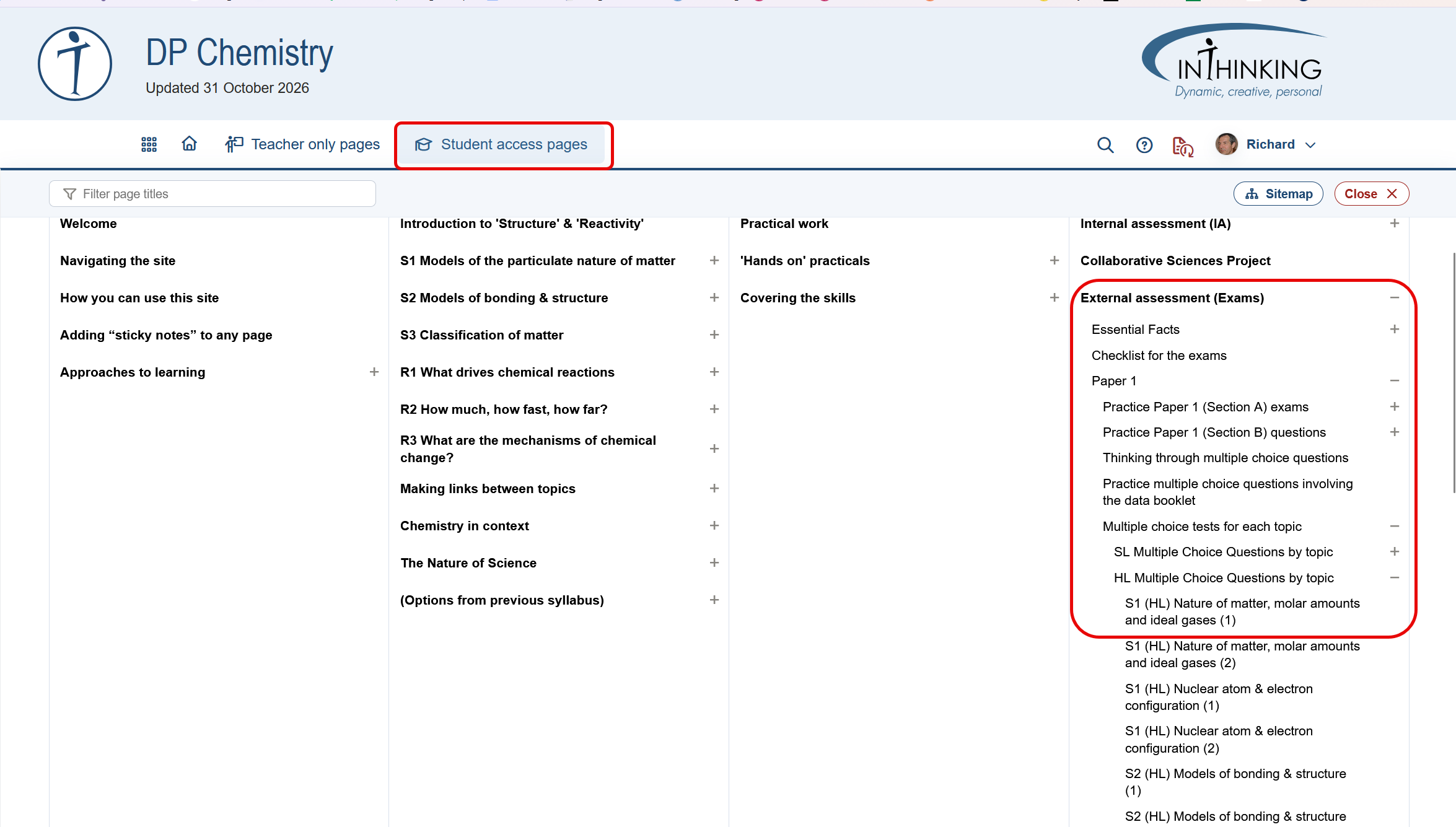
The mega-menu for “Student access pages” works in exactly the same way. In the highlighted section of the example below, you can see that the following sections and sub-sections have been opened sequentially:
External assessment (Exams) > Paper 1 > Multiple choice tests for each topic > HL Multiple Choice Questions by topic > S1 (HL) Nature of matter, molar amounts and Ideal gases (1)
Filter page titles
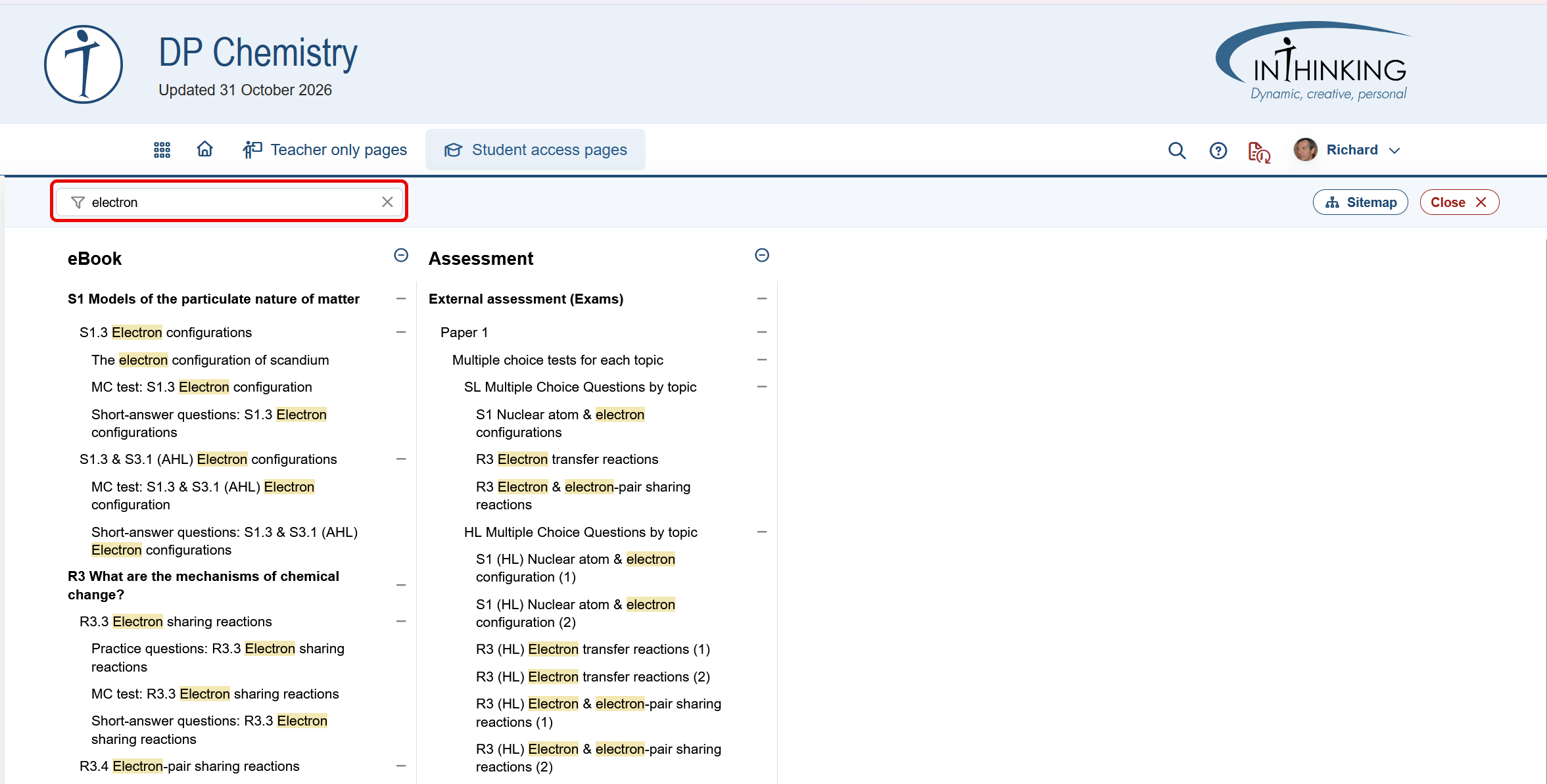
The “Filter page titles” field on the top left of the mega-menu allows you to quickly find a page title with a key word, such as “electron” in the example below in it.
x