To see the status of the tasks you have set for a particular group, go to My groups > [Group card] > Task manager. To see the status of the tasks you have set for all of your groups, go to All tasks.
Task categories
Tasks are grouped in six categories:
1. Active: A task before the deadline for which at least one student has not submitted their work.
2. Draft: A task that has been prepared but not yet sent to students.
3. Overdue: A task after the deadline for which at least one student has not submitted their work.
4. Awaiting grade: A written task submitted by all students where at least one student's work has not been graded. (See Grading tasks for more on how to grade written tasks.)
5. Completed: A task for which all required work has been submitted & graded.
6. Not required A task that one or more students are not required to complete.
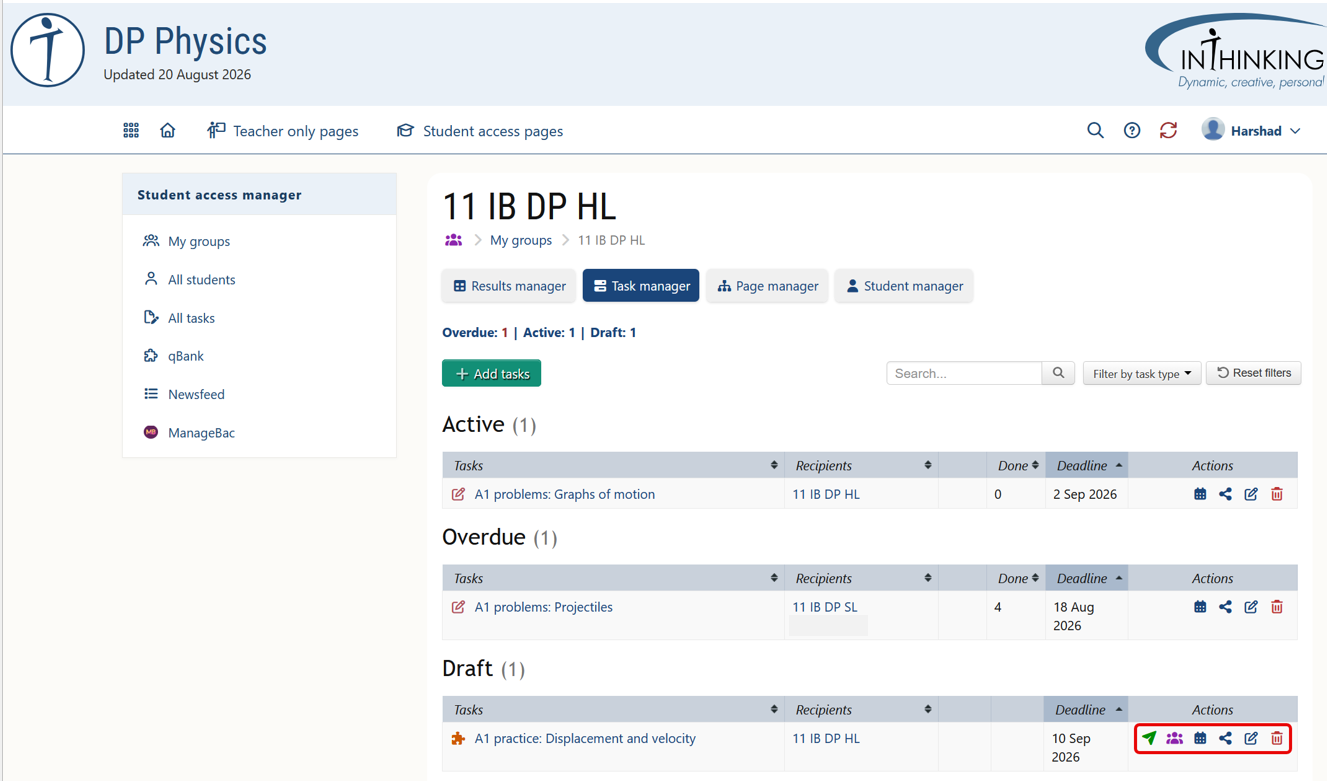
Here is an example of a group with active, overdue, and draft tasks:
Action buttons
The last column of the above table contains between 4 and 6 action buttons:
1. Send Send a draft task to the students.
2. Change recipients Change the recipients in a draft task before sending it.
3. Change deadline Change the deadline for active, overdue and draft tasks.
4. Share link with students Share task URL for active, overdue and draft tasks.
5. Edit Change task details for active, overdue and draft tasks.
6. Delete All tasks can be deleted at any point. This action cannot be undone.