Default view
When you open a group, the default view is the Results manager. This is an interactive online grade book which collates student grades for that group.
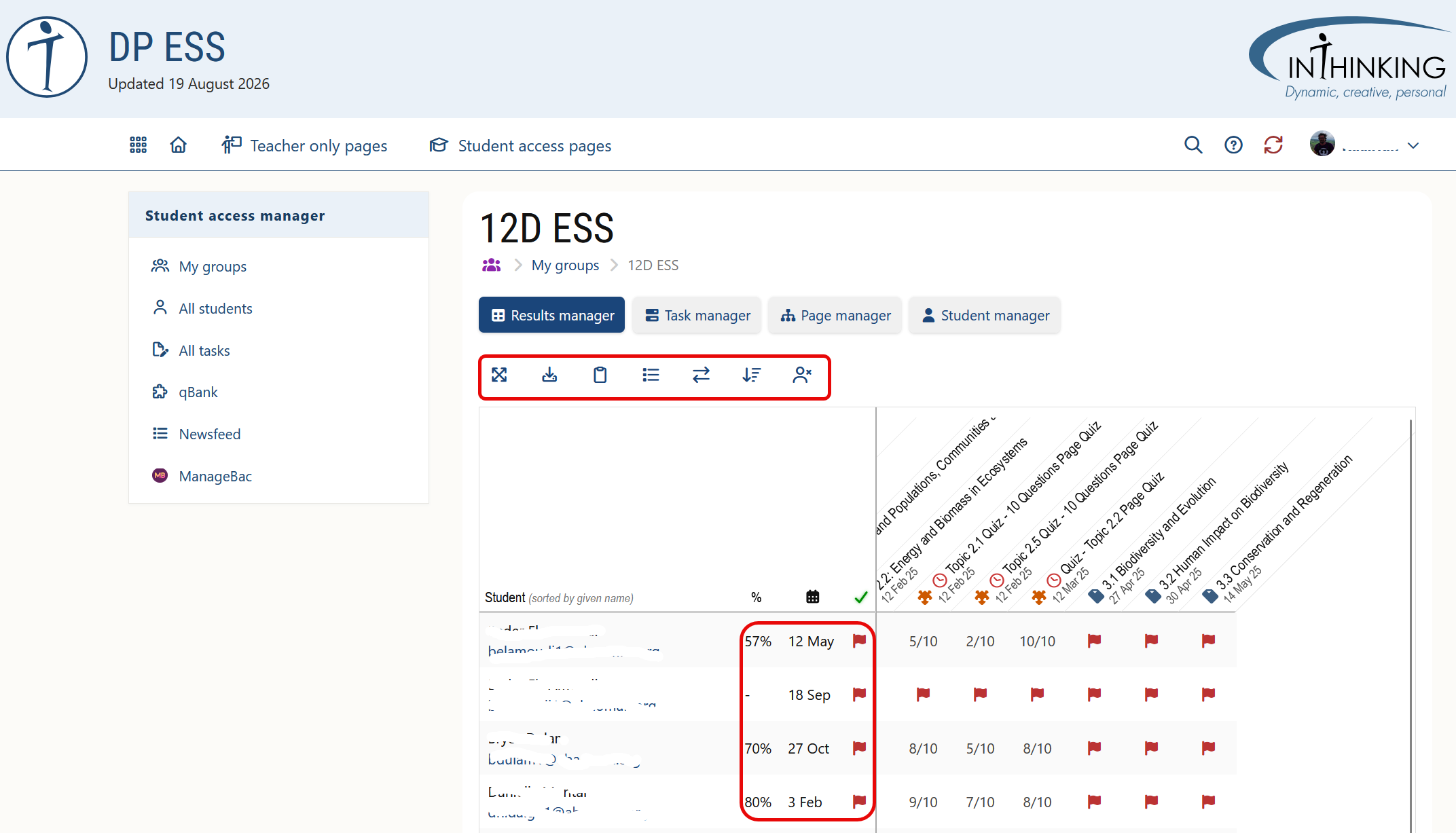
In-line menu icons
You can see icons for the following 7 options in the highlighted in-line menu:
- Toggle to full screen The grade book is often best viewed in full screen mode.
- Download grade book You can download the grade book in CSV format.
- Add external task You can manually add grades for external non-InThinking tasks to the grade book.
- Sort by... You can sort students by family name or given name.
- Change to... You can see grades in either default (e.g. 13/20) or percentage view (e.g. 65%).
- Order tasks... You can order tasks by the most recent or the oldest.
- Show/hide removed students If you remove a student from a group (see Student manager) you can choose to show or hide that student's results.
General data
The first 3 columns next to each student's name show:
- Average score This is a student's average score for all completed task
- Last seen The date the student last visited Student access.
- Task status A green tick indicates that all tasks are up to date; a grey dash that there are active tasks to be completed; and a red flag that at least one task is overdue.
Task data
By default grades for tasks are ordered by student name; but you can reorder grades by clicking on the task name at the top of the table and then clicking Sort by grade.
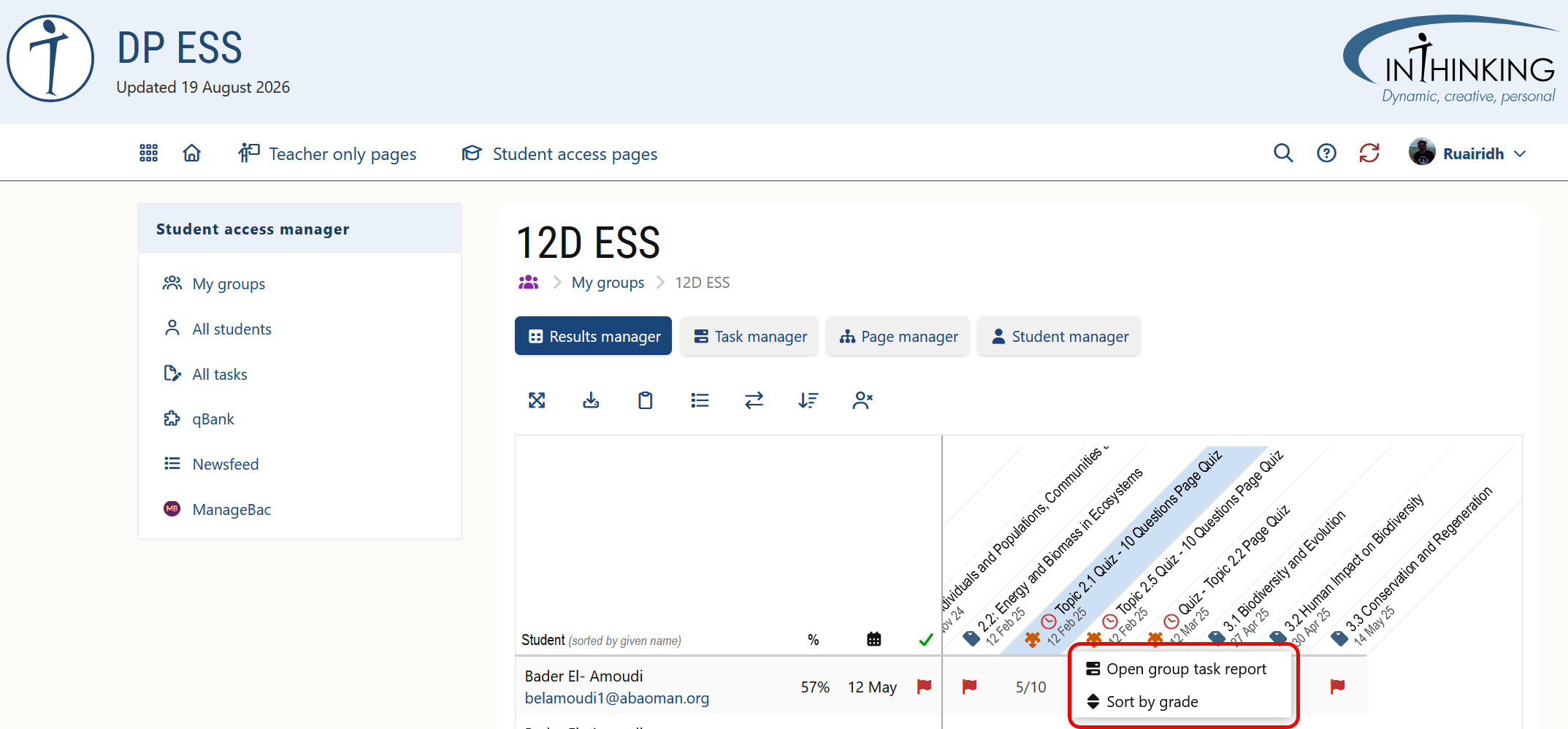
You can also open the report for any specific task by clicking on the task name at the top of the table and selecting Open group task report.
Grade book symbols
In each cell in the grade book, you will see one of six things:
- Grade This will be either a percentage grade or number grade (i.e. X out of Y). A grade in red indicates that it was submitted after the deadline.
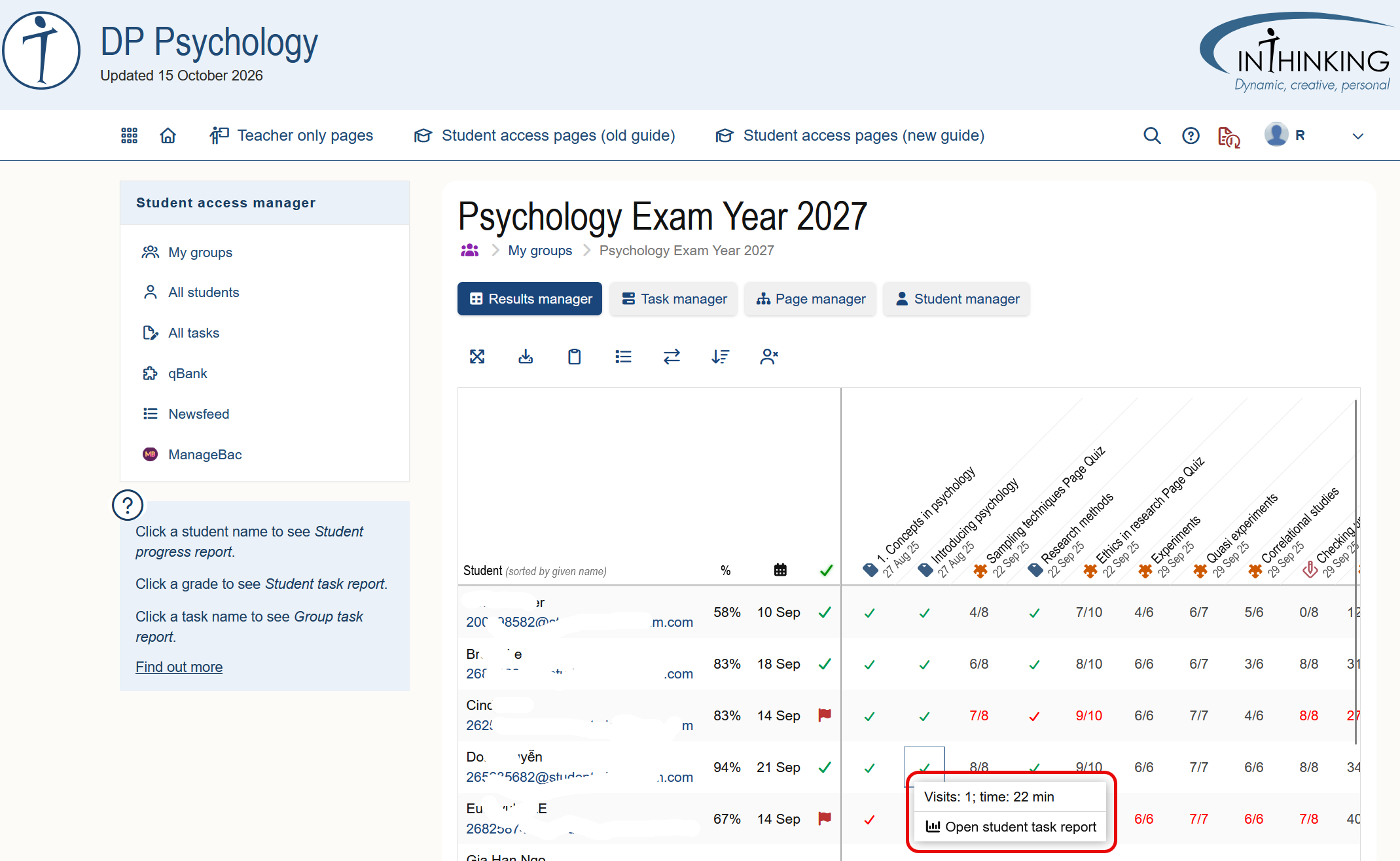
- Green tick This indicates a reading task that a student has marked as "Done." (If you click on the tick, you can see the time the student spent on the reading task and the number of visits to the page.)
- Hour glass This indicates a writing task which has been submitted by the student but has not yet been graded by the teacher.
- Grey dash This indicates an active task - i.e. a task prior to the deadline which has not yet been submitted by the student.
- NR This stands for "Not required" and indicates a task that a student does not need to submit. (If a student decides to complete a not required task, the grade will appear in the grade book.)
- Red flag This indicates an overdue task that has not been completed by the student.
Clicking on a grade
If you click on an individual grade in the grade book you can do different things depending on the task type:
Reading task
- Open student report This gives a detailed breakdown of the time spent and the visit history.
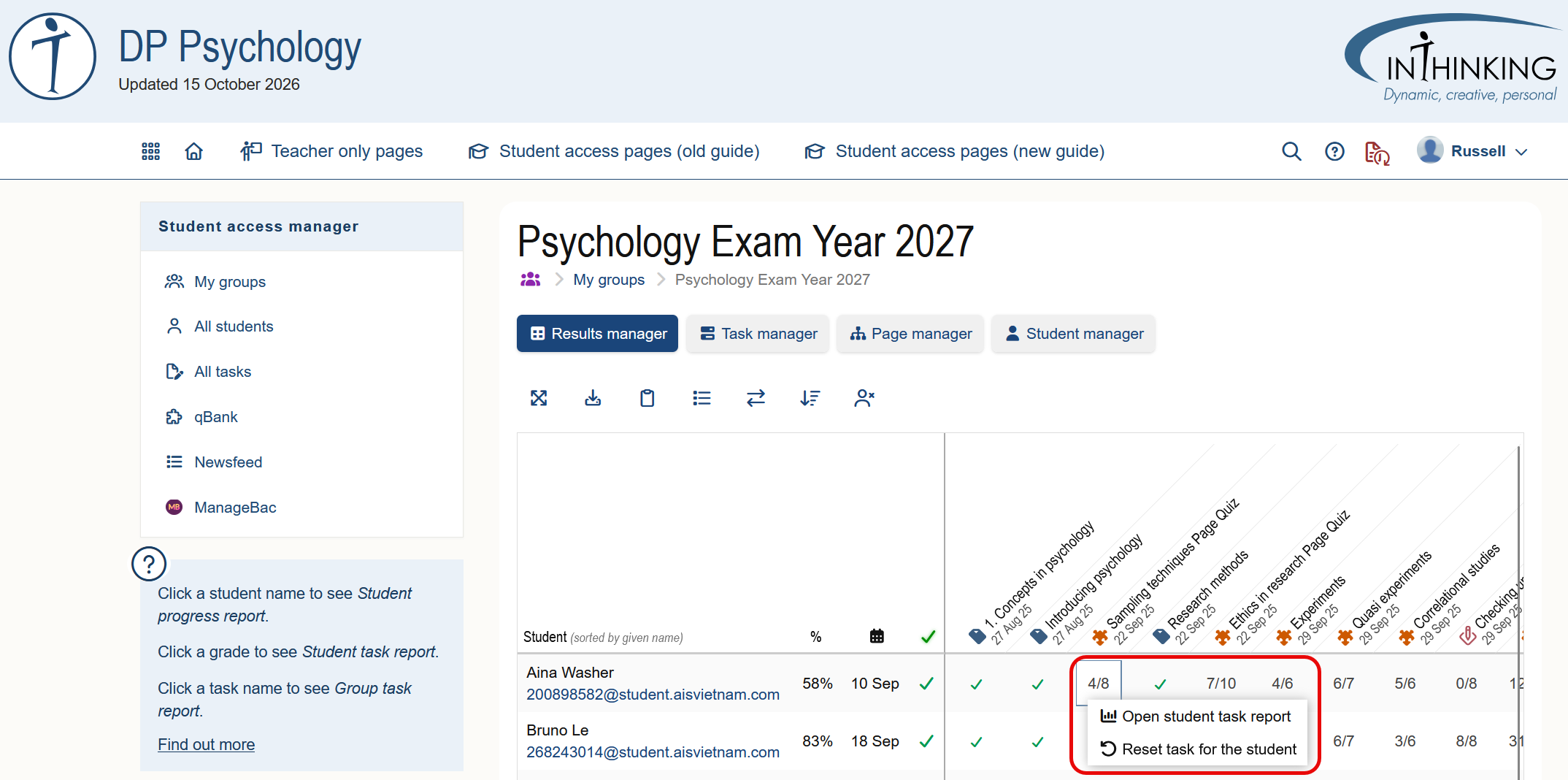
Quiz task/ written task
- Reset task This allows a student to repeat a task, e.g., to improve their score, or because they submitted it by mistake.
- Remove overdue flag If you click on a red overdue flag, you see the option “Remove overdue flag.” When you click on it the red flag changes to NR meaning “Not required”.
To see the results for all students across all of your groups for a particular task, go to the Task manager and open the relevant task report.