This page shows a list of teachers who have accounts for all the subjects that you manage.
From here you can perform the following actions:
- Create a teacher account for a teacher
- Create a teacher account for a manager
- Transfer a teacher account
- Remove a teacher account
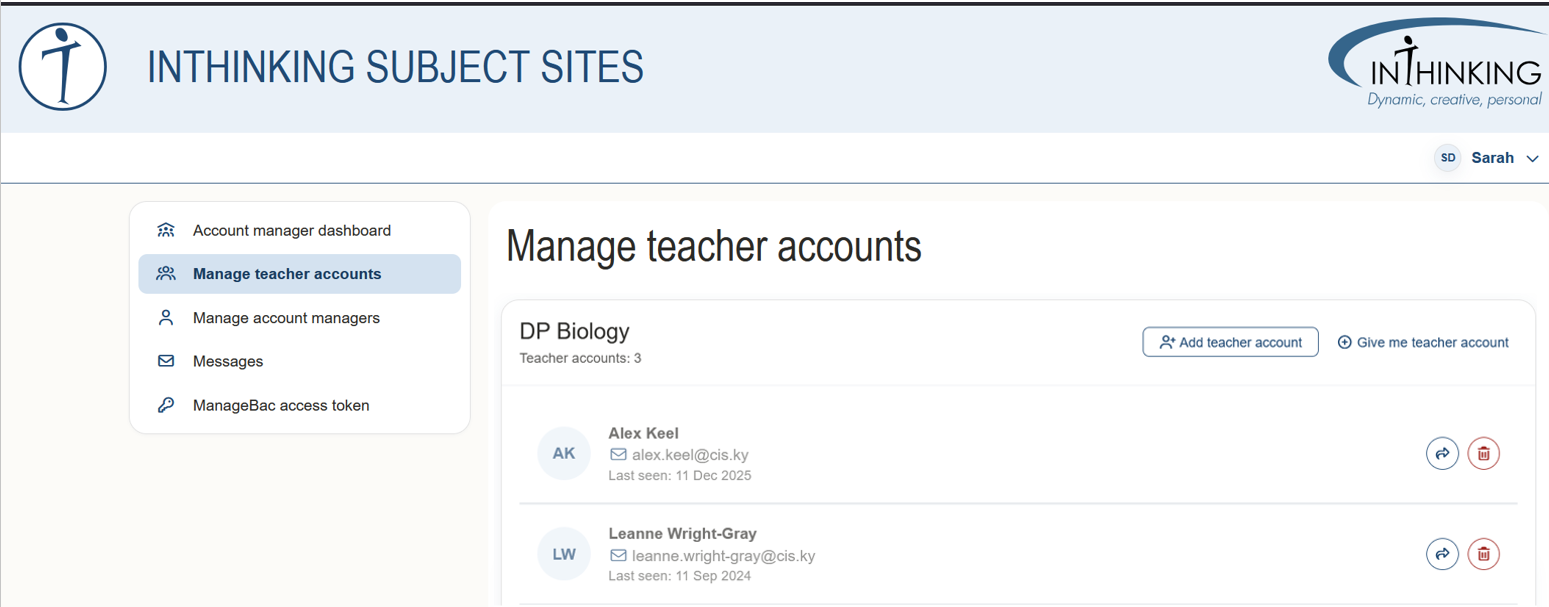
1. Create teacher account for a teacher
Click the Add teacher account in the relevant subscription. Then complete the email of the new teacher and click Send. An activation link will be sent to the new teacher.
2. Create teacher account for an account manager
A account manager does not automatically have a teacher account for the subjects they manage. As account manager, you can give yourself a teacher account for a subject by clicking Give me teacher account. Your teacher account will be activated automatically, and your name will be indicated in green colour on the relevant subject card.
3. Transfer a teacher account
To transfer a teacher's account to another teacher - e.g. because a teacher has left the school and someone else is picking up their classes - click on the arrow next to the red trash bin in the right hand corner of the teacher's card. Then fill in the details of the new teacher and click Send. An activation link will then be sent to the new teacher.
4. Remove account
To remove a teacher account, click on the red trash bin in the right hand corner of the relevant card. This will erase all data not only about the teacher's account, but also about their associated classes.