The teacher site at http://thinkib.net is divided into two main sections: Teacher only pages and Student access pages. Students can only access the latter. They do so by logging in to a separate student interface called InThinking Student Hub which can be found at:
Student Dashboard
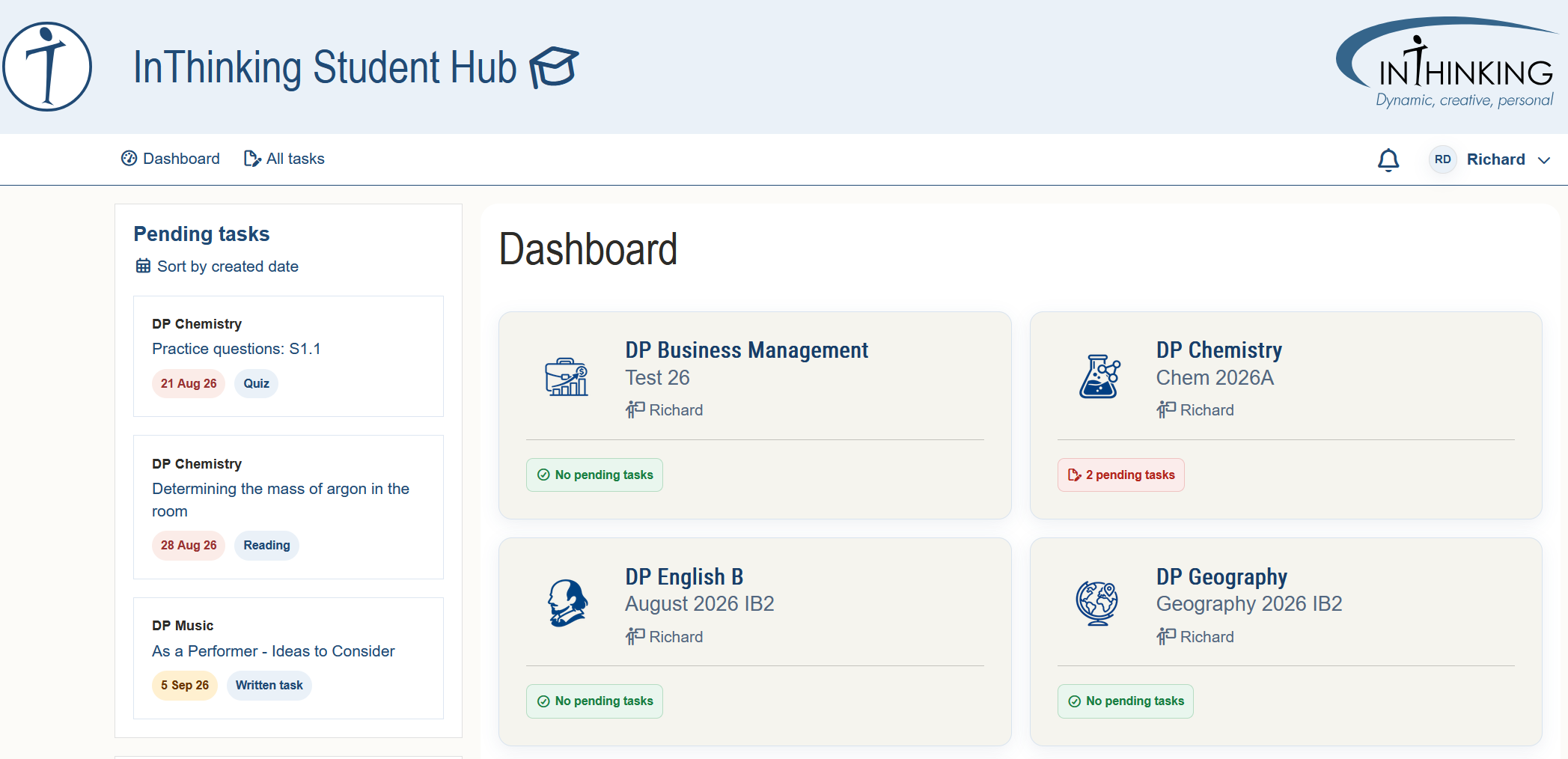
When students log in, they land on their dashboard. The left hand column shows their pending tasks. The right hand column shows subjects to which they have access rights. (A teacher needs to invite them to join a subject group before they can access it.)
All tasks
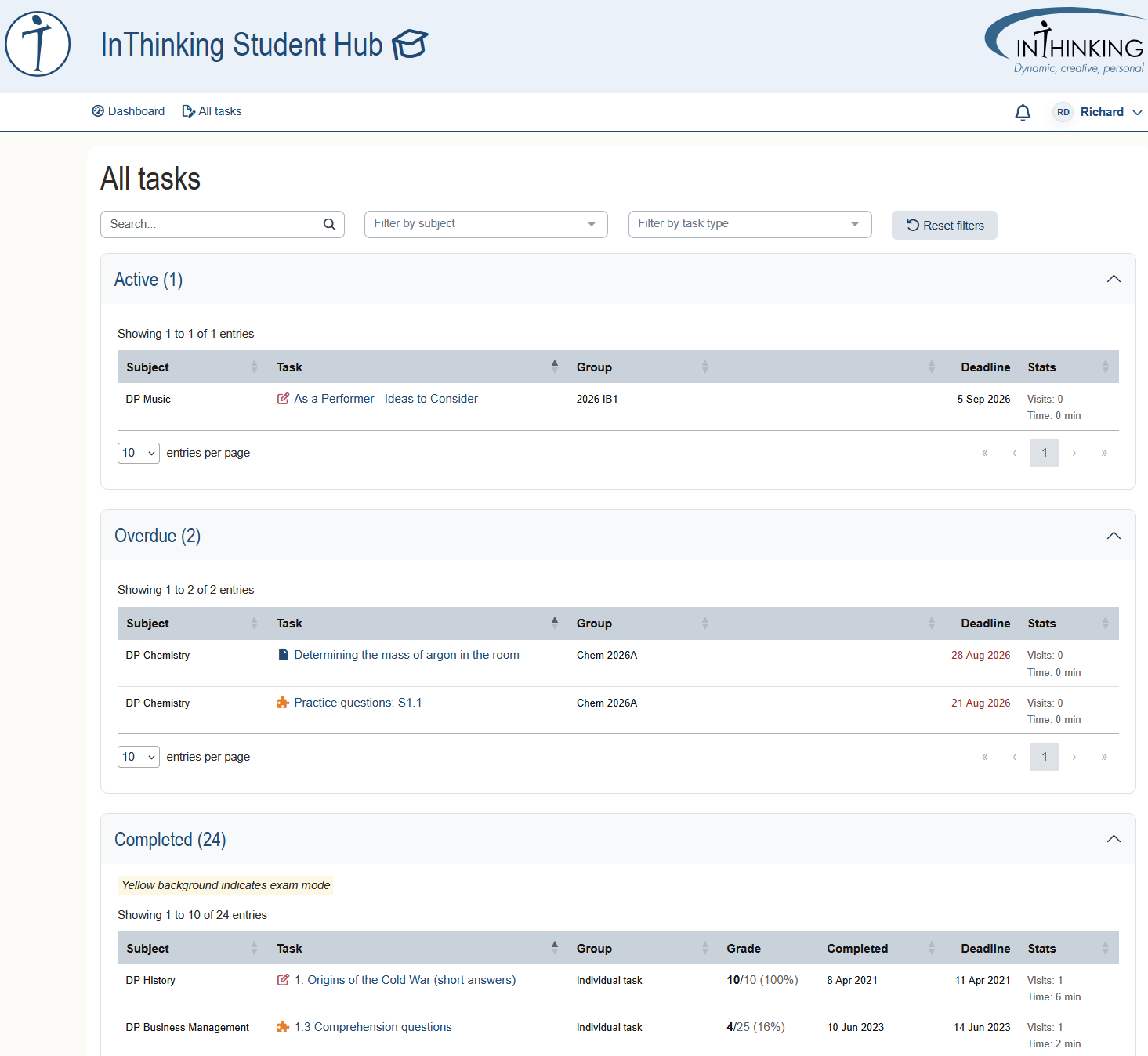
Students can check all of their tasks for all of their subjects by clicking the All tasks tab in the top men of the dashboard. Assigned tasks are grouped under the following headings: Active; Overdue; Completed; Not required.
For each completed assignment, students can see their score and a detailed breakdown of which questions they got right and wrong.
Subject home pages
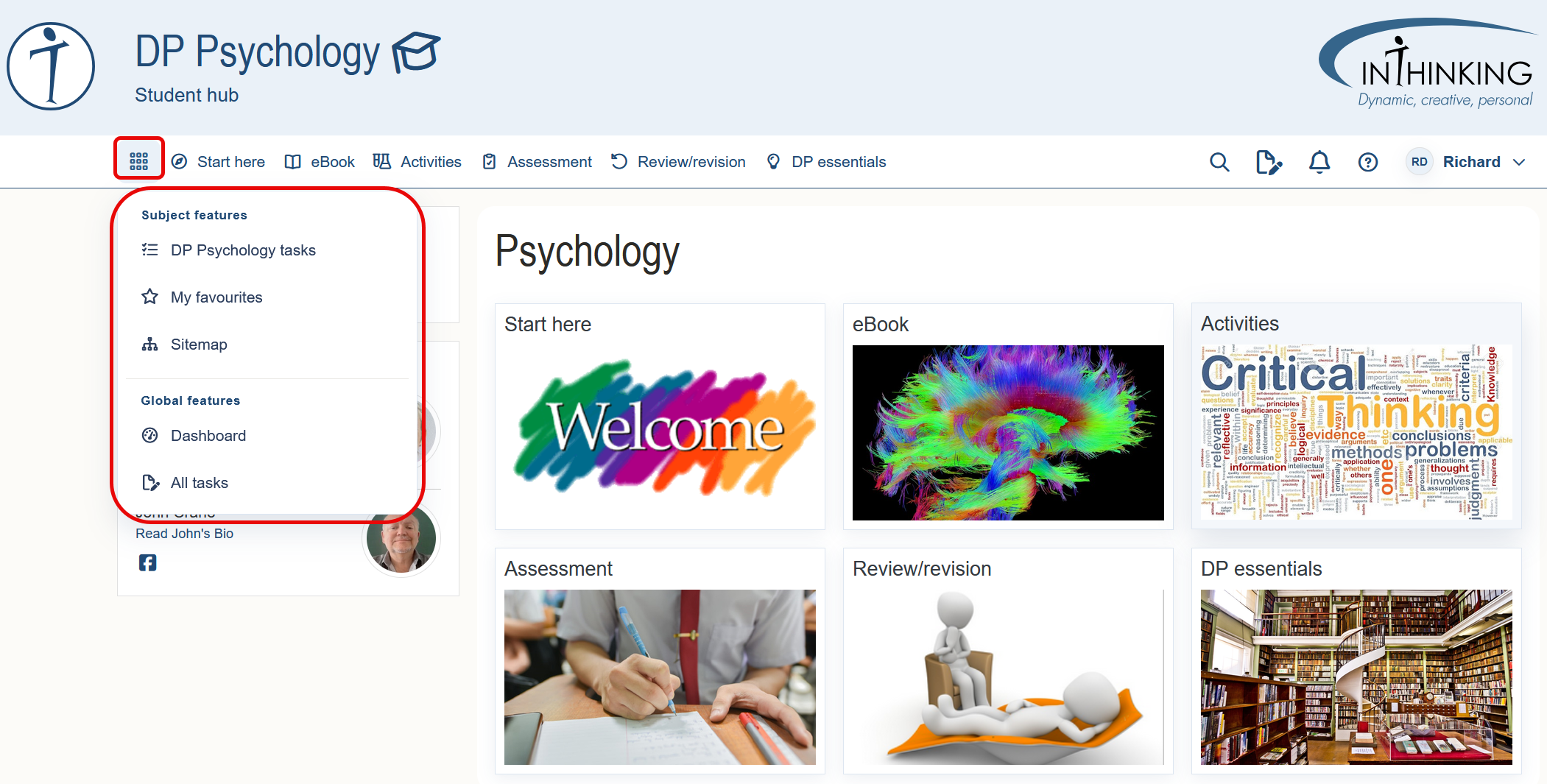
When a student clicks on a particular subject on their dashboard, it takes them to the home page of that subject. From here they can easily navigate to the main sections of the site by clicking on the tiles in the central column.
Top menu
The top menu appears on every page and contains the following items:
1. Waffle menu When a student clicks on the waffle icon, they can select from the menu highlighted above
2. Subject sections Although there are some exceptions, student pages are standardly divided into the following sections: Start here; eBook; Activities; Review/revision; DP essentials.
3. Search The student search works in the same way as the teacher search and can be a useful aid to navigation. (Of course, search results do not include any teacher only pages.)
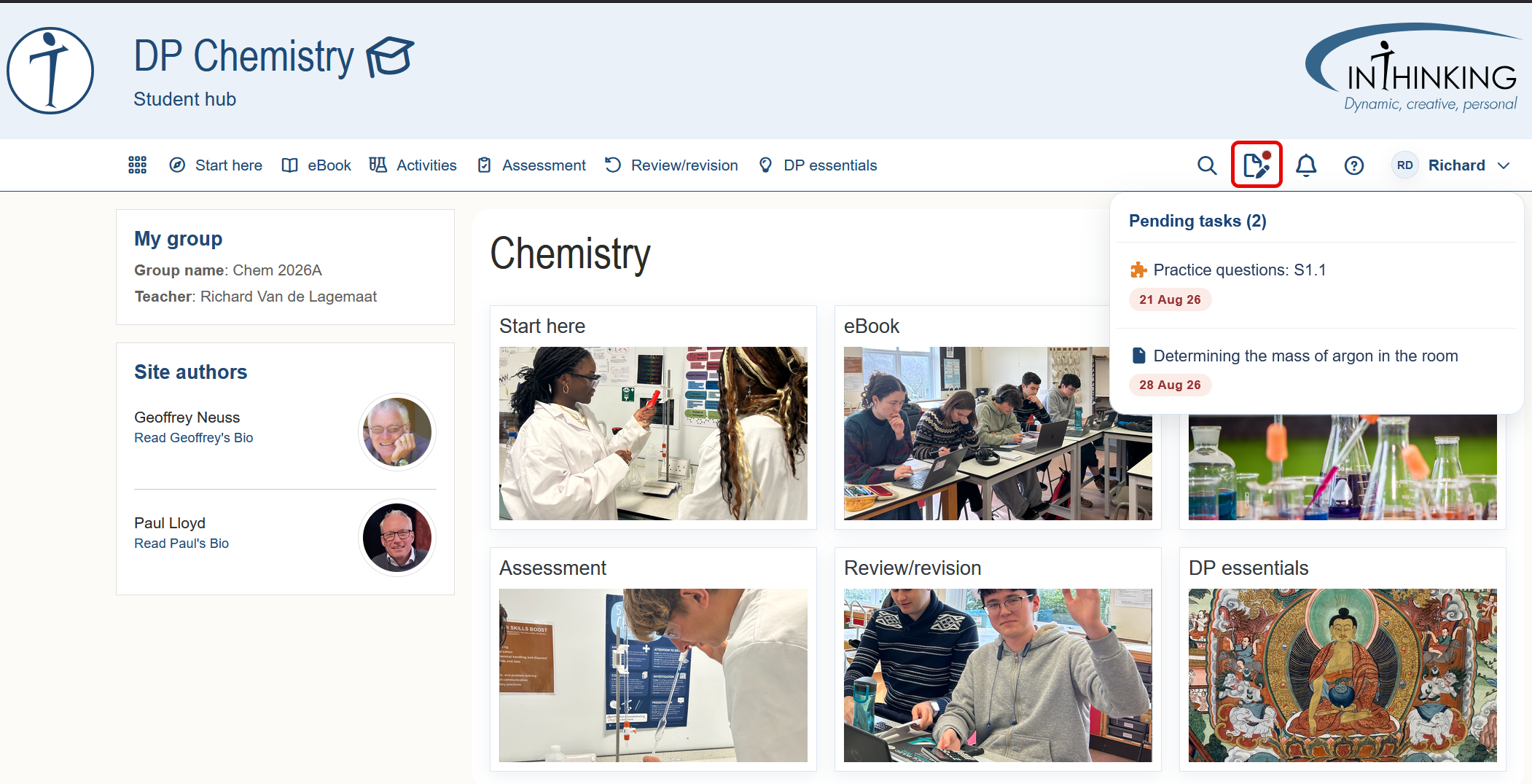
4. Pending tasks When a student clicks this icon, they can see a drop-down list of any pending tasks that they have for this subject. Dates highlighted in red indicate overdue tasks (see screenshot below).
5. Notifications Notifications are any messages sent to a student by a subject teacher. This might include a grade or comments on a written task, or a direct message.
6. Help
7. My profile This allows a student to view and edit their user details.