The site map can be accessed from any page by clicking on the waffle menu - which can be found on every page - and selecting it from the drop-down. With the exception of the Heads & Coordinators and Librarians sites (which do not have Student access), you will, in fact, find two separate site maps, one for "Teacher only pages" and one for “Student access pages”.
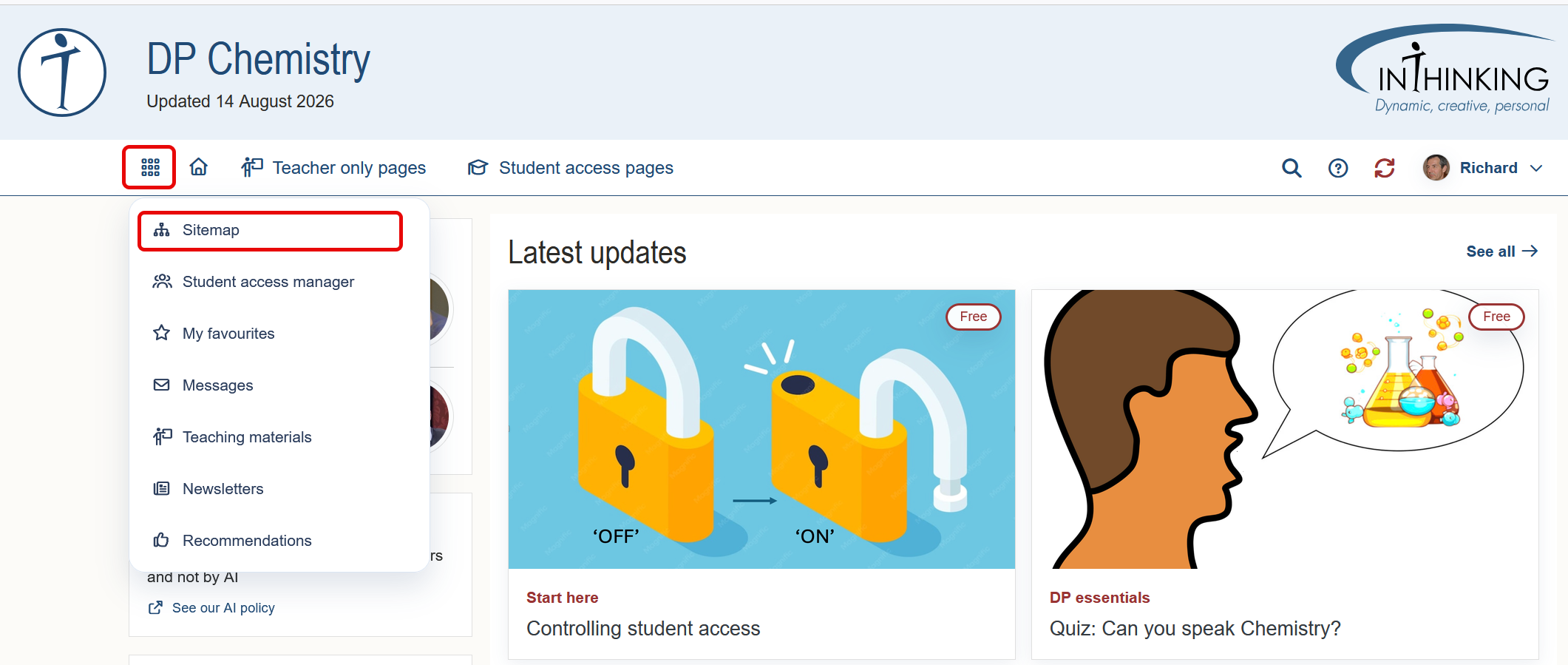
Each site map gives you a clear sense of how the relevant pages are organised. Click on any page title and you will be taken directly to that page.
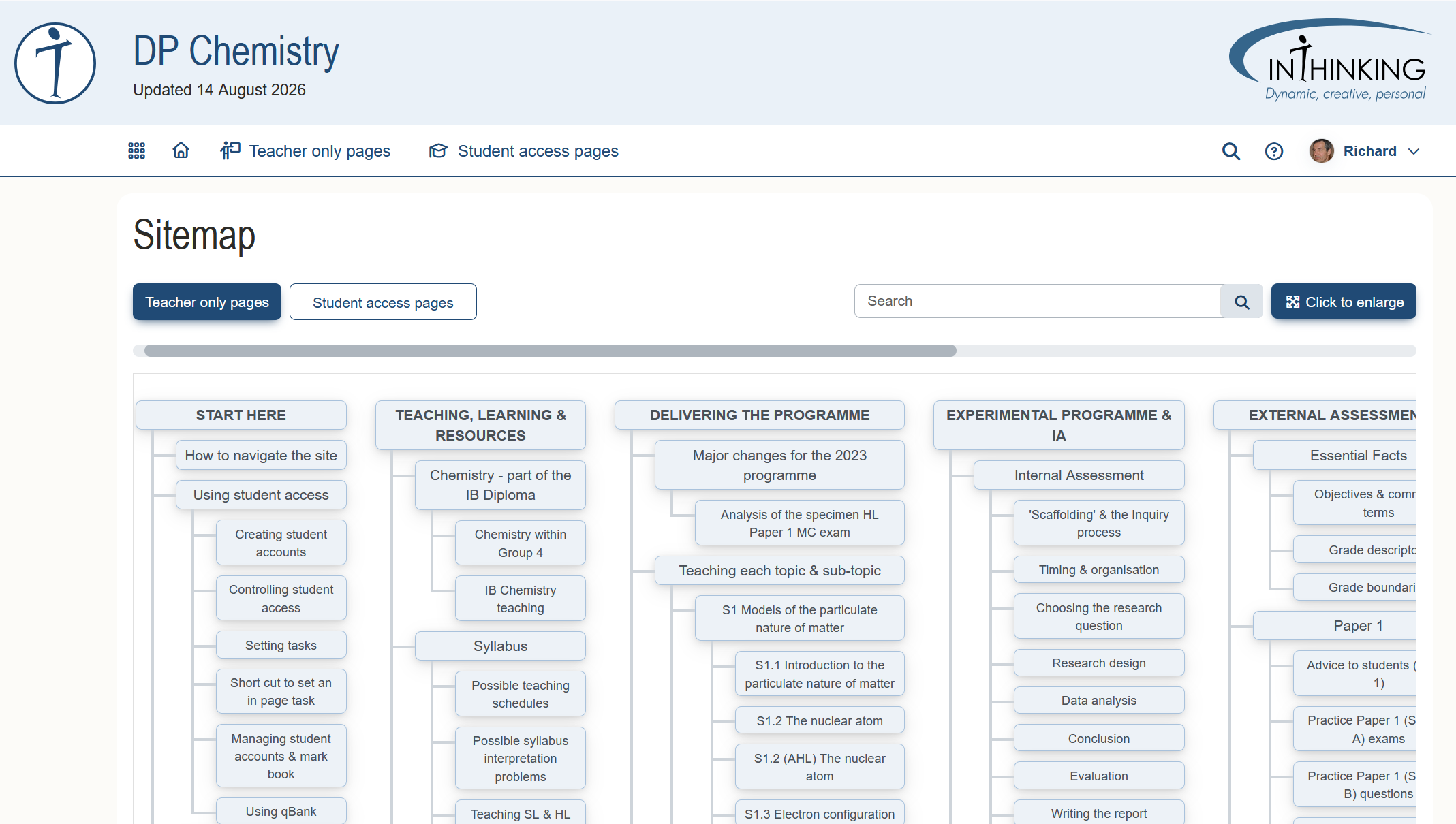
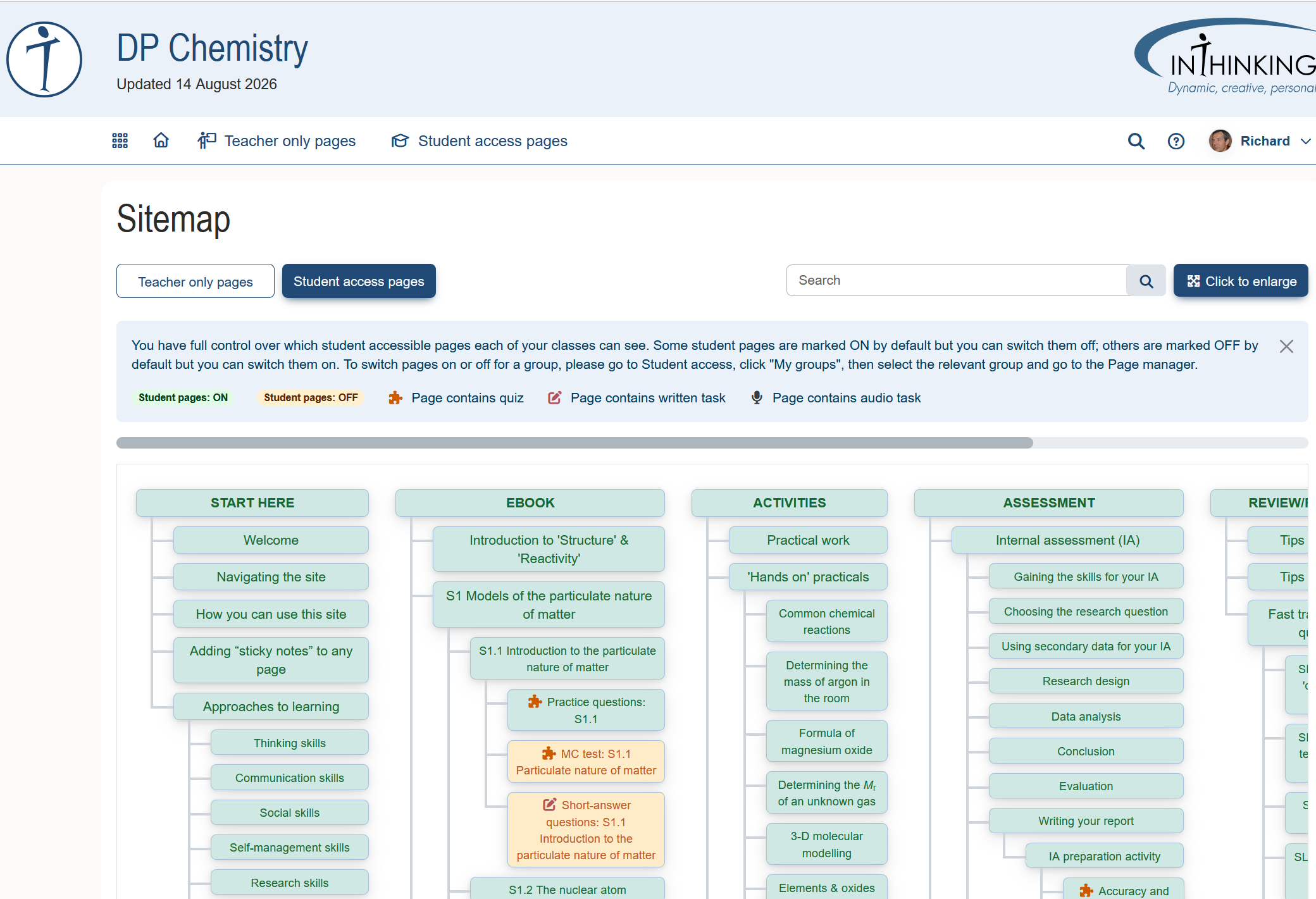
As you can see on the Student site map above:
- Titles are colour-coded green for default-ON and and orange for default-OFF. These defaults are initially set by the site author, but you can switch any page on or off for a group. (Default-OFF pages typically contain tasks which you do not want students to see in advance.) You can switch student pages on or off for a group by going to "My groups", clicking on the relevant group and then clicking "Page manager".
- Some page titles have an icon next to them which indicates that the page contains a written task or a quiz task.