Setting a custom essay
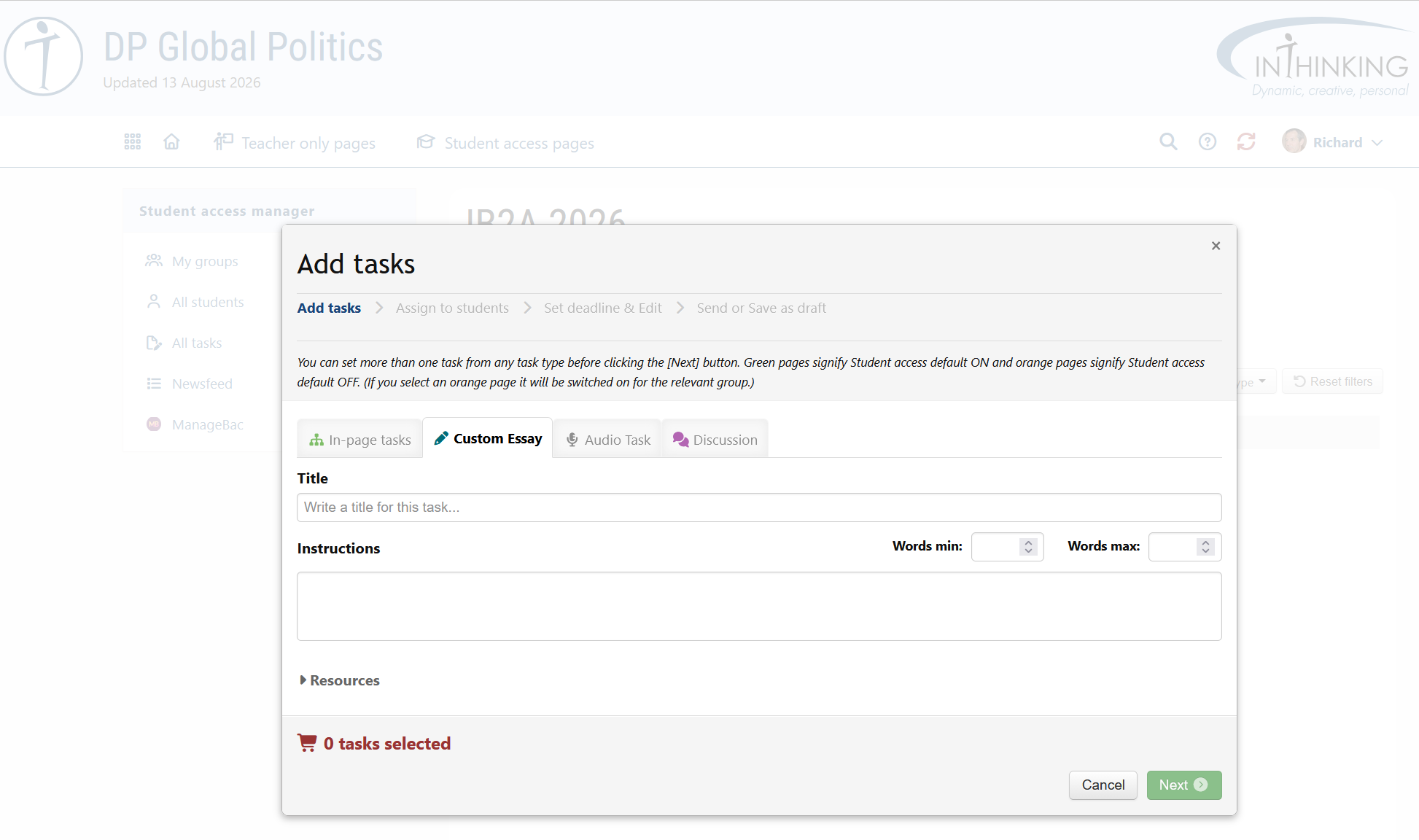
You can set a custom essay for your students which they write and deliver to you online. You can then read, grade, and annotate the essay and return it to them online.
You must write a title for the essay. There are also options to add the following:
- Word count you can specify the minimum and maximum number of words required.
- Instructions you can add further information on what is required.
- Resources related content either from the subject site or from external sites.
What Students see
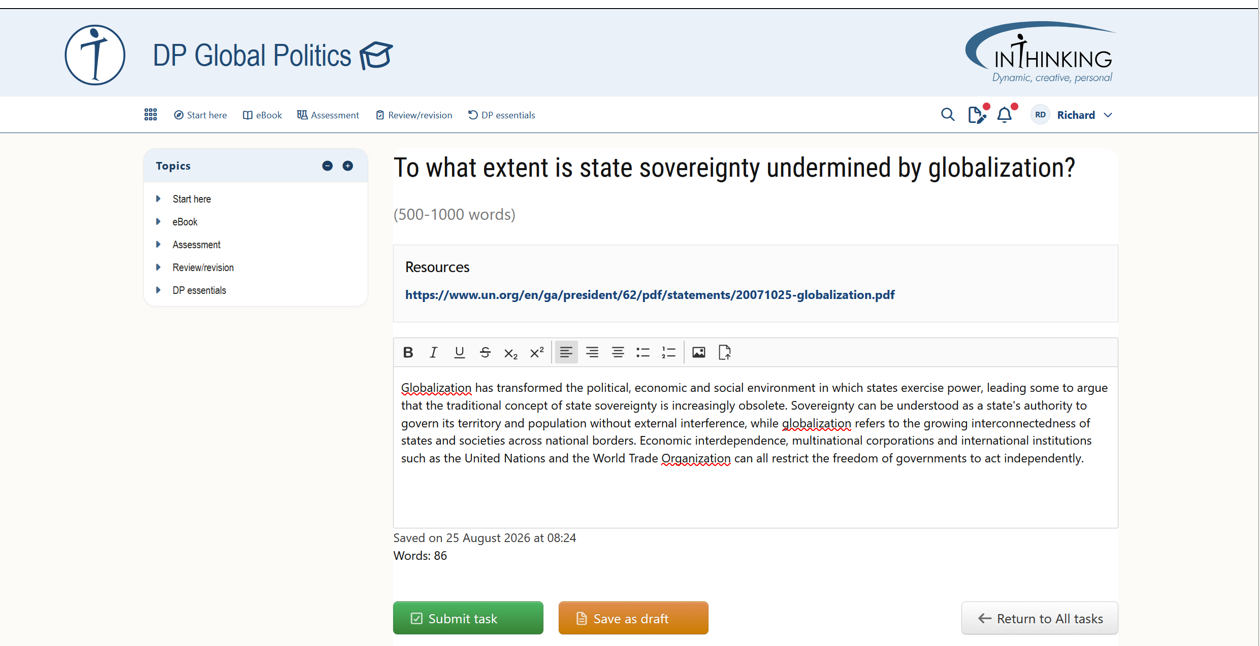
When they go to their Student pages dashboard at student.thinkib.net, students will see a list of their active and overdue tasks in the All tasks page
When they click on the task, a text editor opens and they can write and submit their work. They will also see links to any relevant resources.
Adding an image to a written task
To add an image to a written task, click the cursor inside the text field to show the toolbar. Then click the image icon. On your hard drive, navigate to the image you require and double click it. It will then appear in the text field.
To resize the image, drag the square handles in each corner. (The aspect ratio will be maintained.) Click on the image to see alignment options (left, centred, right etc) and to add a caption.
(Note that images are automatically resized and compressed when they are uploaded. The maximum width and height is 1920px. Higher resolutions will be scaled down to the maximum.)
Grading the task
As soon as a student submits a task it will appear in the Newsfeed section of your Student access manager. You can open the submitted task directly from the Newsfeed.
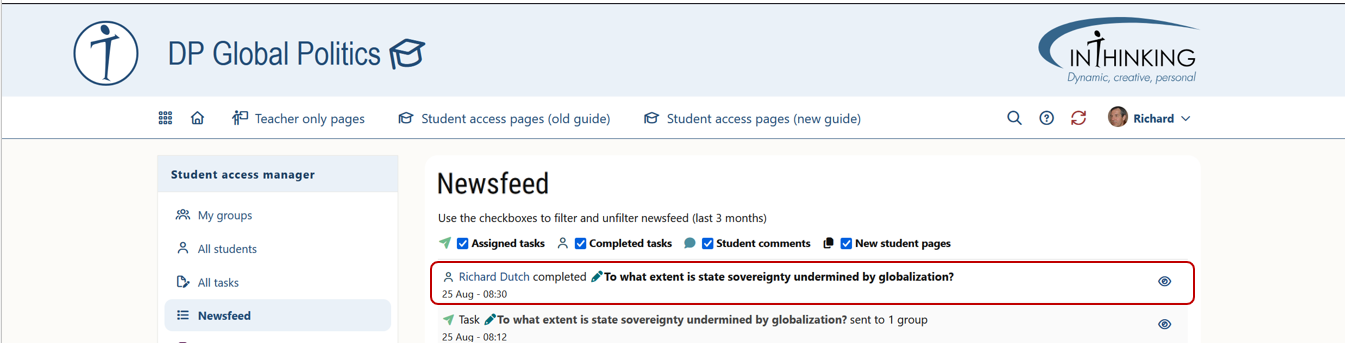
Alternatively, you can go to the Task Manager of the group in question, or to All tasks and click on the task. This will open the Group task report where you can grade the task.
In-line comments
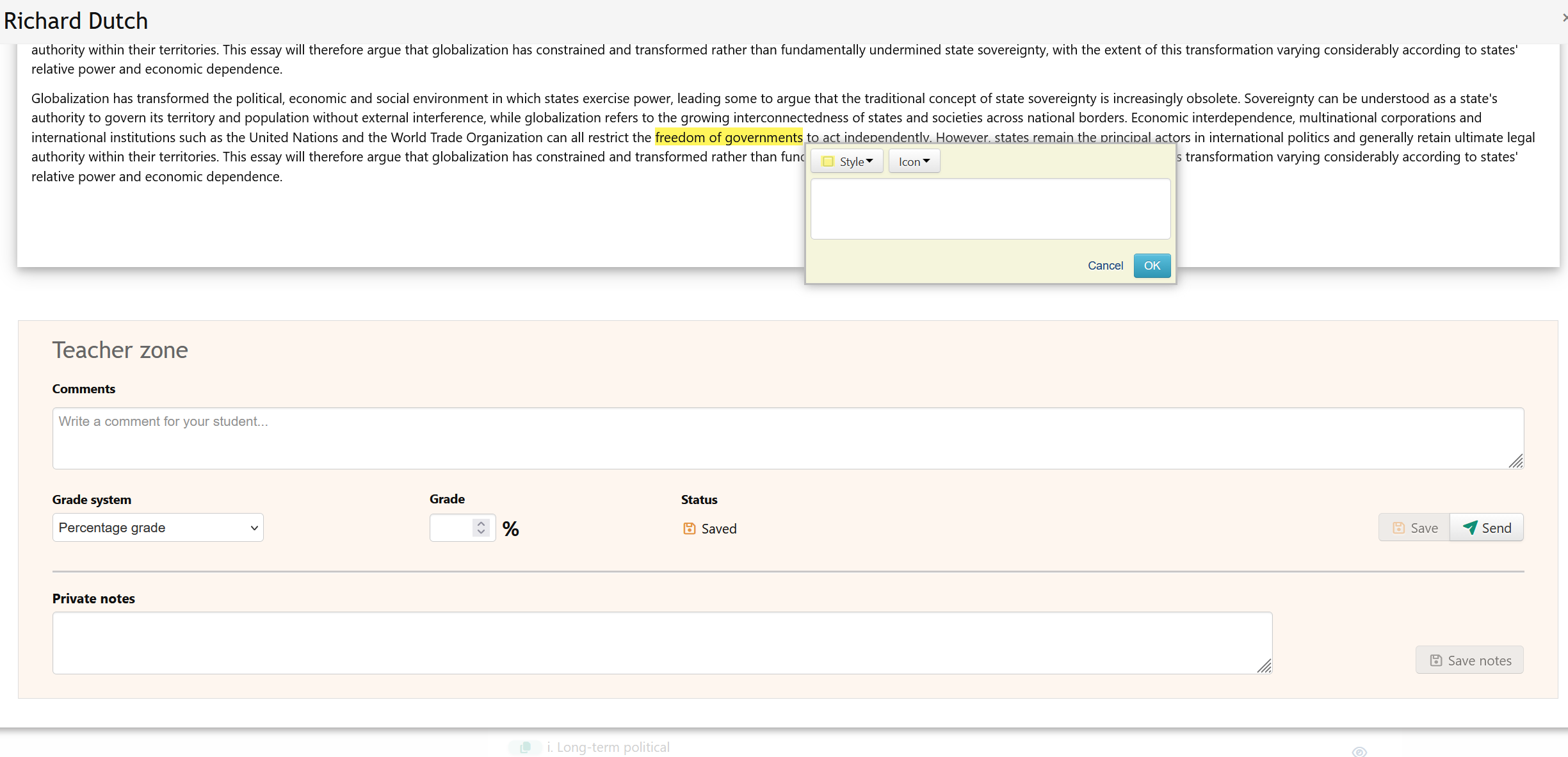
To add in-line comments to the students work, highlight the relevant words and a text box will open in which you can write your comments. If you click on "Style" or "Icon", you can change the highlight colour, use strike-through and add various kinds of icons. Teacher comments appear with a pink background after the highlighted text:
Teacher zone
In the Teacher zone at the bottom of the student's work, you can also add end comments, give the essay a number grade or percentage grade, and add private notes.
In-line comments, end comments and grades can be saved (orange button) or sent directly to the student (green button). (The "Save" option is useful if, for example, you want to grade all of your students' work before sending any of it back to them.)
Comments and grades can be saved multiple times, but once you send them to students, the Save feature is no longer available for that task. The next comments and grades can only be sent back to the student.
When you click on the task name in "All tasks" or in the "Task manager" for the relevant group, you are taken to the Group task report.
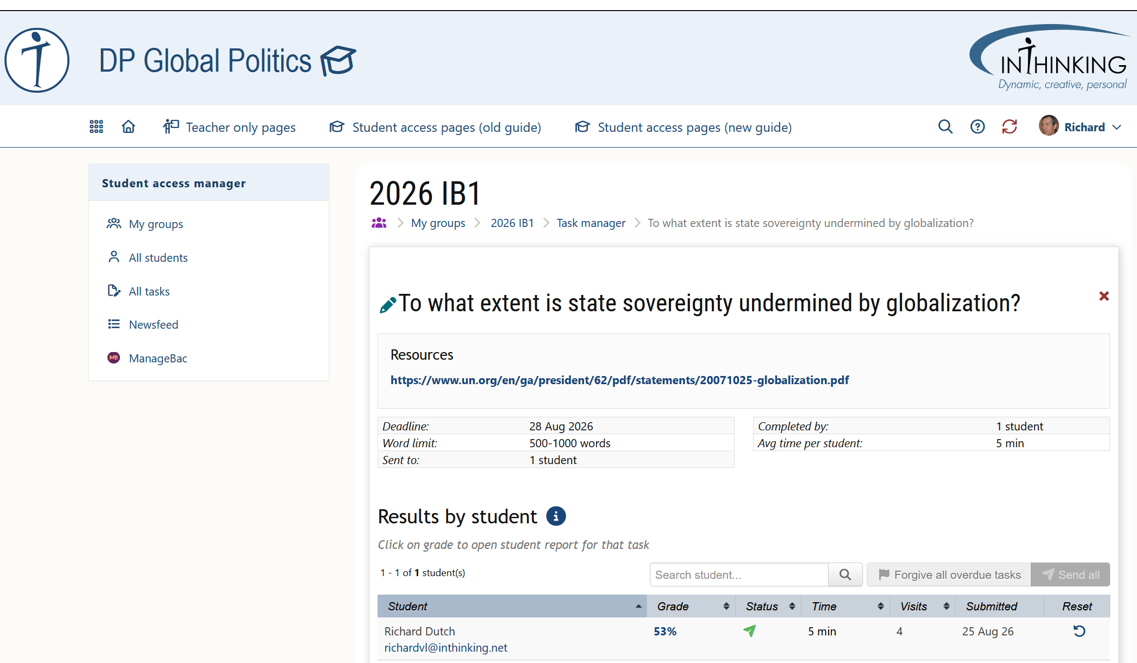
The "Results by student" table helps you to keep track of which tasks have been already saved or sent:
- A floppy disk icon means that the task has been saved but not sent yet.
- A paper plane icon means that the task has been sent.
The green Send all button will send all tasks in the table that are marked with the floppy disk icon. This way you do not need to open all the tasks one by one in order to send all saved comments and grades back to the student.
When you click "Send", the essay will be returned to the student. If they wish, they can then reply to your comments.