Types of pages
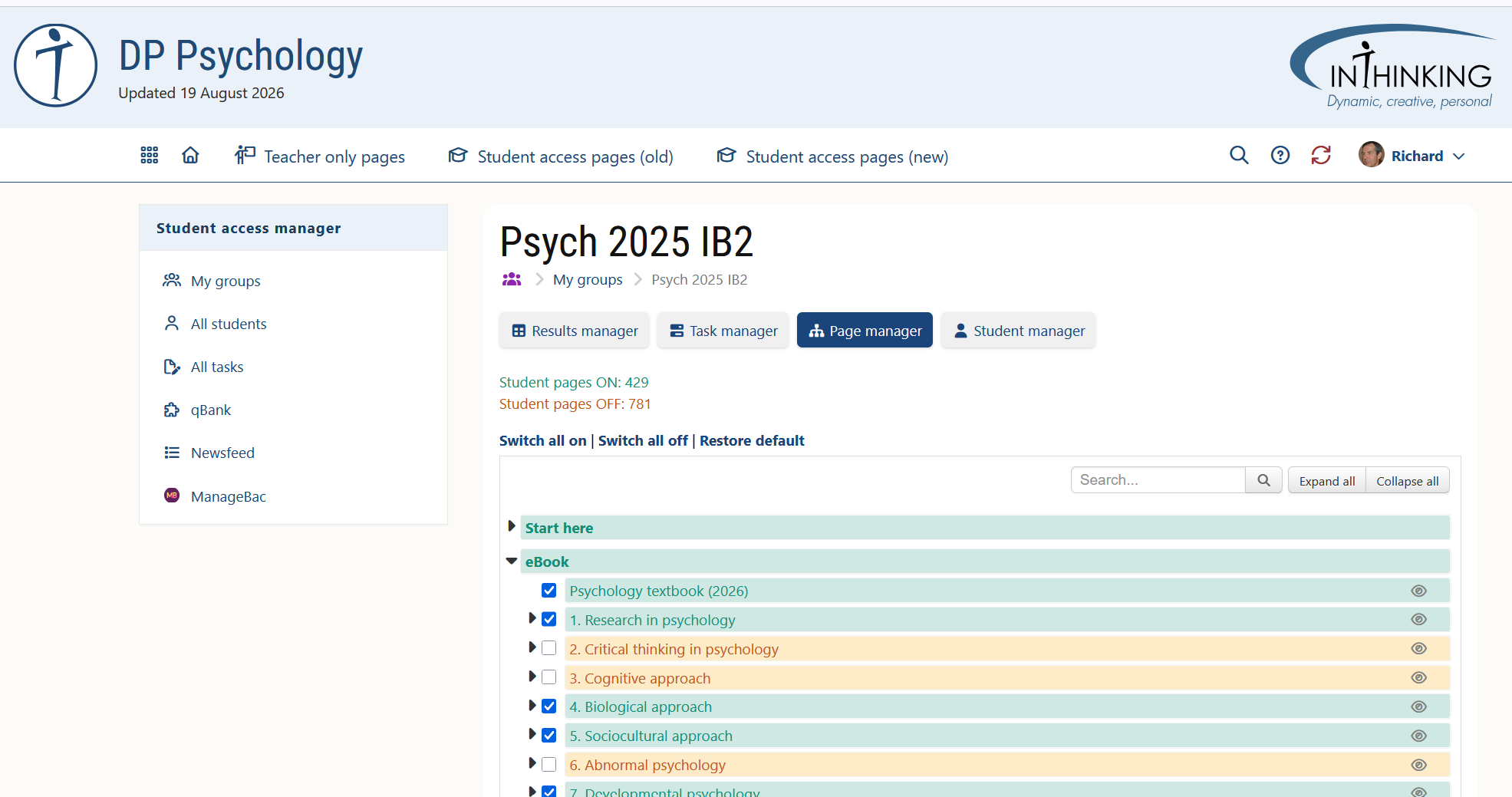
When you set up a group for the first time, green "default-ON" student pages will automatically be available to students, but you can switch any of them OFF. You can also switch any orange"default-OFF" student pages ON. The initial default configuration is set by the site author. Default-OFF pages typically contain which you may not want students to see until you set them.
Switching student pages on & off
To switch pages ON or OFF for a group, select the group from "My groups" and then click the "Page manager" button. You will then see the list of available pages. To make any orange "default-OFF" student pages available check the relevant boxes; and to switch any student pages off uncheck them. When you have finished, click the green Save button at the bottom of the page. When you switch a student page on, the page bar turns green; and when it switch it off, it turns orange.
Note:
- If you click on a page containing children pages you will be asked whether you want to switch the whole section ON or OFF, or just the page selected.
- You can also switch all pages on or off in one go, or restore the original default configuration set by the site author by clicking the relevant link. (You should be cautious about switching all pages on as some may contain answers to questions.)
- Among other things, the Newsfeed (the last item in the left hand menu of the Student access manager) informs you of new pages that have been added to the site. You can then make these available to students as required.
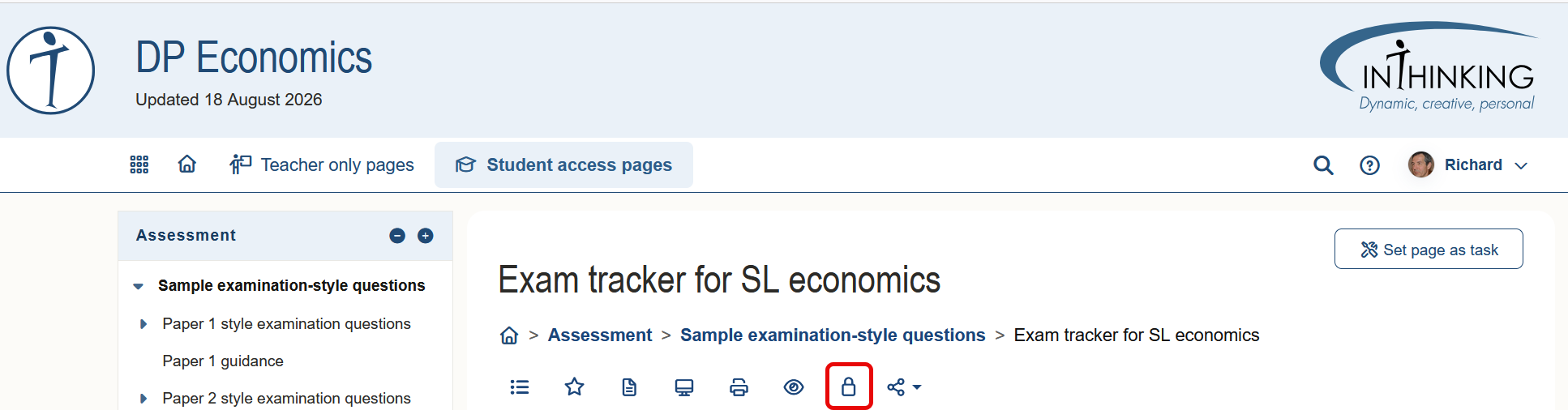
You can also switch a page on or off for a group directly from the page itself by clicking the padlock icon on the in-page menu. A drop-down will then appear showing your groups with a padlock next to each one. Click a red padlock (OFF) to switch the page ON the that group; and switch a green padlock (ON) to switch it off.
Task mode & self-study mode
- Task mode If you set a page as a task and the page contains a quiz, the score will automatically appear in the grade book when submitted by the student. If the page contains a written task, it can be completed and sent to the teacher to be graded.
- Self-study mode If you make a page available to students from the page manager and the page contains a quiz, students will be able to complete the quiz and check their answers, but the grade will not be stored, or appear in the grade book. If they revisit the page, they can take the quiz again. If the page contains a written task, they will not be able to write anything in the text box.
Use task mode (i.e. "Add task" in Task manager) when you want to track and grade student work. Use self-study mode (i.e. select page in Page manager) for private study when you do not need to monitor student progress.