You can set a page as a task for your students either from a student page itself, or from the Student access manager.
Setting a task from a student page
From the page containing the task, click the “Set page as task” button. This will open a splash screen where you can select groups and deadline, add optional instructions, and choose when students see their score and the answers. You can also notify students of the task by email. When done, click “Send task”. [Note that you can also set the task in Exam mode.]
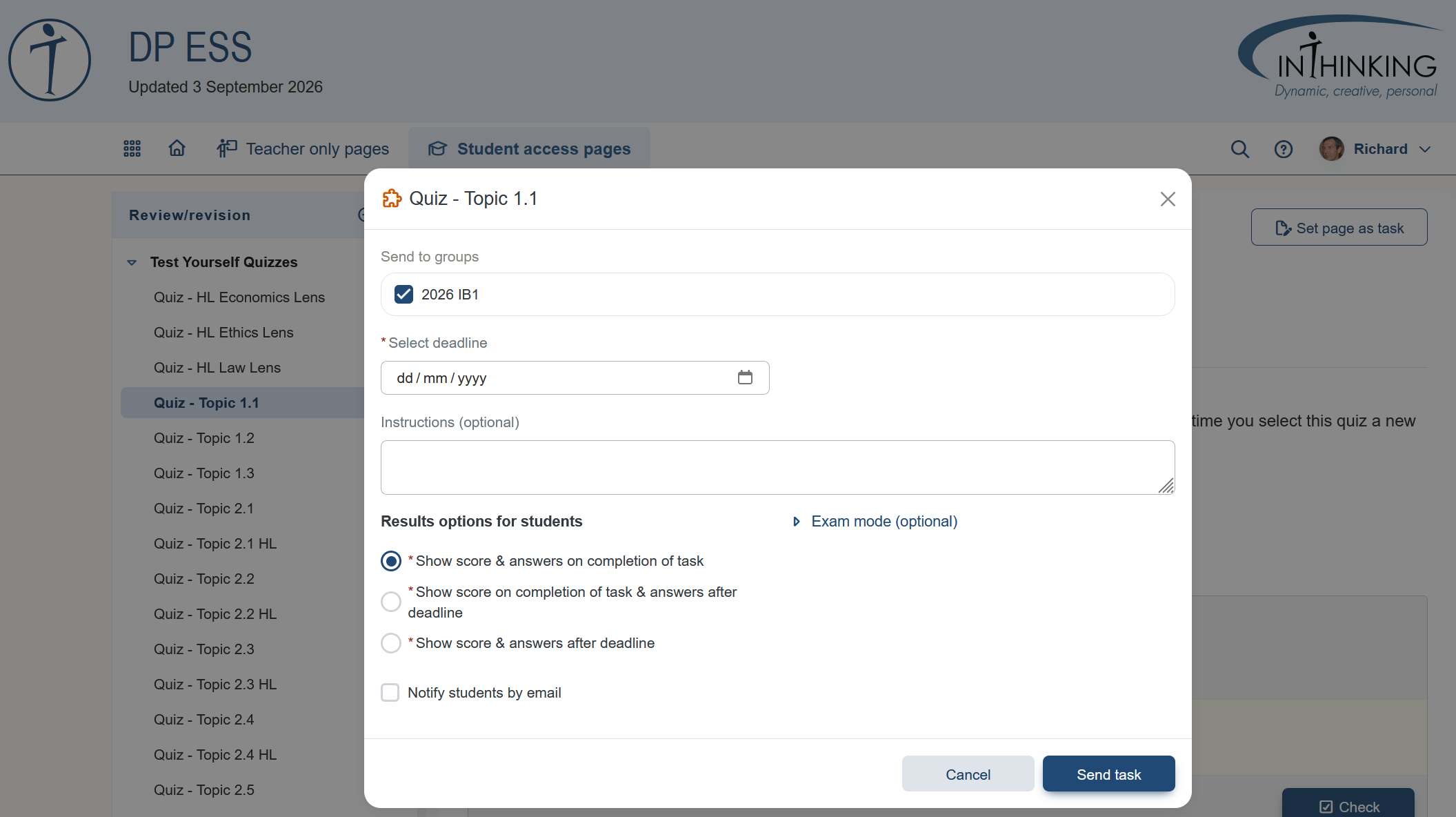
Setting a task from the Student access manager
3 routes
In the Student access manager, you can set one or more tasks for one or more groups or individuals via My groups, via All tasks, or via All students.
1. Via My groups Click “My groups” in the left hand menu, open the relevant group; then click the Task manager button, followed by the green Add task button:
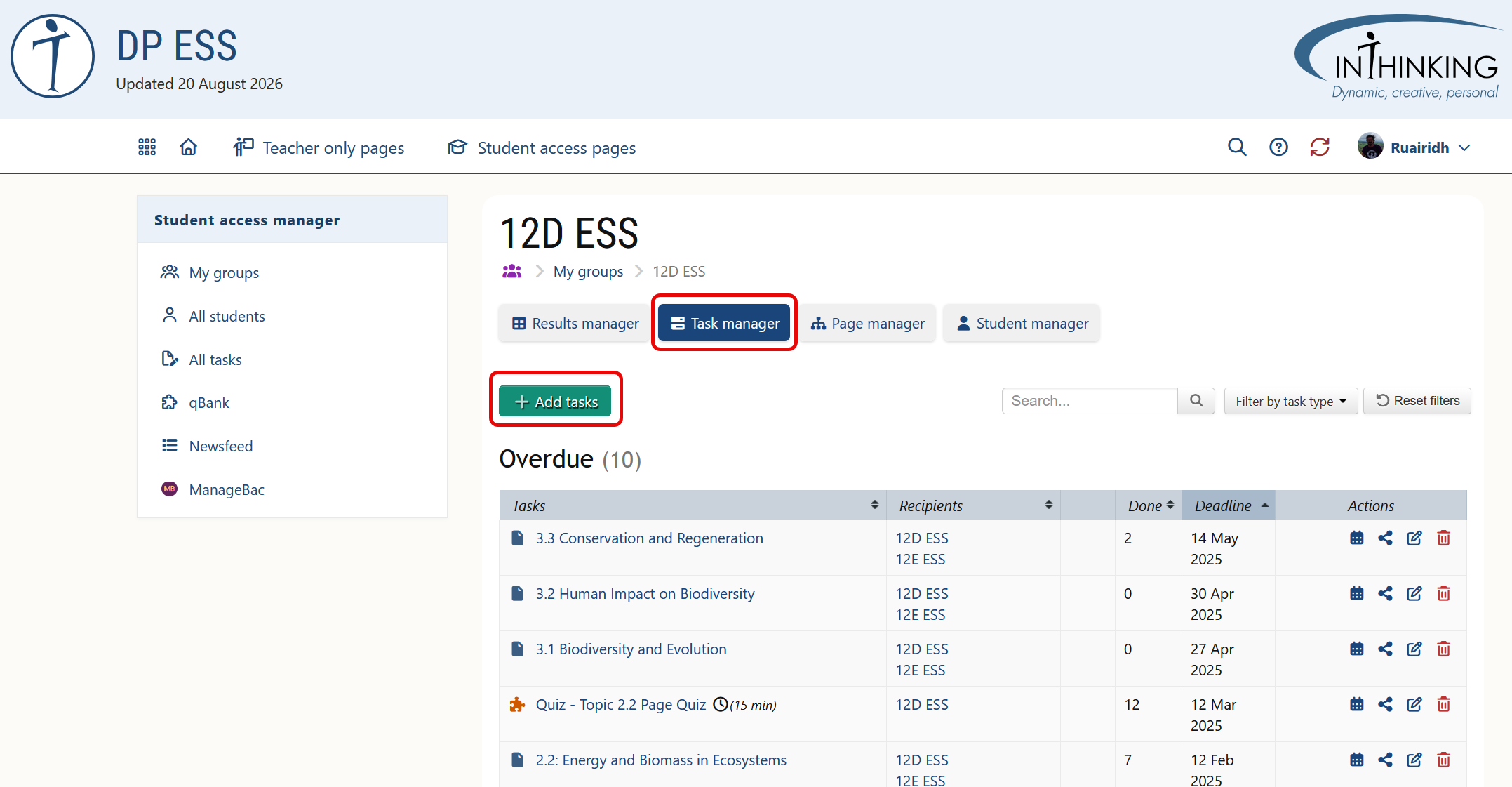
2. Via All tasks Click on "All tasks" in the left hand menu and then click the green "Add tasks" button.
3. Via All students Click "All students" in the left hand menu, then click on a student's name, and click the green "Add tasks" button.
Creating a task
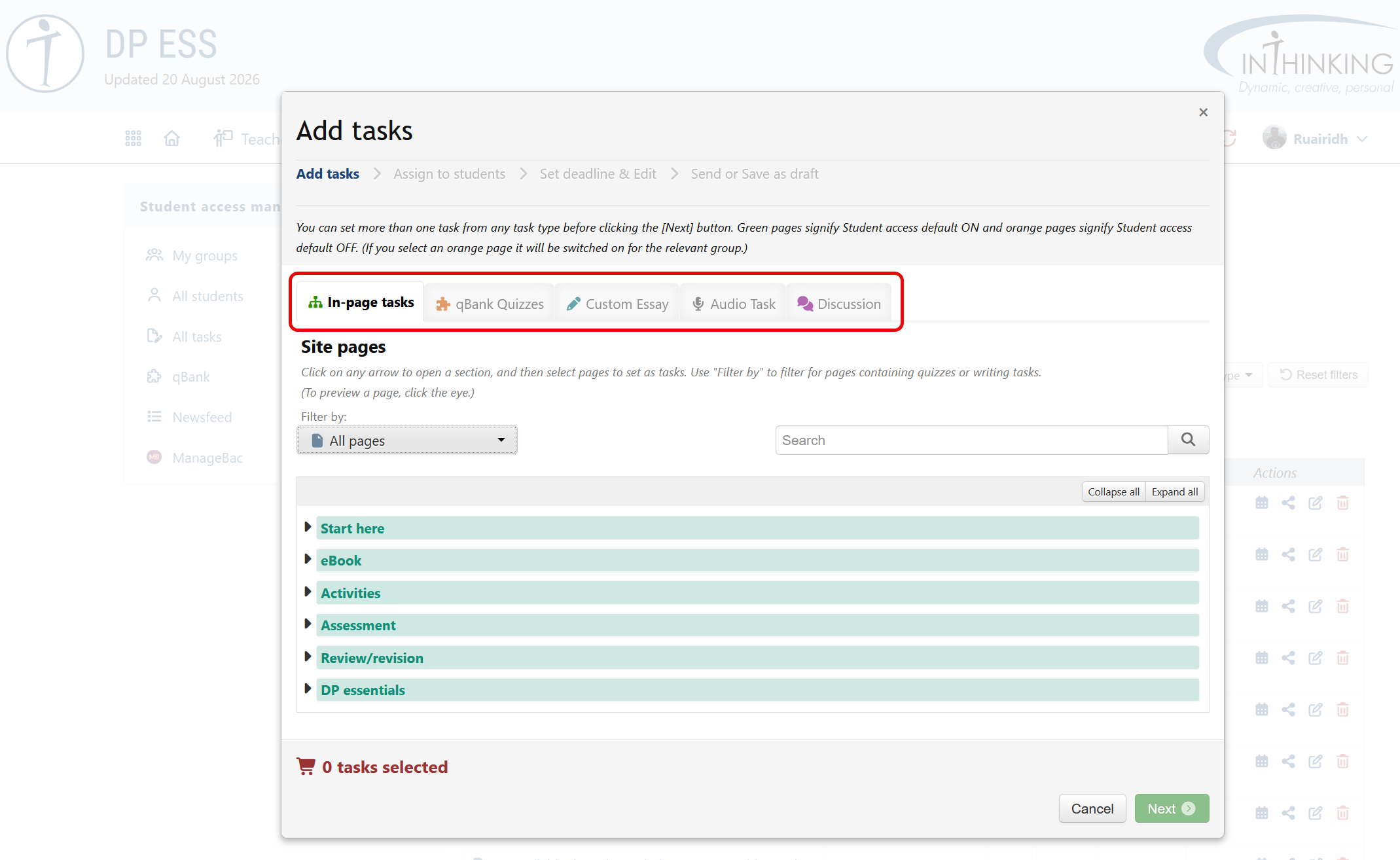
Clicking the "Add tasks" button via any of the above three routes takes you to the "Add tasks" pop-up. You are then taken through a simple process to send a task or tasks to students.
Select tasks
You can create one or more of the following: In-page tasks, qBank quizzes, Custom essays audio tasks, or Discussion tasks. (For more on different types of tasks, go to the Task types section of this Help.) You can use the in-page task filters to find pages which include quizzes or written tasks. Once you have made your selection and click “Next”.
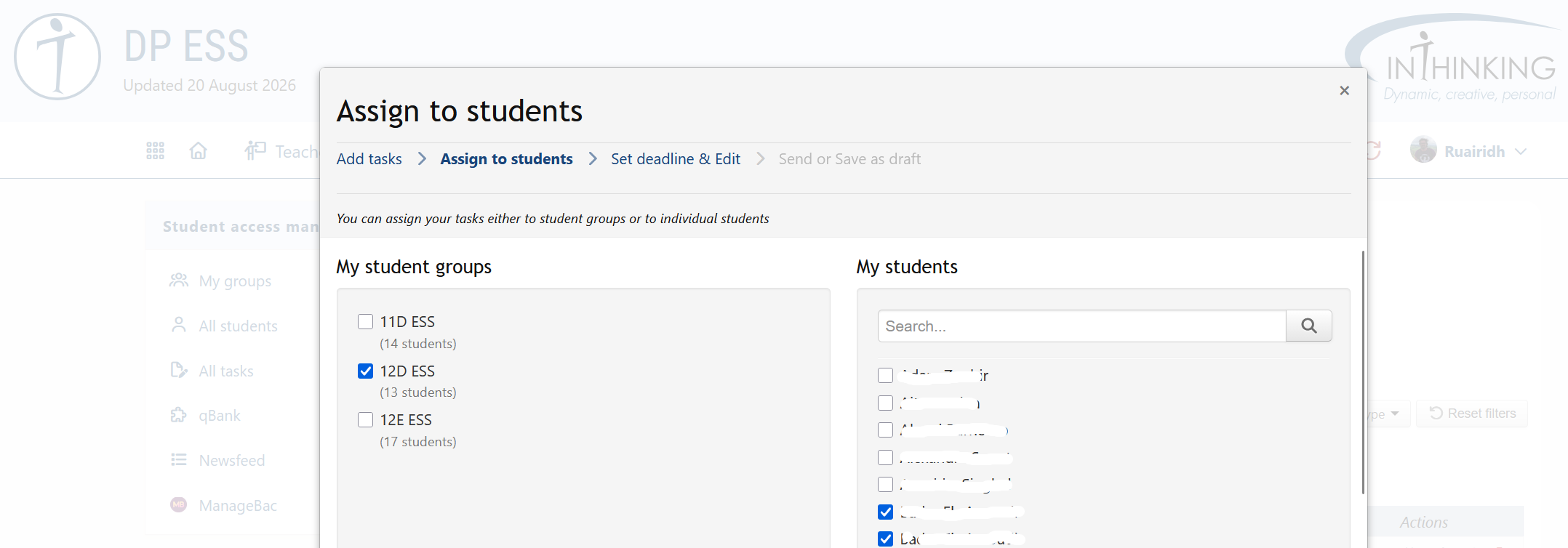
Assign to students
You can assign the task(s) to one or more groups or to individual students:
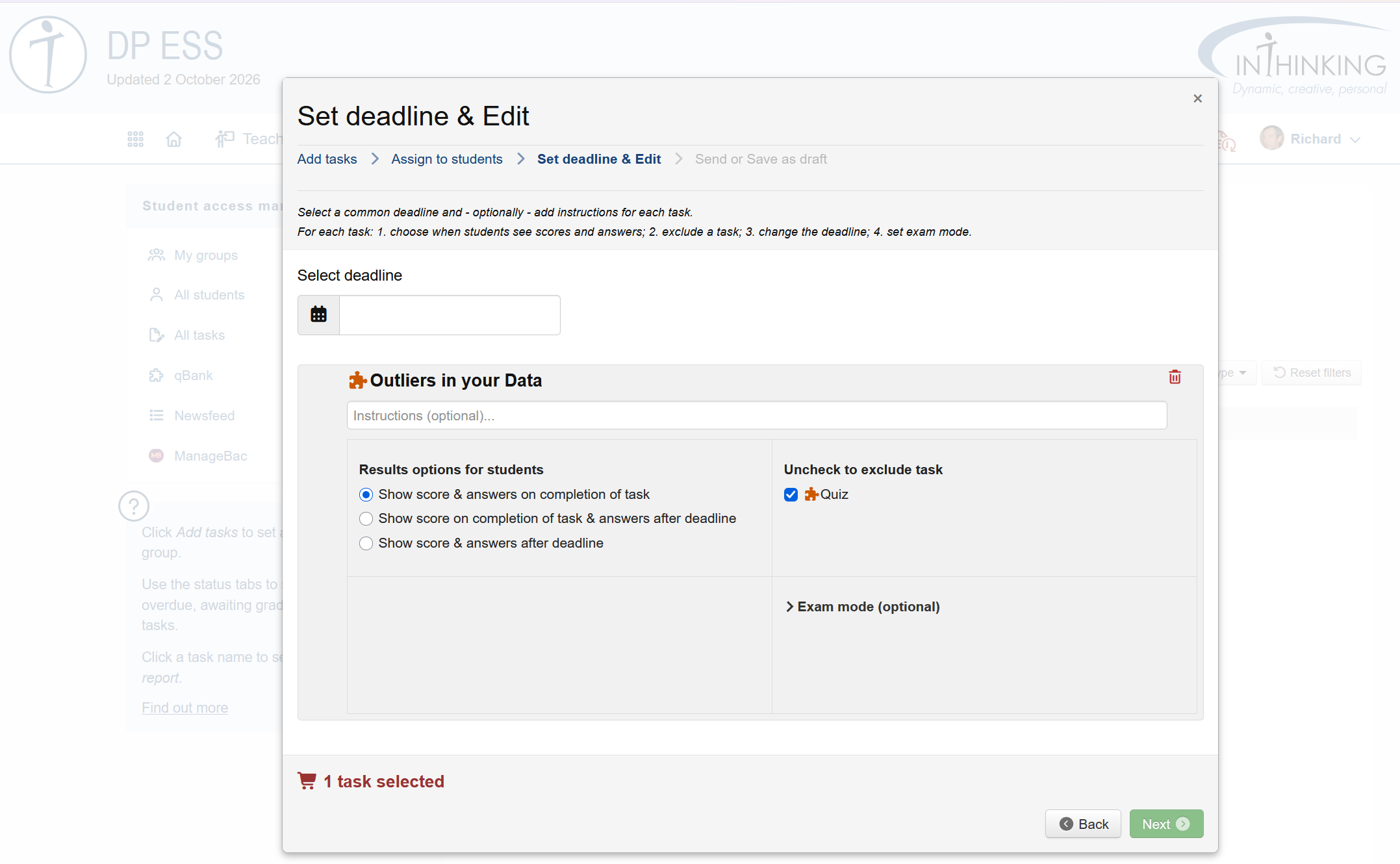
Set deadline & edit
The options immediately visible on this screen are:
- Select a deadline.
- Add optional instructions.
- Exclude a task. (If a page contains one task, you can exclude it if you only want the students to read the page, or if you want them to do the task in self-study so that the grades do not go into the grade book. If a page contains several tasks you may only want students to choose one of them.)
- Determine when the students see their score - and the answers - for a smart task (i.e. one which is graded automatically by the system).
- Reorder tasks (if there is more than one).
Send or save as draft
Check the deadline, tasks, and recipients and then click either "Send" or "Save as draft".
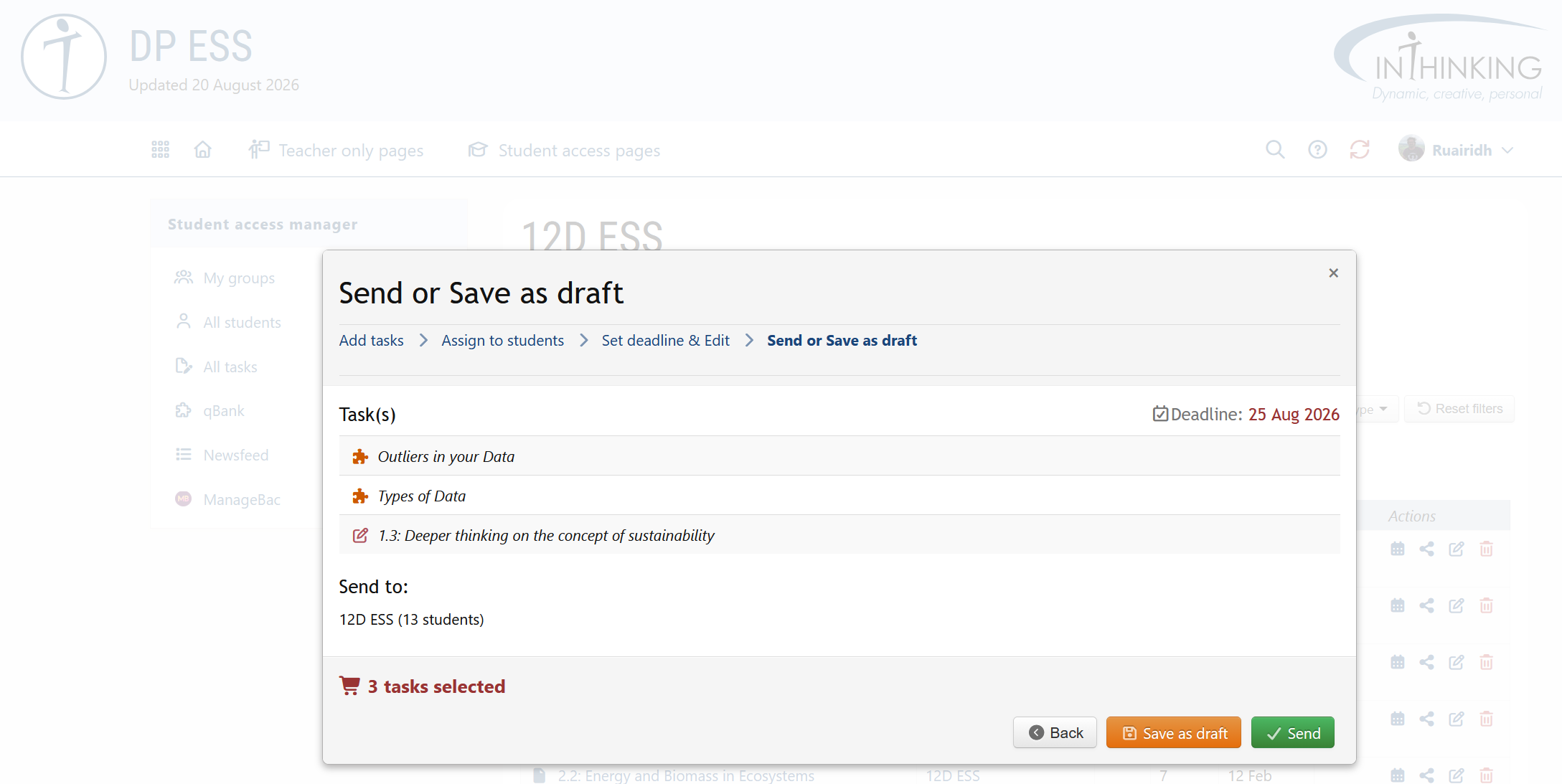
If you click "Send", your students will receive the task(s) on their Student pages dashboard and it will appear on your “Active tasks” in "All tasks" and in the Task manager for the relevant group.
If you click "Save as draft", the task(s) will appear on your "Draft tasks" list both in "All tasks" and in the Task manager for the relevant