Overview
When you create a quiz task or a written task, you have the option of setting it in "Exam mode". This puts a time limit on how long the student can spend on the task, an (optional) date and time for completing the task, and opens the task in a full screen locked browser. If a student leaves the exam mode window, their teacher is notified.
Setting a task in Exam mode
From a student page
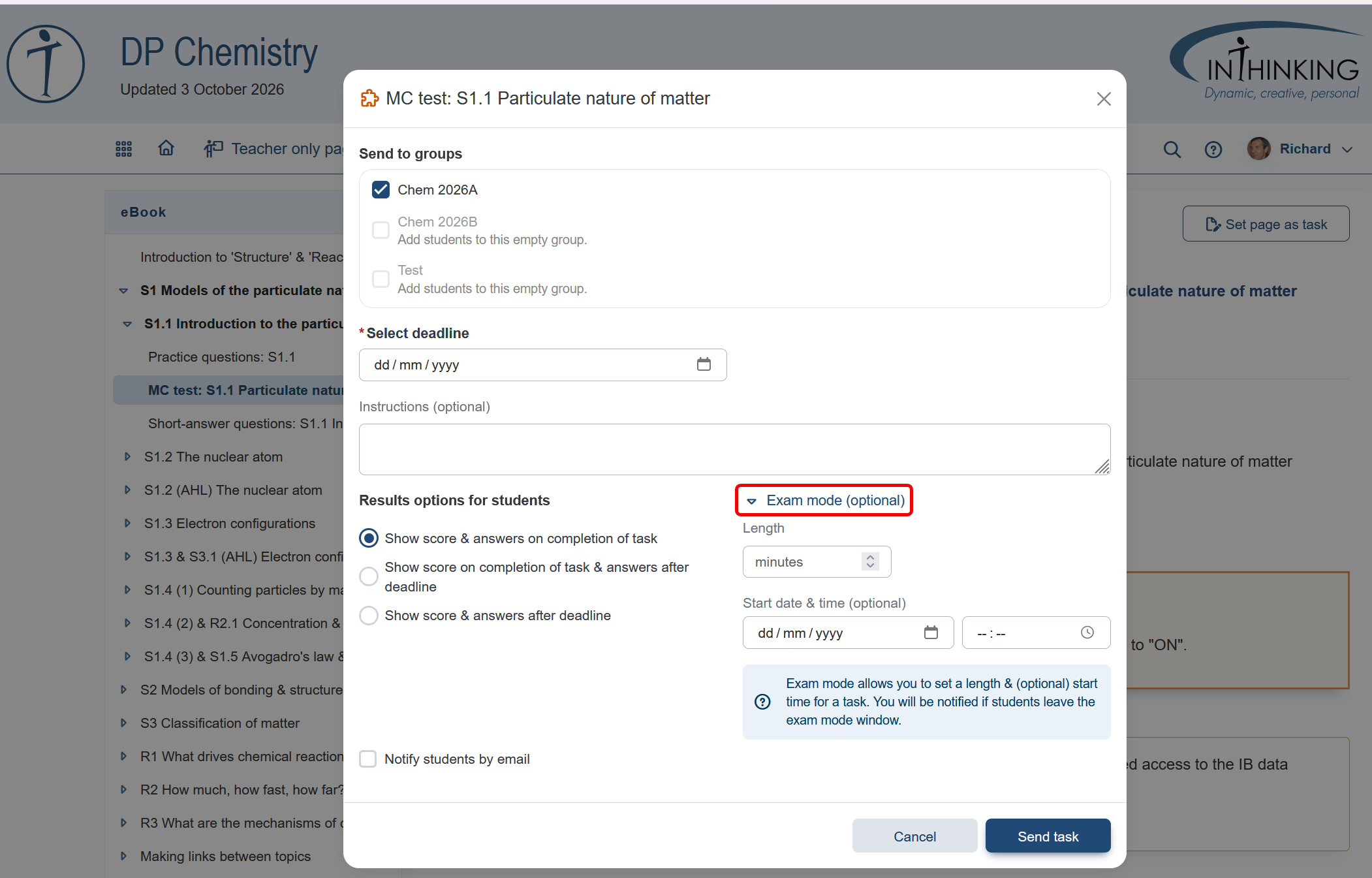
You can set a task in exam mode directly from a student page by clicking the “Set page as task” button. This will open a splash screen which includes the exam mode option. Click on the heading to open it. Then complete the field for length, and, optionally, start date and time.
From the student access manager
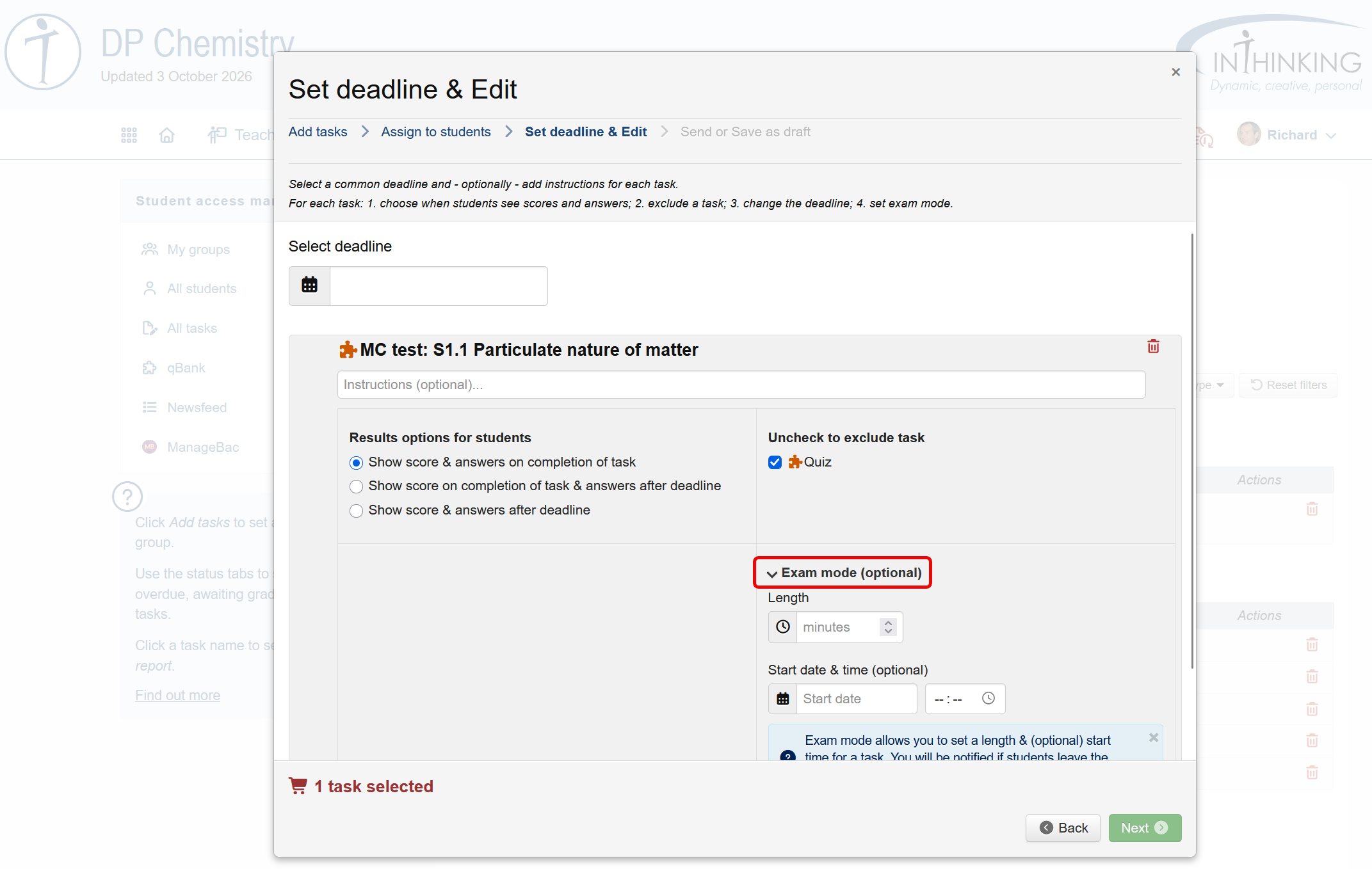
You can find the "Exam mode" option at the "Set deadline and edit" stage of the "Add task" wizard. Again, click on the heading to open it. Then complete the field for length, and, optionally, start date and time.
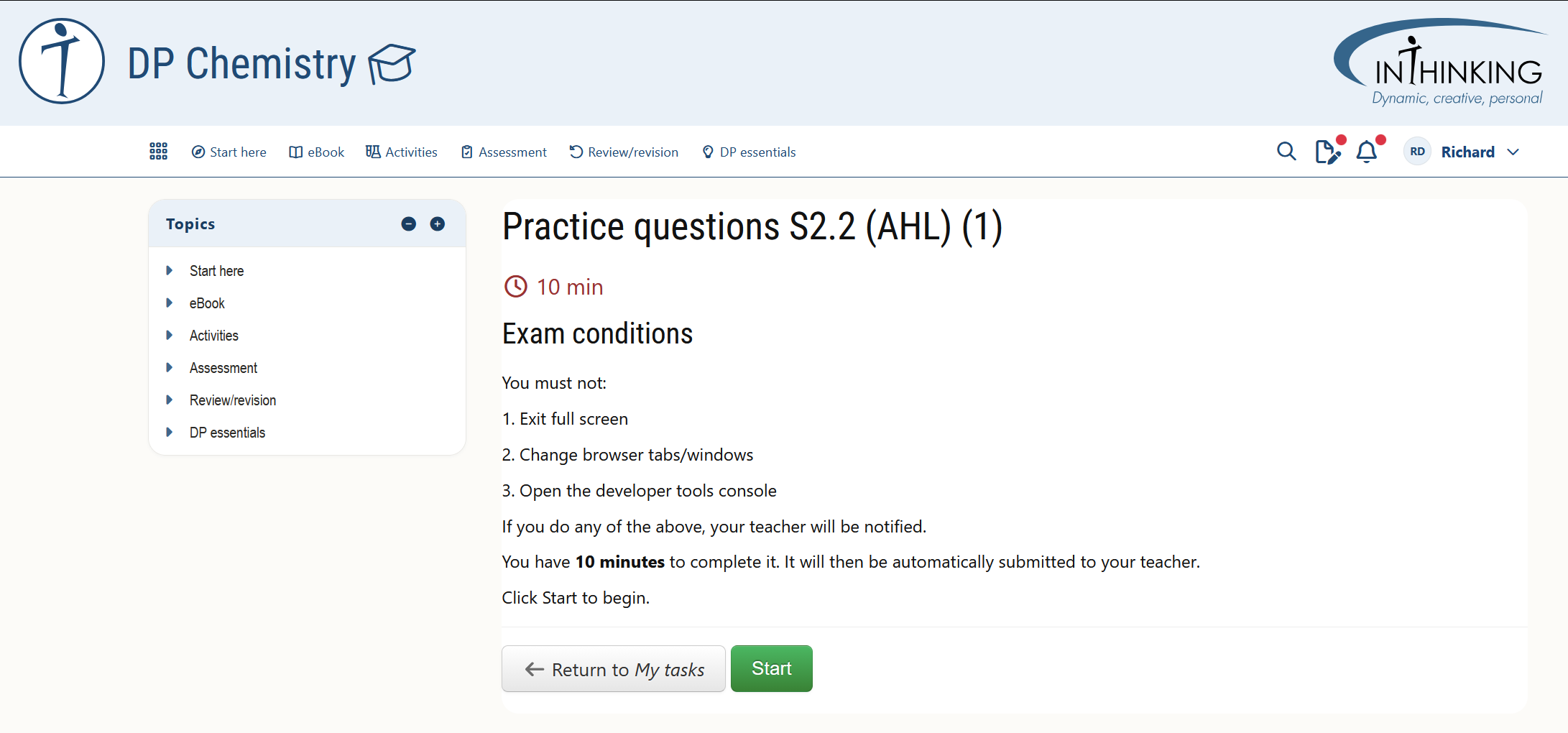
When a student opens a pending task in exam mode, they see the following instructions:
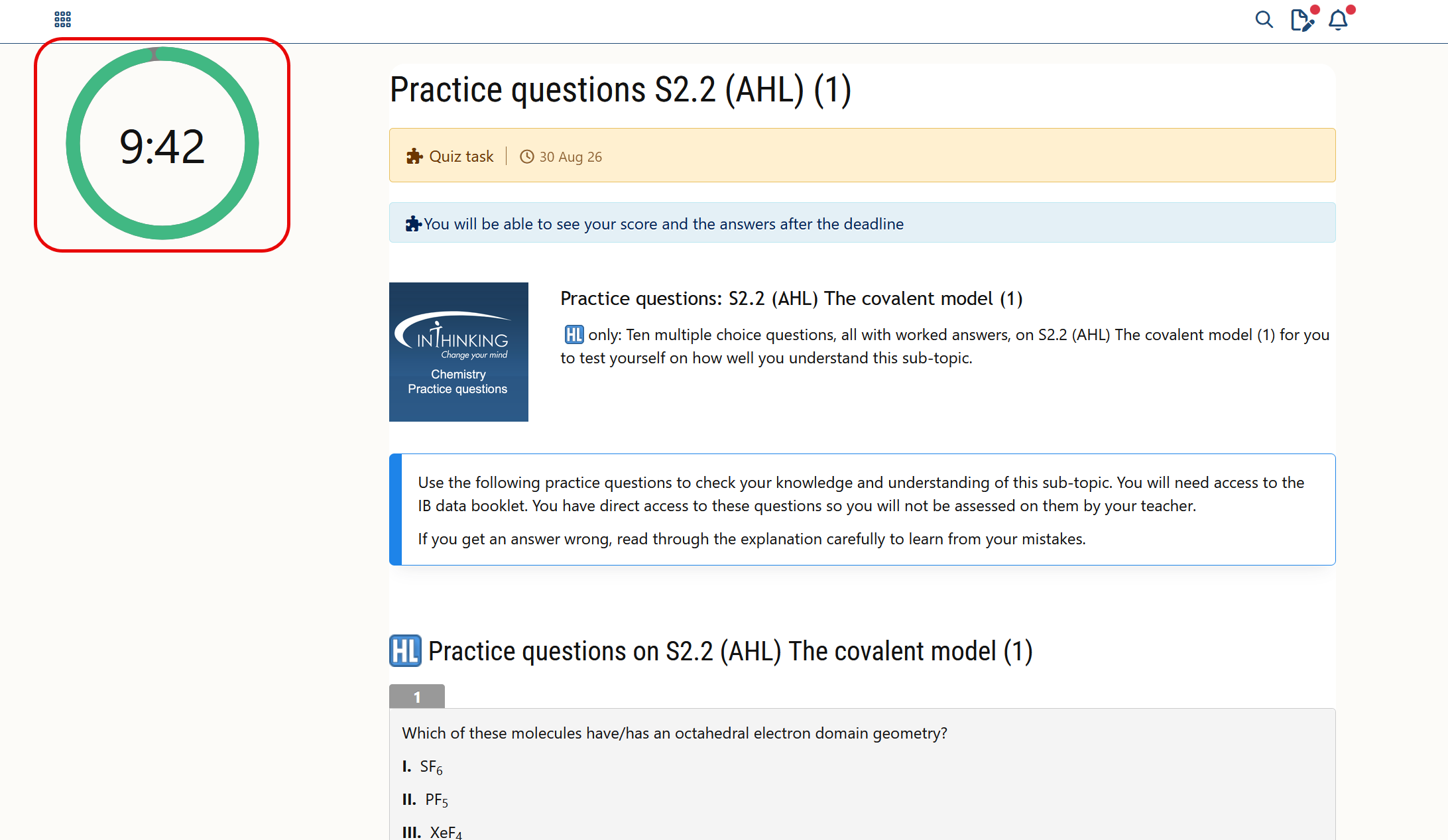
As soon as they begin an exam mode task, the clock starts ticking. At the end of the time limit the task will be automatically submitted if the student has not already done so.
During the exam, a student should not leave the exam mode window. If they do, they receive a warning message and their teacher is notified.
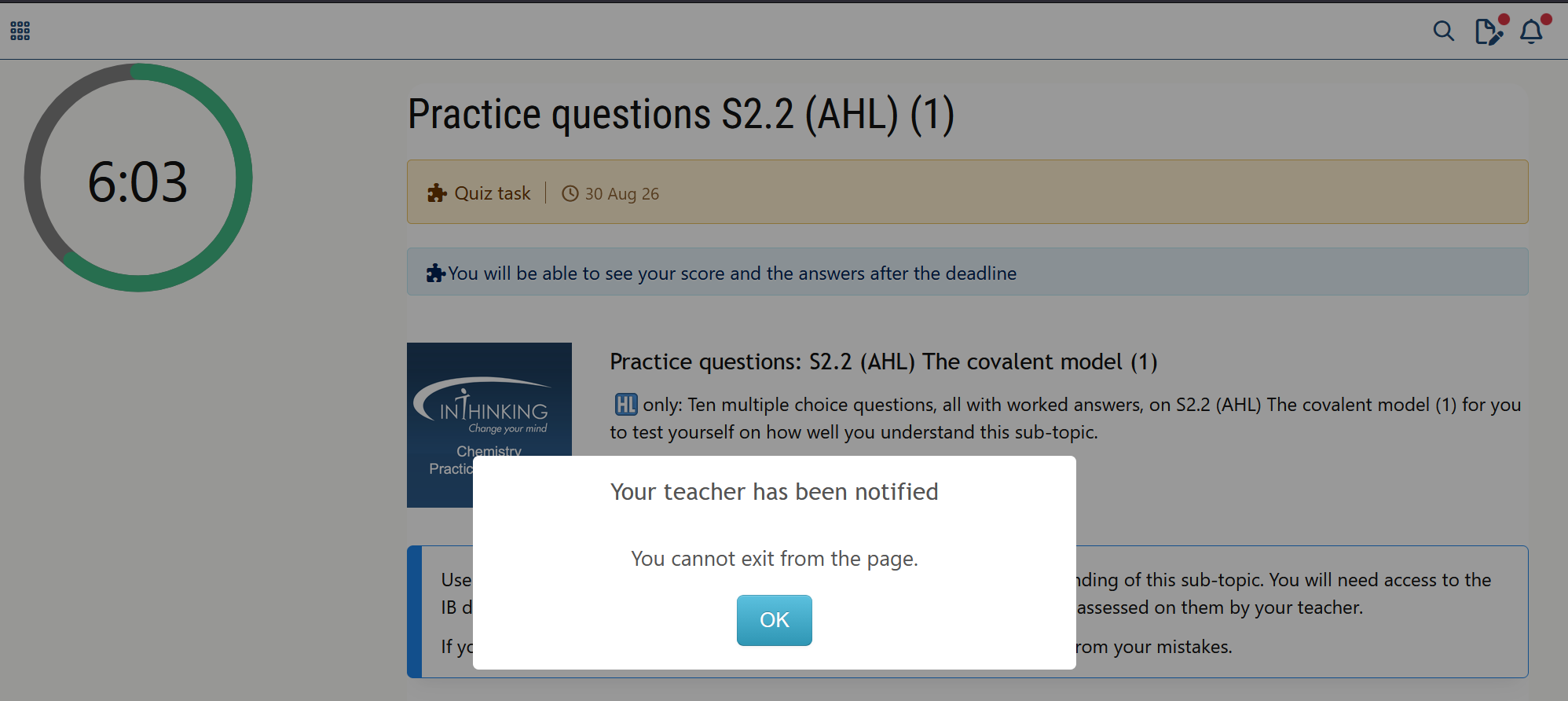
Once submitted, quizzes are automatically graded by the system. Written tasks must be graded manually by the teacher.
View & check a task in exam mode
You can check the current status of each task and the results for every student by clicking on the name of the task in the Task manager tab for that group.
- An empty student row means that the student has not started the task yet.
- When you see a small red clock icon, it means that the student has started the task, but not yet submitted it for assessment.
- When you see a small red clock icon and an exclamation point, it means that the student has started the task and has also "broken the conditions" for assessment.
- When a student has submitted the task, the assessment marks will be imported into your gradebook. You will also see whether the exam conditions were broken.
Broken conditions
The purpose of setting exam mode to tasks is to assess the student’s knowledge within a given time limit and without the help of external resources. That is why the task is carried out in a full-screen locked browser on the student side. The following 2 situations are considered as breaking the exam mode conditions and are recorded in the teacher student task log:
- Exiting exam mode window (by means of exiting the full-screen mode or switching navigation tabs)
- Opening developer tools console
Student task report
Click on the View column in the "Results by student" screen to open a detailed report of the task. Among other things this shows:
- Time spent The total amount of time taken from when the student opens the task to when it is submitted.
- Broken conditions
Devtools opened The time that the student opened the browser developer tools (useful to modify or tamper the expected JavaScript and HTML behaviour in a web site)
Exited exam mode window The time that the student either exited full-screen mode and/or switched tabs.