Types of In-page tasks
You can set any student page as an In-page task. Such pages may contain a quiz task (multiple choice, fill-in-the-gaps etc), written task (short answer, essay etc), audio task, or combination of all three. If it does not contain any tasks, it is classified as a Reading task.
As you can see in the screenshot below, you can filter student pages to find ones which include quizzes, written tasks, or audio tasks:
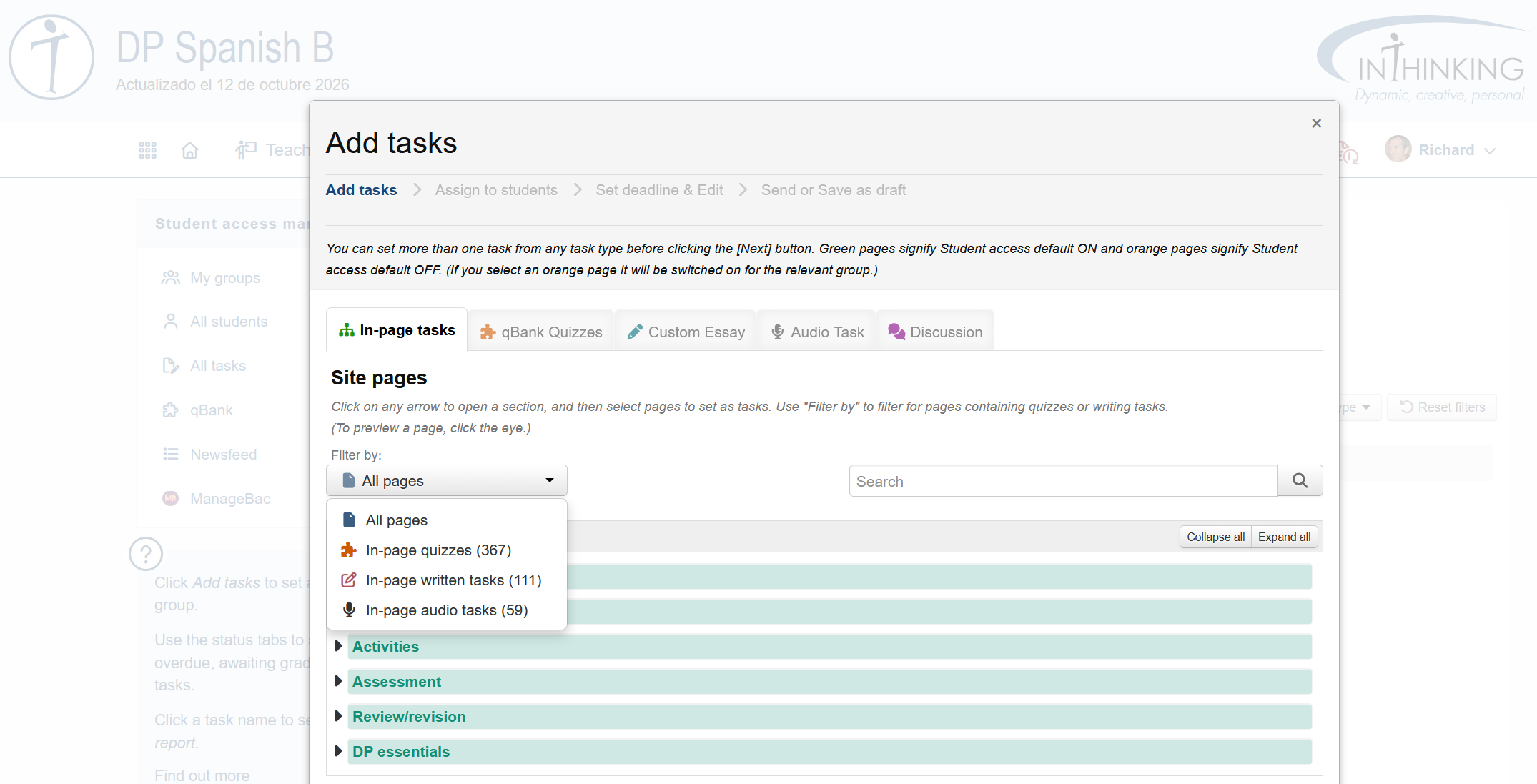
Pages containing in-page quizzes, written tasks, and audio tasks are also indicated on the site map.
Reading tasks
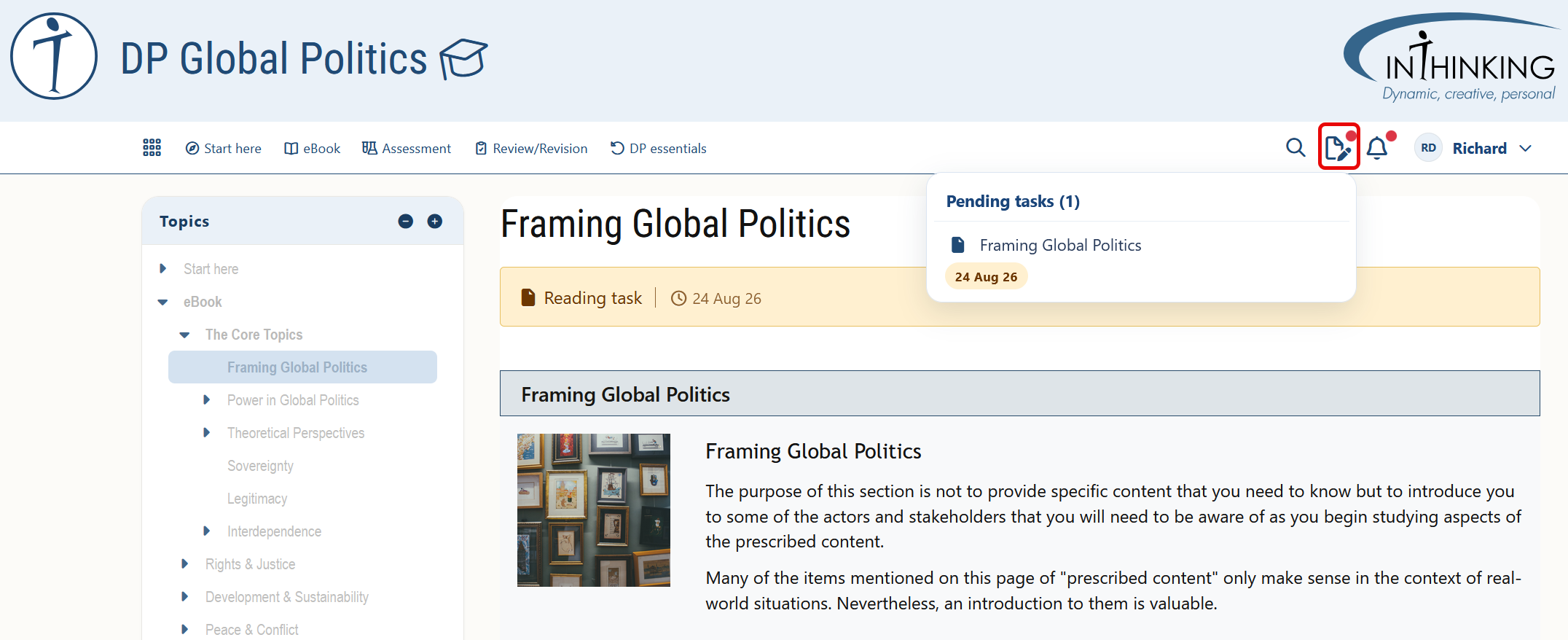
If a student page does not contain a quiz or a written task, it is classified as a reading task. When you set such a page, it will appear in your students' Pending tasks list and an alert will show on the relevant page:
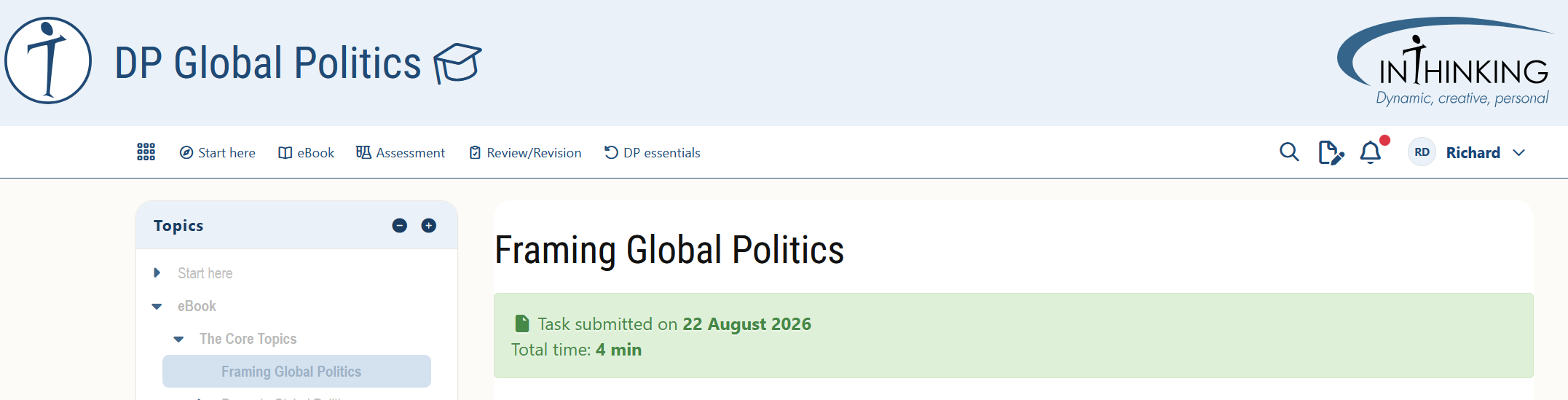
When student finish reading the page, they should click the green Mark as done button at the bottom. The alert at the top of their page will then turn green and show the date submitted and time spent on the task.
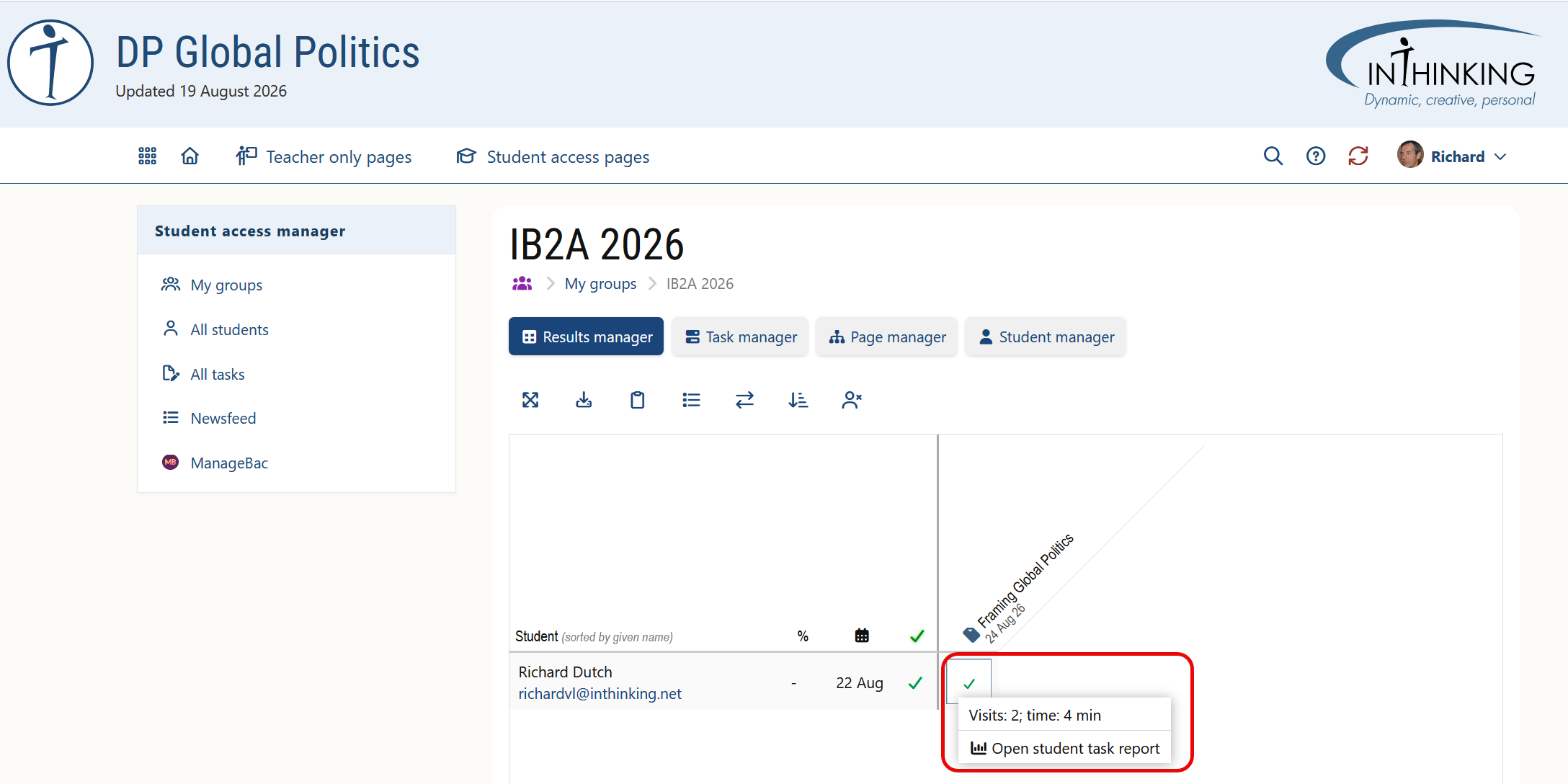
On the teacher side, a tick will then appear in the online grade book. When you click on the tick, you can see the number of visits the student has made to the page and the time they have spent on it. If you want a more detailed breakdown of when they visited the page, click Open student task report.
Quiz tasks
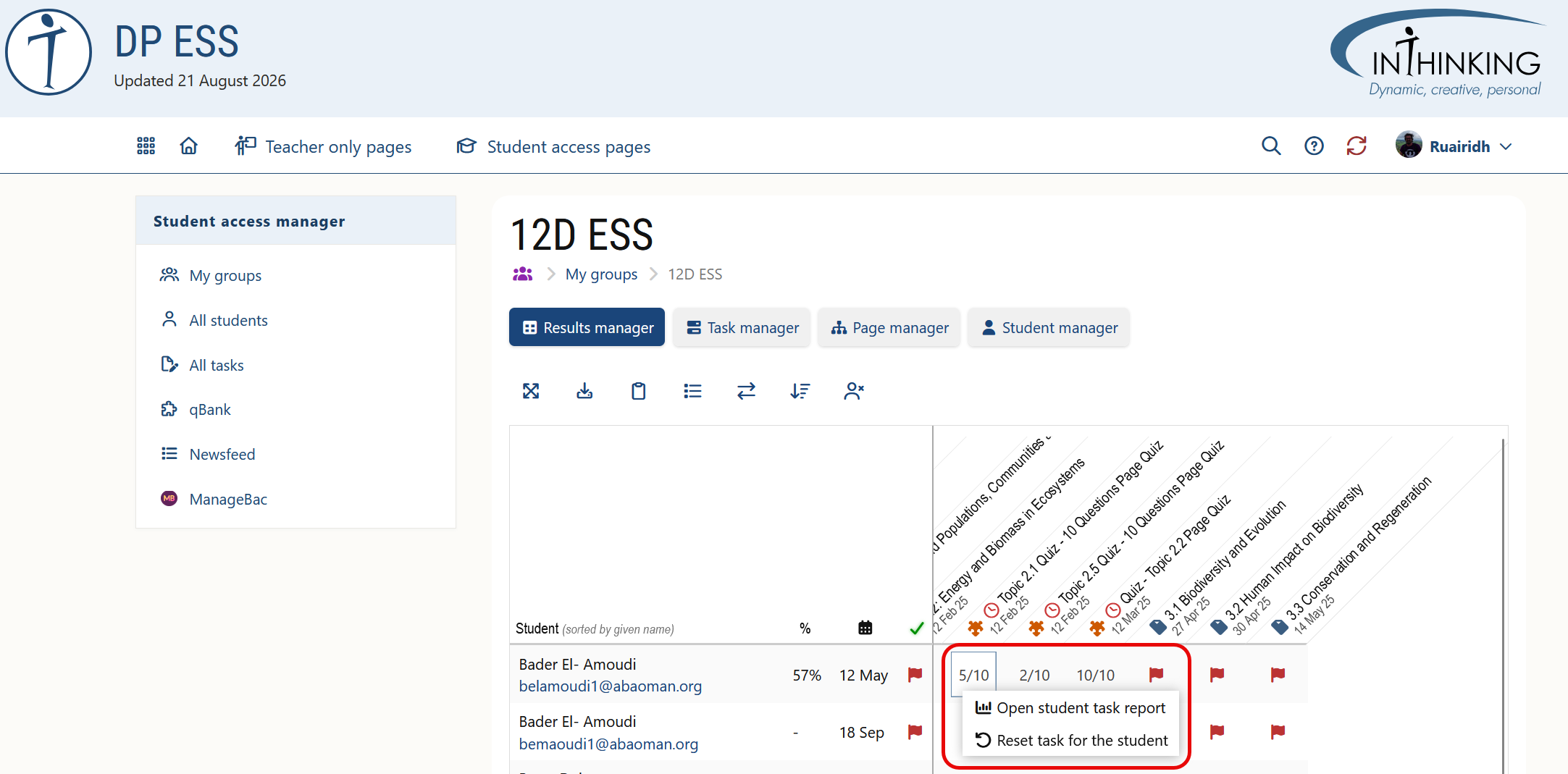
Some pages include Smart quizzes - multiple choice or fill-in-the-gaps - which are graded automatically and appear in the grade book as soon as they are completed by the student.
Note that when you click on the grade of an individual student, you have the option to Open student task report or Reset task for student.
Written tasks
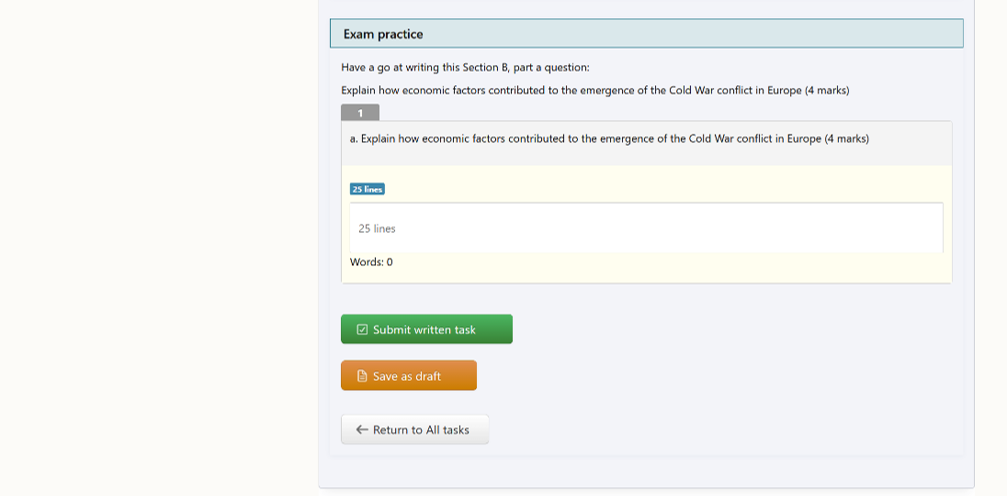
Some pages include written tasks. These may consist of a series of short answer questions or a single essay question. Students write their answers in a text box and submit to their teacher who can then grade and comment on their work. Some written tasks include model answers which can be seen by students once they have submitted their work.
Audio tasks
For obvious reasons, audio tasks can be found mainly on our language subject sites, such as Spanish B and Spanish Ab Initio. For more, see the Audio tasks section of this Help.