Adding a teacher
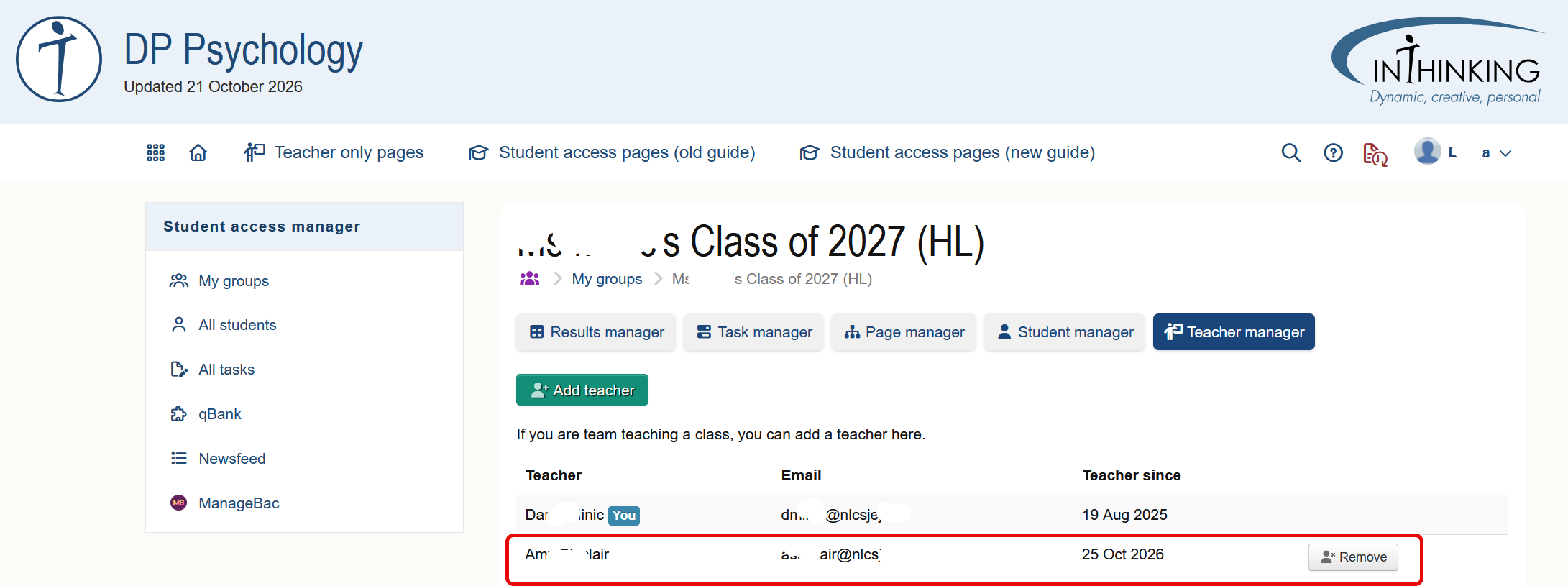
Our system allows for teachers to share a class. If two or more teachers have a teacher account for a subject, you will see a [Teacher manager] button when you go to your Student access dashboard and open a group.

When you click the [Teacher manager] button, you will see a list of teachers with whom you can share the class. Click [Add] to share you class with one (or more) teachers. The second teacher will then have the same rights as you in managing the class - i.e. they will be able to add, or remove, student from the class, set and grade tasks, monitor student progress etc.

If you wish to share your class with another teacher and you do not see the [Teacher manager] button, you first need to ask your Account manager to give the teacher access to the subject by creating an account for them. The button will then appear.
When you have added a teacher, you will see them listed when you click the [Teacher manager] button, and you have the option to remove them again.
The students side
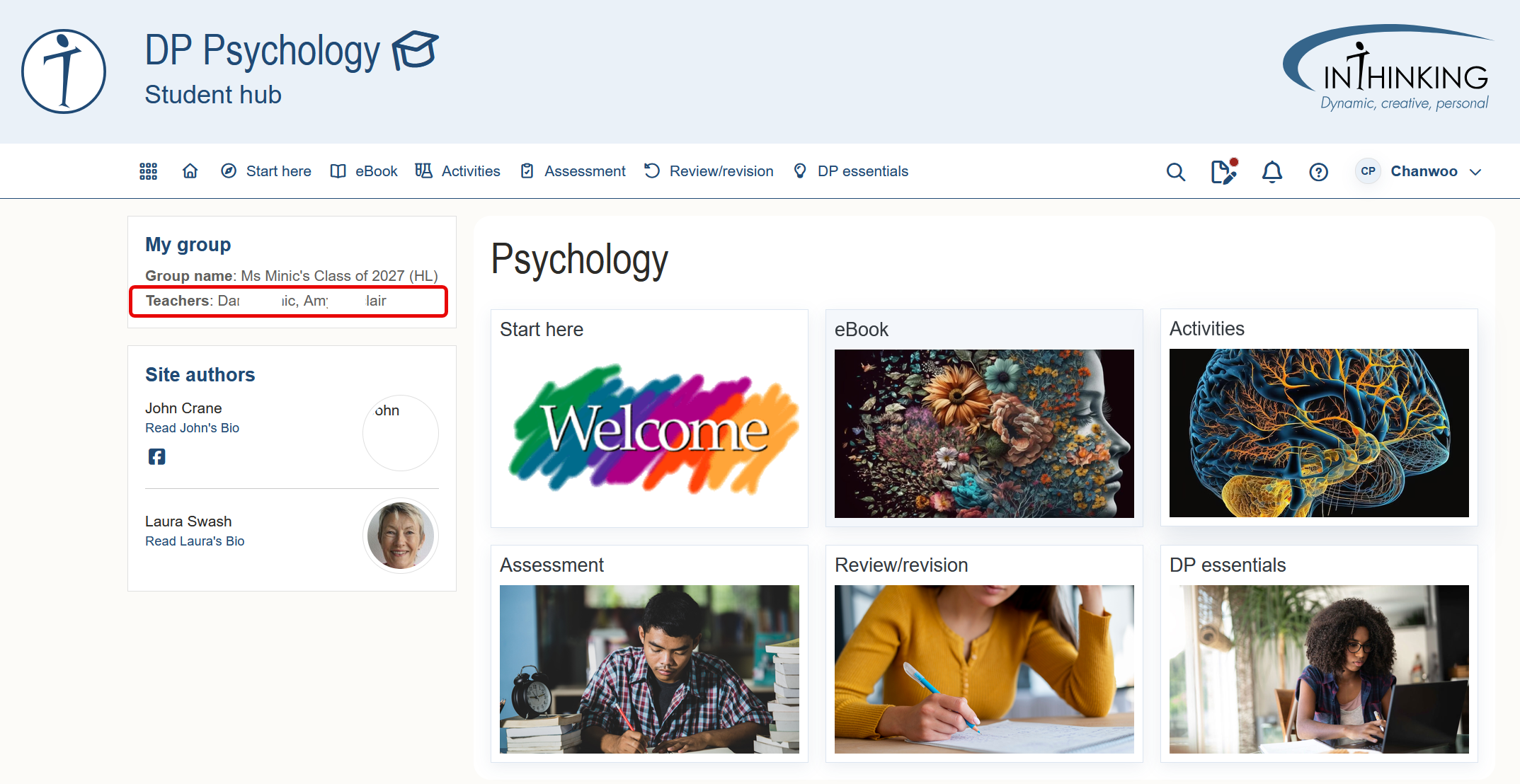
If you are sharing a class, students can see the names of both of their teachers on the landing page of the relevant subject.
When you set a task for your students, they will see which teacher has set the task and which teacher has graded it. You will also be able to see this in all relevant reports about your students.