What is student access?
Our integrated Student access feature is ideal for setting tasks and managing students' work. Student access pages typically include an eBook, activities, assessment advice, and revision tips.
Student access is included in the subscription fee for a site. This means that students as well as teachers can access relevant material at no extra cost. To give students access you first need to create a group and invite students to join it.
Student access is easy to set up and we recommend that you implement it straight away so that you can fully benefit from the power of our sites. Among other things, it enables you to:
- Give students direct access to some - but not all - pages on the site.
- Create various types of tasks - QUIZ, READING, WRITING, AUDIO, DISCUSSION - for your classes, or for individual students.
- Give online feedback, monitor student progress, and view grades in the online grade book.
Once students are enrolled in a subject group, they can access the InThinking Student Pages site. This is the hub from which students can:
- access student pages
- manage their online tasks.
As a teacher, you can see all pages available to students in the Student access pages section of your interface:

Note that some student access pages contain Teacher only boxes which give tips and advice to teachers. These are not visible to students when they log in.
Student access manager: basics
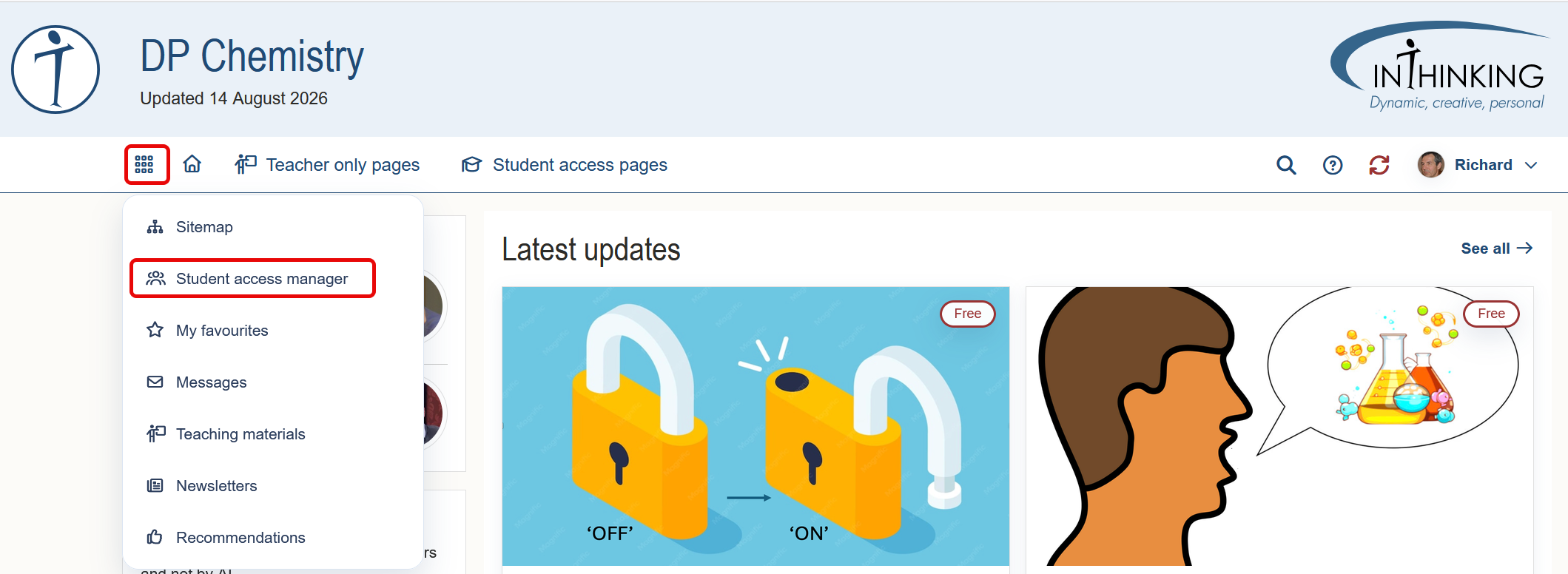
The Student access manager dashboard is the “command and control centre” from where you can manage your students. To go to it, click on the waffle menu (the first icon in the top menu) and select it from the drop-down. This will take you directly to the “My groups” section of the manager. Note that when you first set up Student access you must begin by creating a group and inviting students to join it.
Left-hand menu
There are four or five items in the left-hand manager: My groups; All students; All tasks; qBank (if available); and Newsfeed:
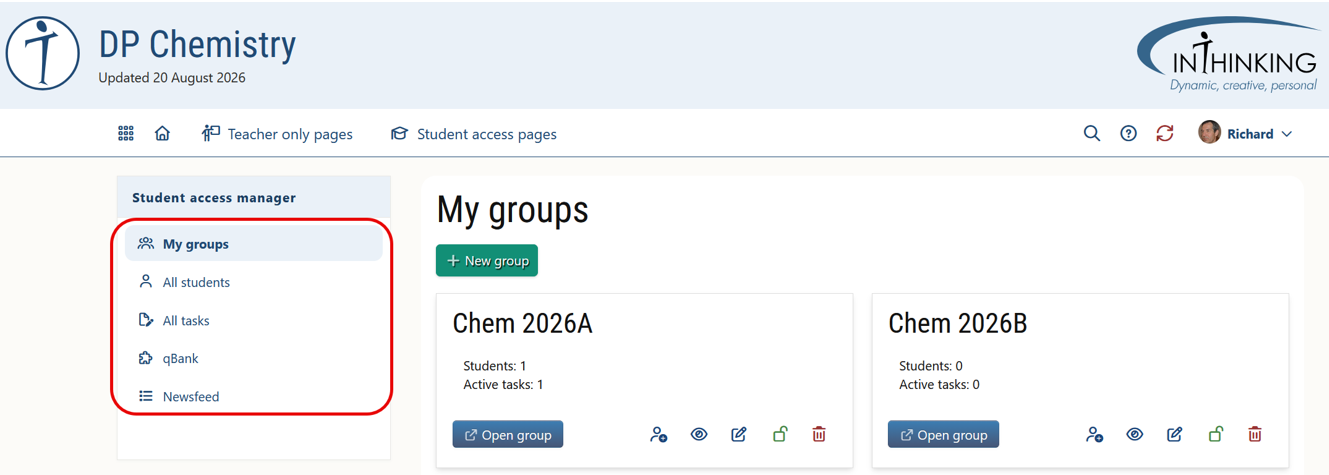
Group, student, & task views
My groups
"My groups" (i.e. classes) shows cards for each of the student groups you have created. When you click on a Group card, you can see the grade book for that group, make specific pages accessible to them, set and monitor tasks, add and remove students, and view the progress of individual students in that group.
All students
The "All students" view lists students from all of your groups and gives the following summary information for each of them:
Average score
Last seen
Task status
Group
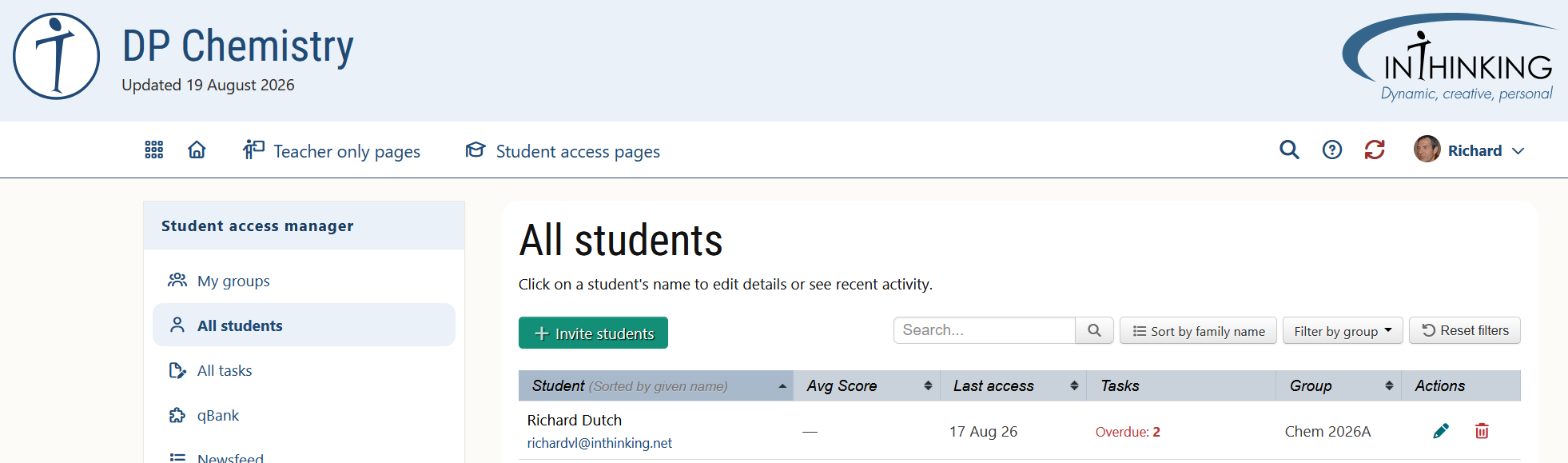
You can sort the above table in the following ways:
- First name or family name Click the "Sort by family name/ given name" button.
- Ascending or descending alphabetical order Click the arrow next to the "Student" heading.
- Average score Click the arrow next to the "Avg score head" heading.
- Last seen Click the arrow next to the "Last seen" heading.
- Group Click the arrow next to the "Group" heading.
From here you can also invite a student to join a group (green button), edit a student's details by clicking the green pen, or delete a student by clicking the red bin.
3. All tasks
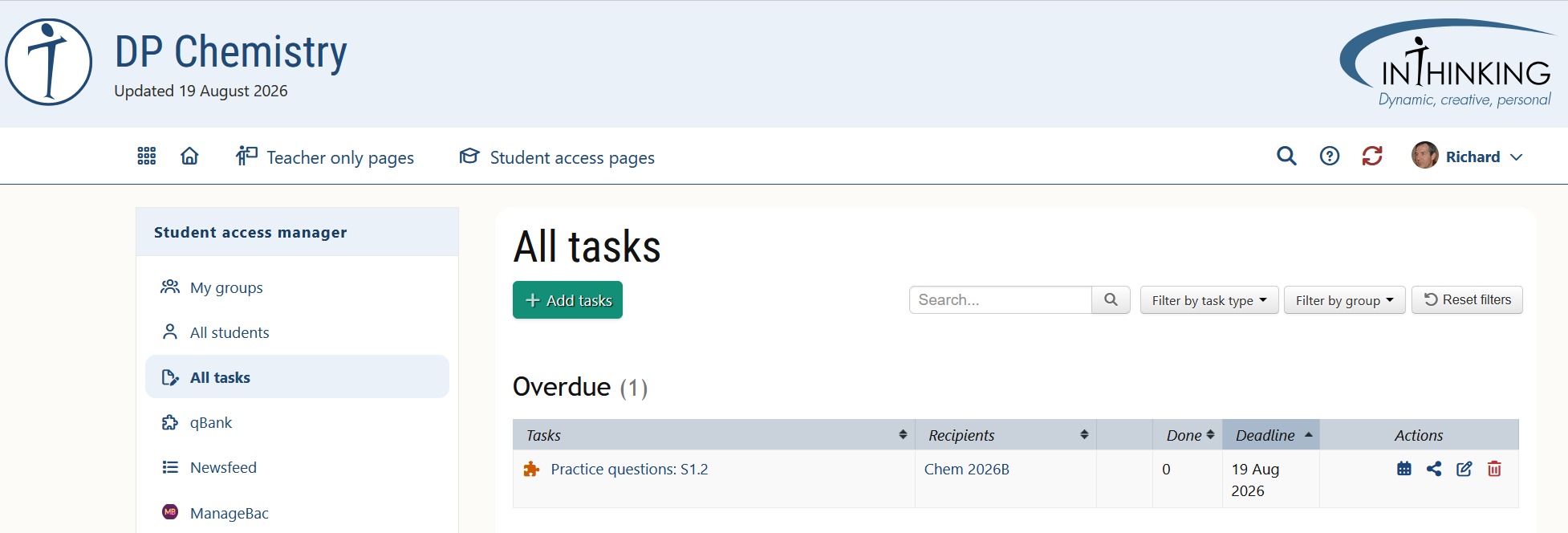
From "All tasks" you can view the status of tasks across all of your groups - Active, Draft, Awaiting grade, Overdue, Complete. This enables you to set a common task or tasks for several groups, or several individual students at the same time.
qBank
Subjects for which a qBank is available will allow you to create your own quizzes from a filtered set of the question bank.
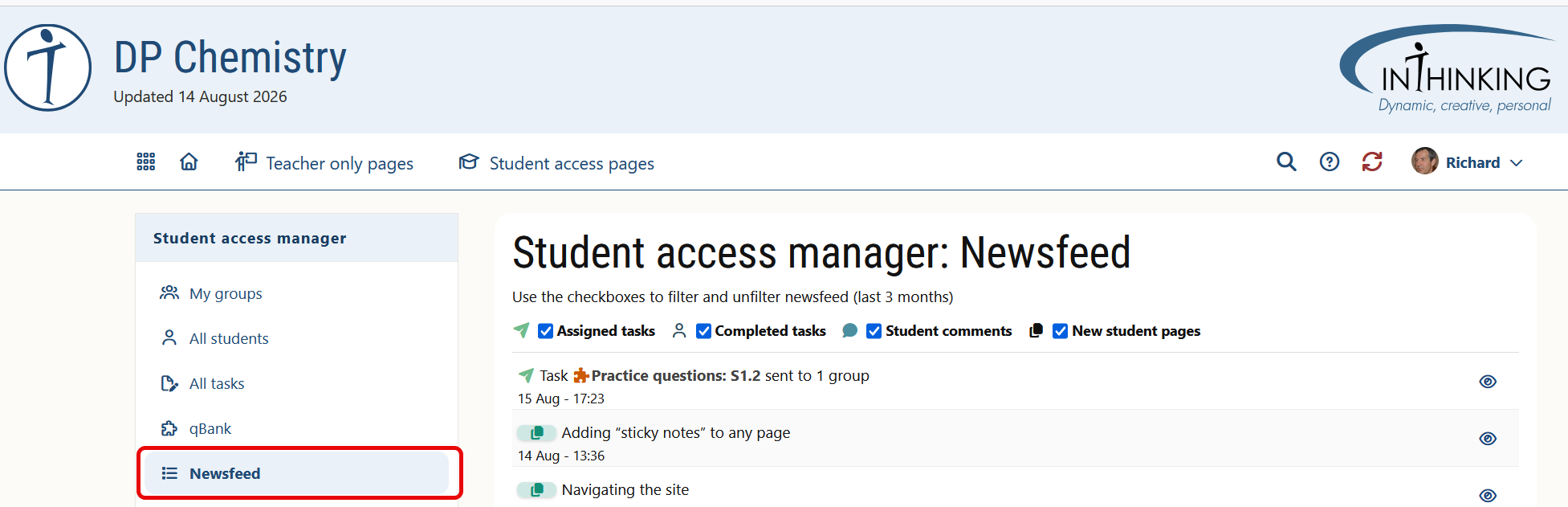
Newsfeed
The Newsfeed enables you to see updates in real time. You can keep track of four kinds of update:
- Assigned tasks
- Completed tasks
- Student comments
- New student pages (created by the site author)
You can filter by selecting the type of news to show.
Note:
1. For assigned and completed tasks, the icon before the title indicates the task type.
2. For completed tasks, you can click "View" to view the student's work directly.