Navigating the Site

Navigating the Site - Student Pages
This page is a basic guide to help you find your way around the student side of the site. There are various approaches one may use to find the enormous amount of information included on these pages. One may be looking for a particular page, or perhaps a topic or word. Understanding some of the various navigation tools will help you easily access ideas, information, resources, and more included on the site.
Finding Your Way Around the Site
There are three primary ways to navigate your way around the site to access the wealth of information across a broad range of topics. We would like to invite you to explore the site yourself to see the quality and quantity of information that addresses the tools needed to successfully engage in the DP Music Course.
1. Using the Main Headings
When you go to the “Student Access Pages” at the top of the home page, you'll see various drop-down headings that look like this.
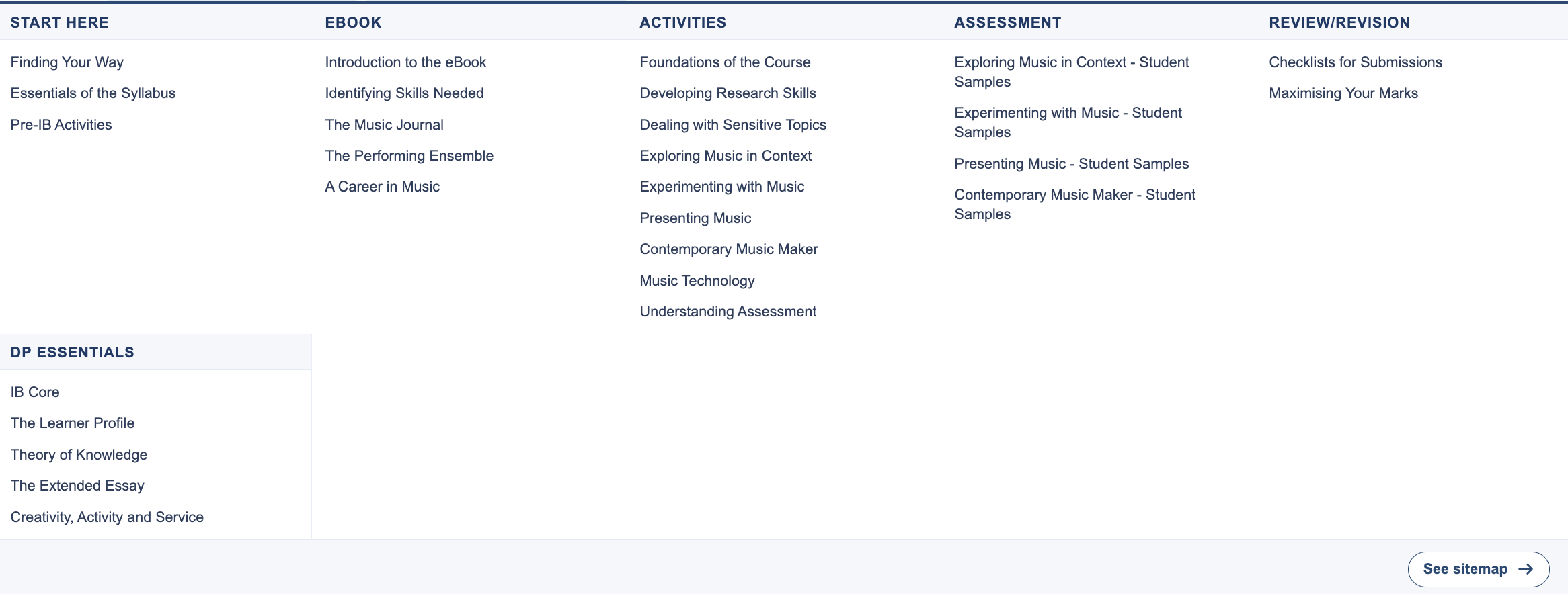
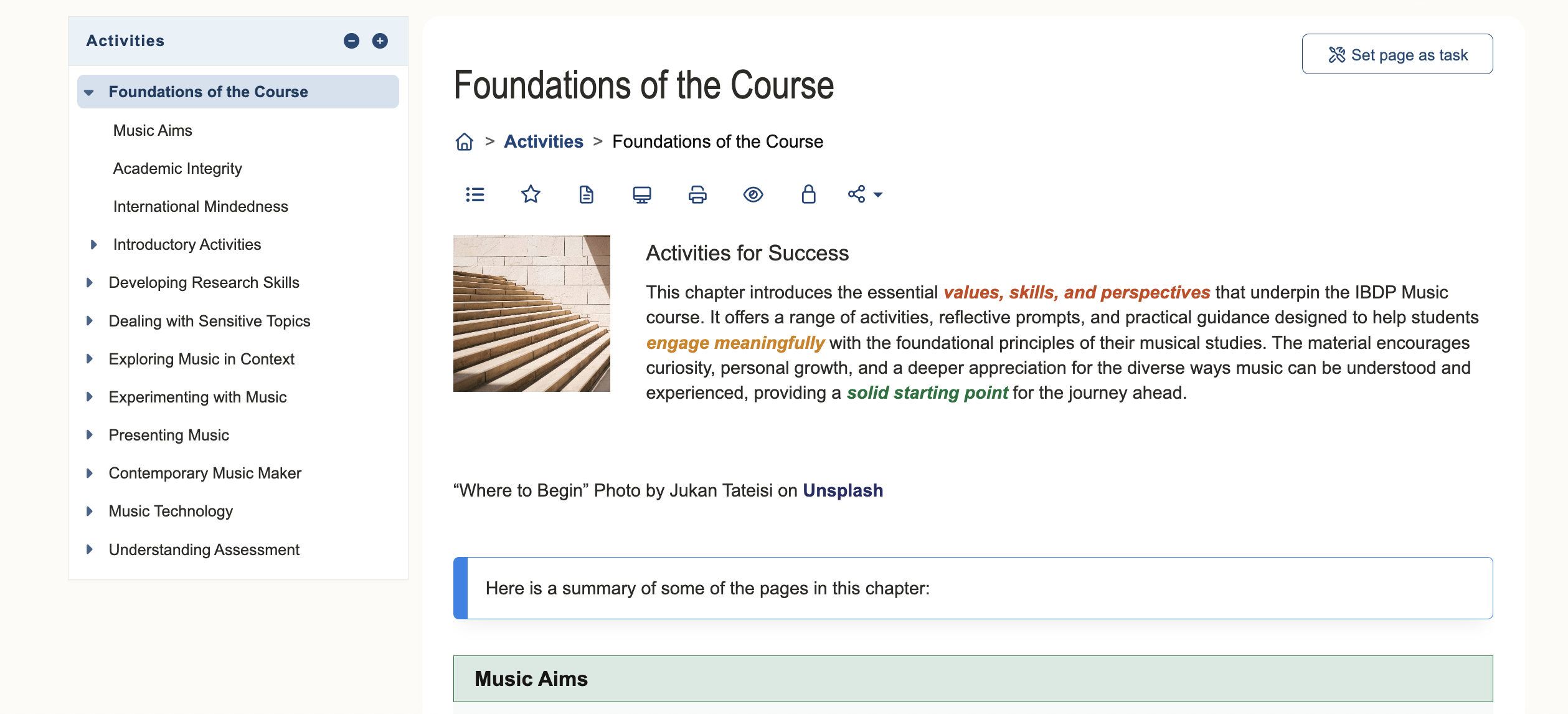
Once you click any of the six major headings, all the contents of that heading will appear. Once you click on any of these, the page itself will appear. For example, if you were to click on “Foundations of the Course” under the “Activities” tab, this page will appear.
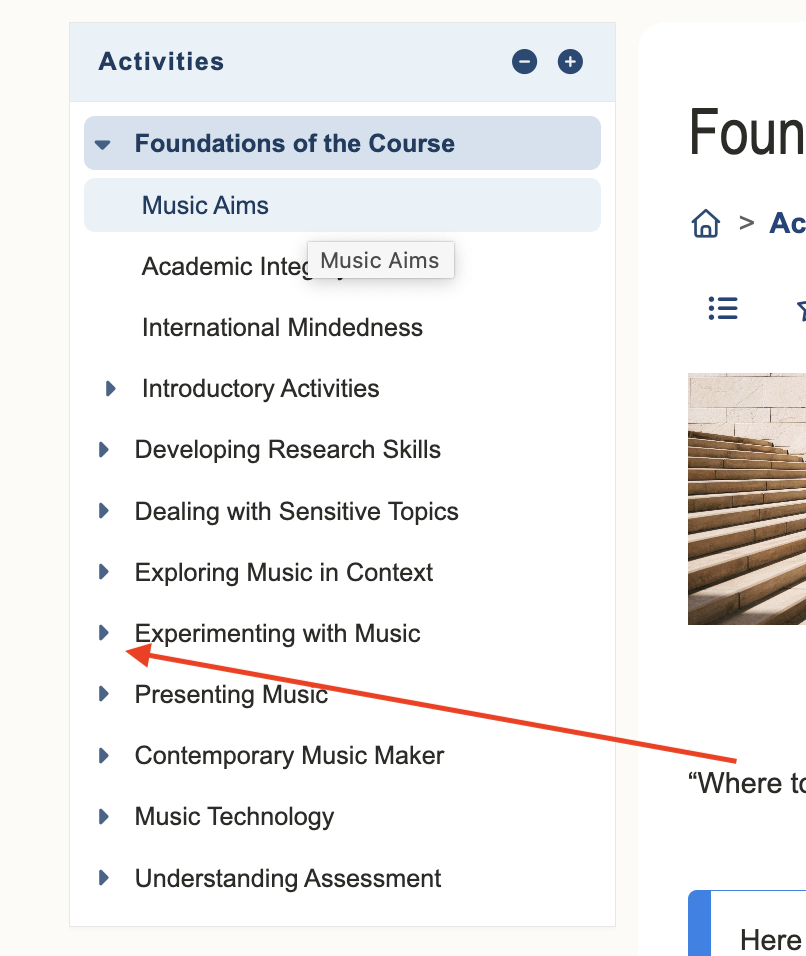
In the left column of the page, you see the drop-down menu, which will contain the links to all the pages found under the given topic. Many of the pages will have subpages and will be marked with a blue triangle (see red arrow below). Click on this, and all the subpages will open.
2. Using the Site Map
The sitemap can be accessed from the bottom-right button located under “Student Access Pages.”

Clicking on ‘Sitemap’ will show every page on the student side of the site. You can access pages by scrolling over any one of the pages on the sitemap.
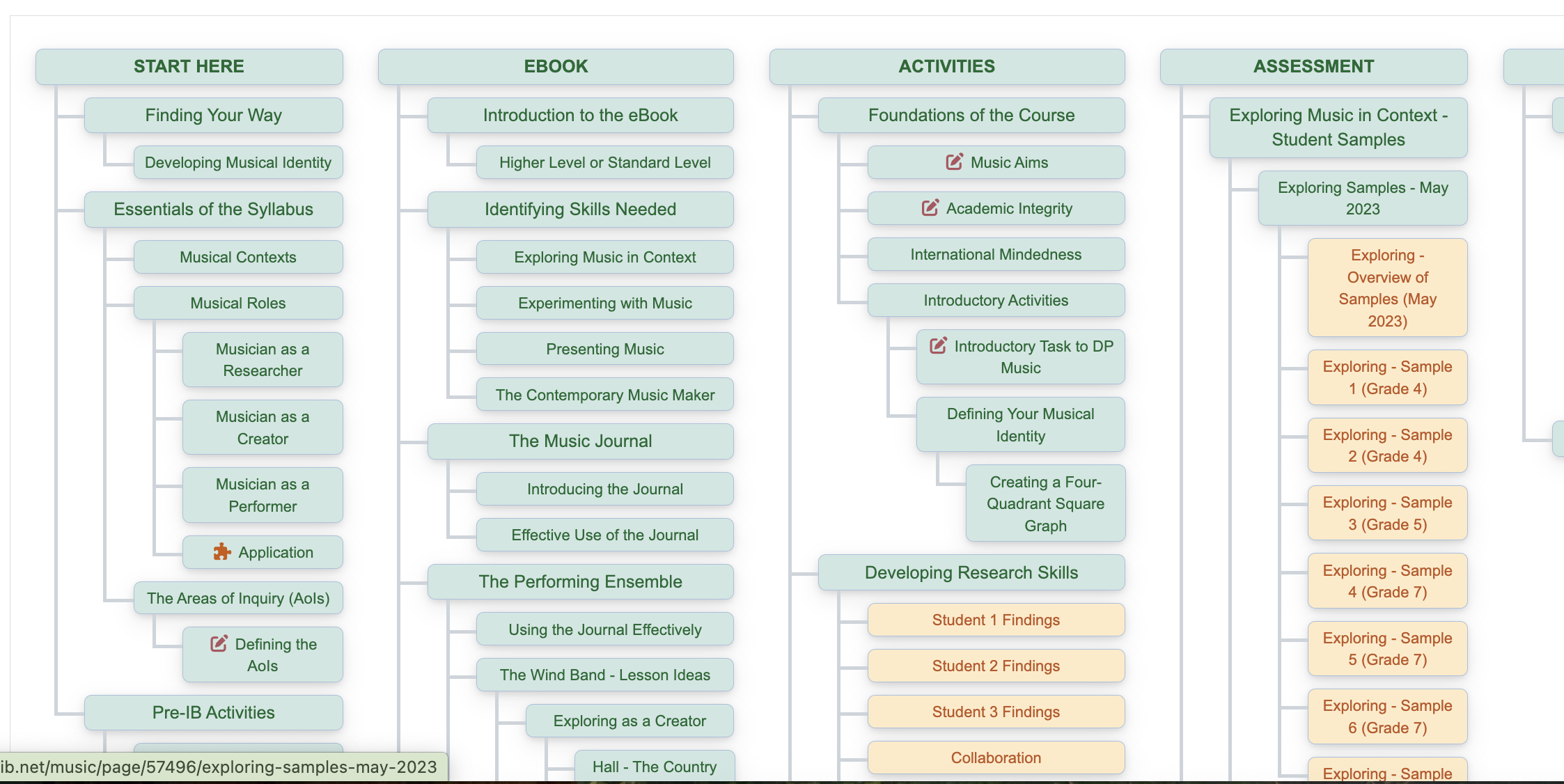
The sitemap will automatically update and pages are added to the site.
3. Using the Search Feature
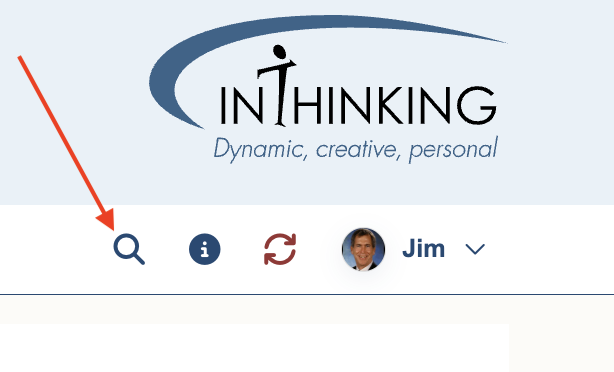
This function is particularly useful if you are trying to find very specific information quickly. At the top of the page, you will find a search button with an icon that looks like a magnifying glass.
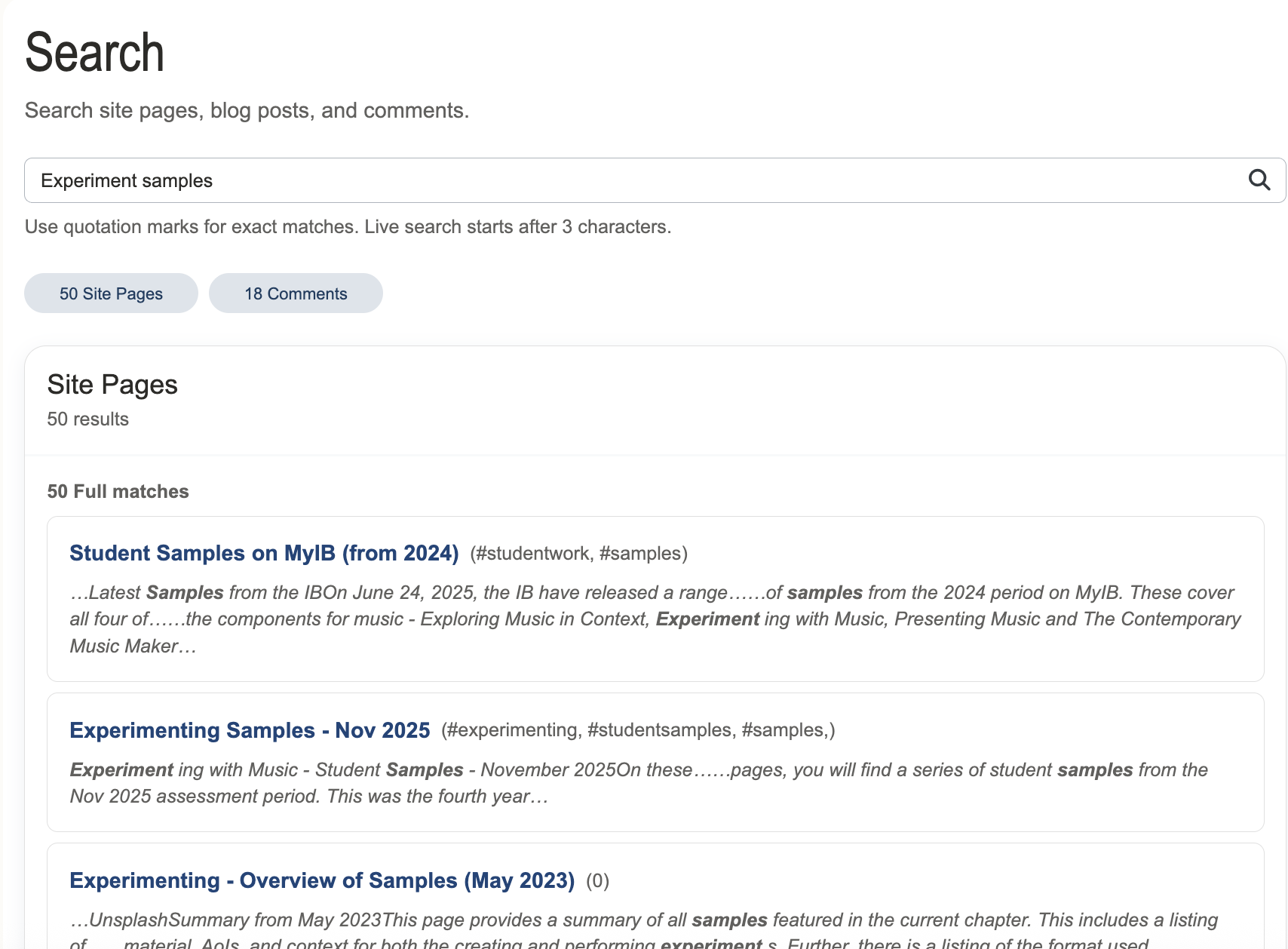
Now, type in your search topic, say, for example, “Experiment Samples”.
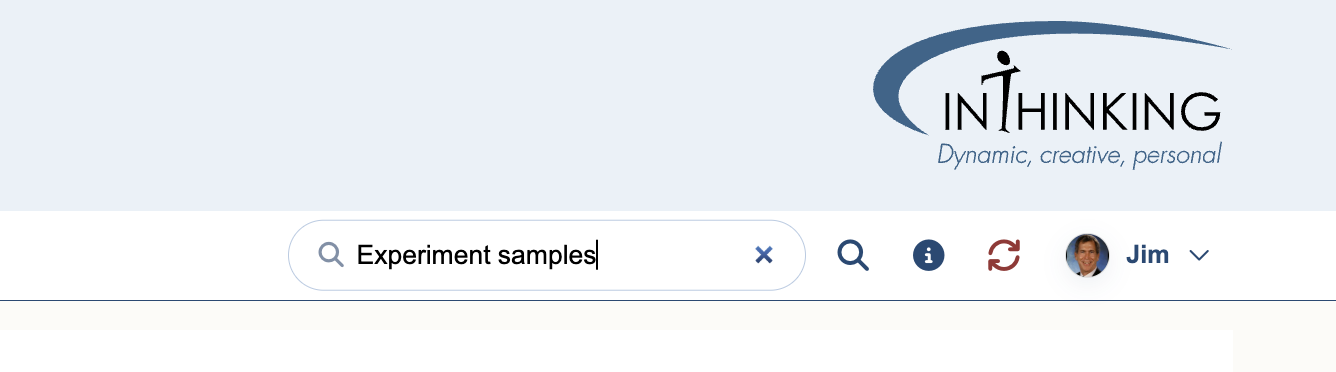
After hitting the search button, pages with links containing information about "Experiment samples" will appear. In this case, you can see 50 site pages addressing the topic of experiment samples.