Highlighting and Annotations
Further Assistance
We would like to inform you that a new feature has been added to the site. The feature enables users to highlight sections and/or add notes to materials to any of the pages. This feature can be particularly useful for initiating follow-up at a later time while reviewing content on the site.
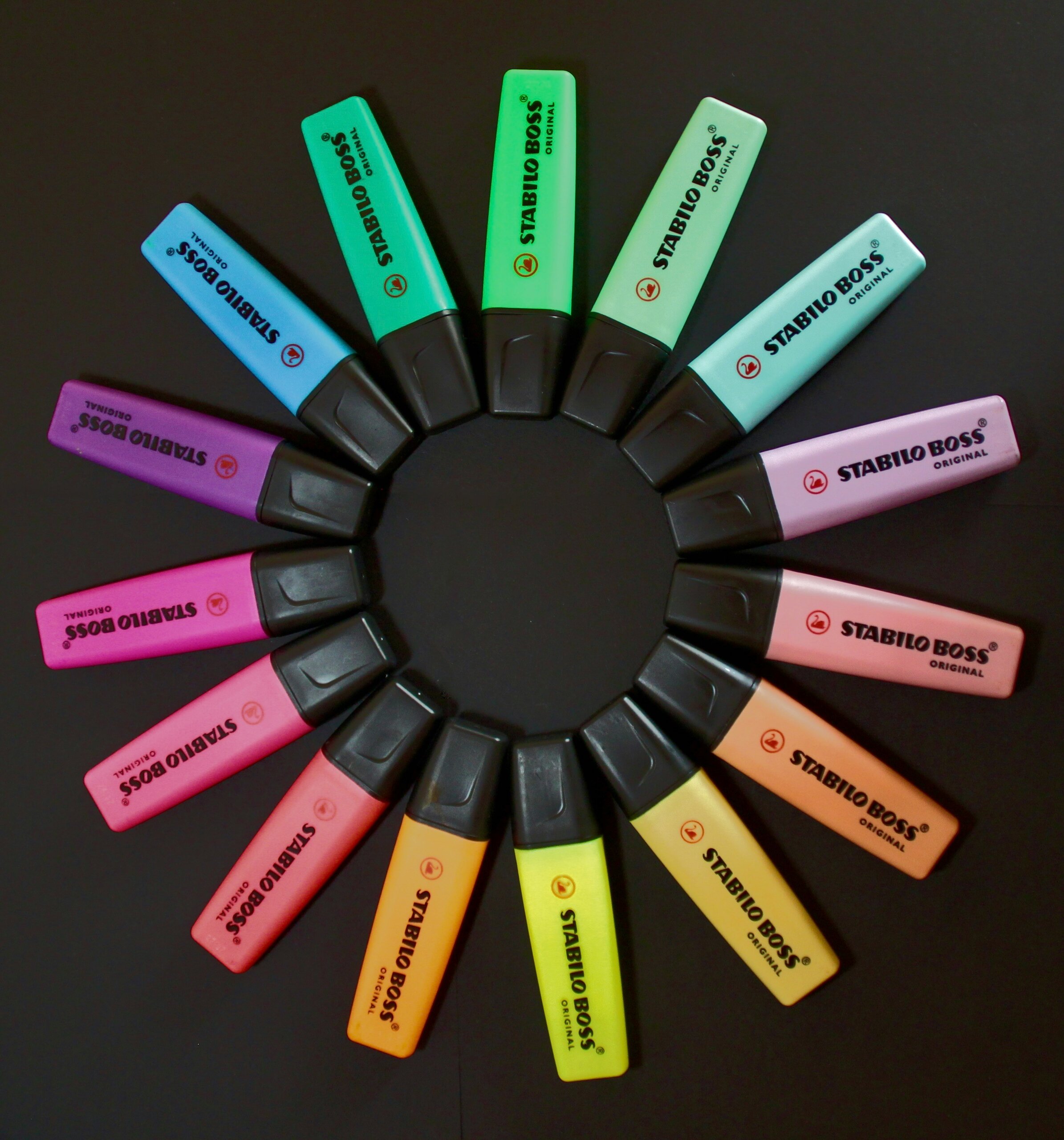
“Highlighting” Photo by Kim R-K on Unsplash
To begin, go to any content page and highlight some text.
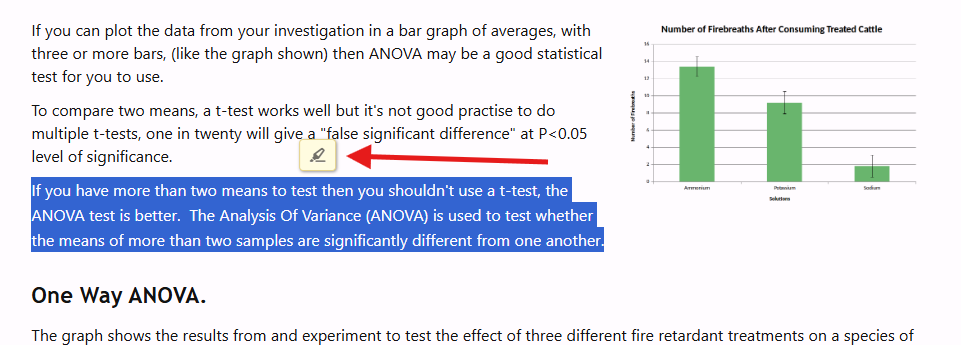
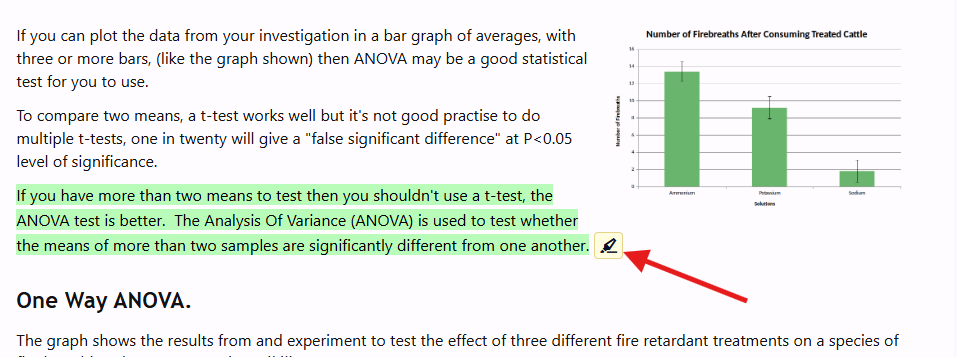
Next, click the button with the highlighter icon.
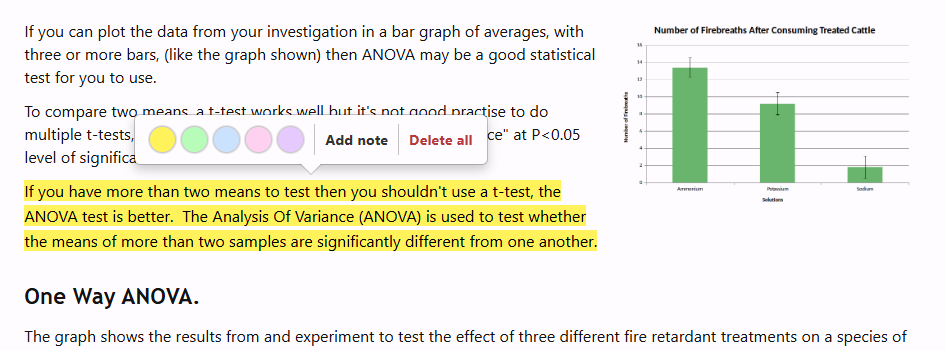
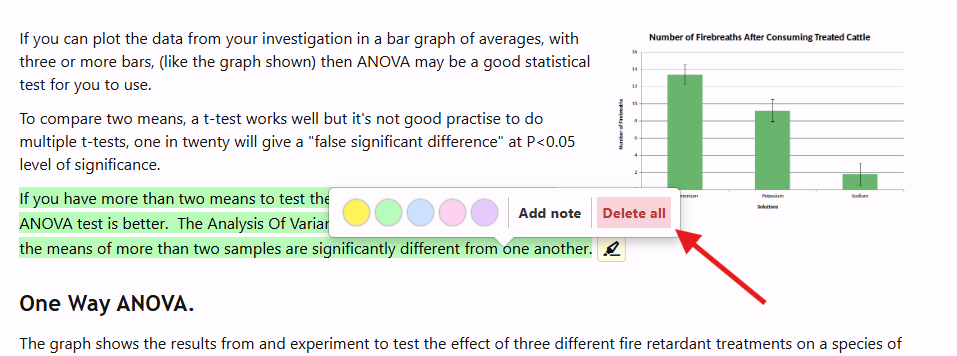
Options will appear to change the highlighting color, add a note, or delete the highlighting.
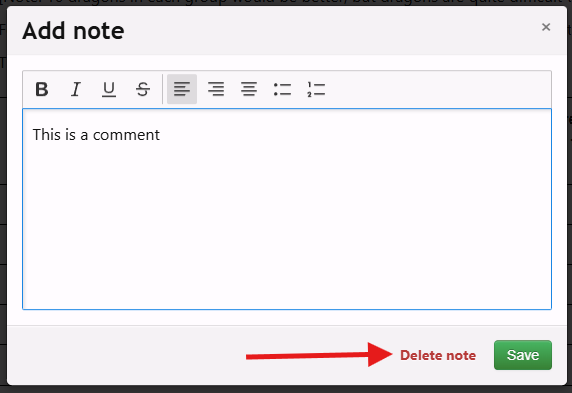
Clicking on “Add note” allows for writing an annotation that will be visible when users hover over the highlighted text.
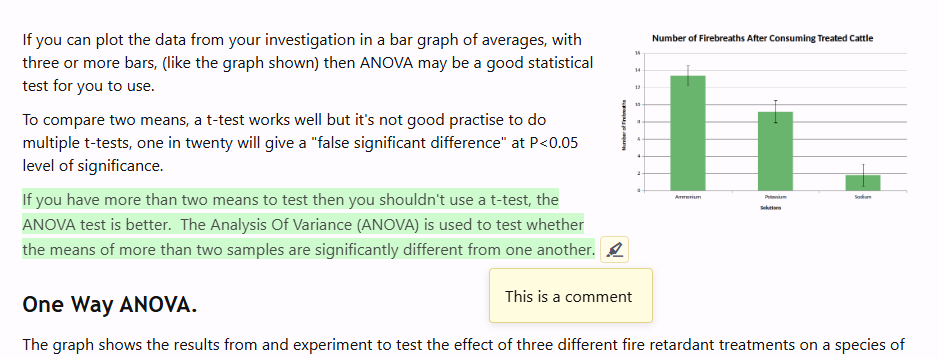
If a highlighted text has an annotation, a highlighter icon will appear at the end of the highlighted section.
Annotations can be cleared without deleting the highlighted text by clicking “Add note,” then selecting “Delete note.”
To delete both the highlighted text and the annotation, click on the highlighted text and then select “Delete all.”
We hope that this feature will enhance your experience and provide you with opportunities to further reflect on the materials.