Navigating the website

We redesigned this website in the summer of 2026. Here are some tips on how to navigate the new site.
When you log in, you'll see the ThinkIB dashboard, which lists any pending tasks (reading eBook pages, homework, etc) and gives links to all of your ThinkIB courses.
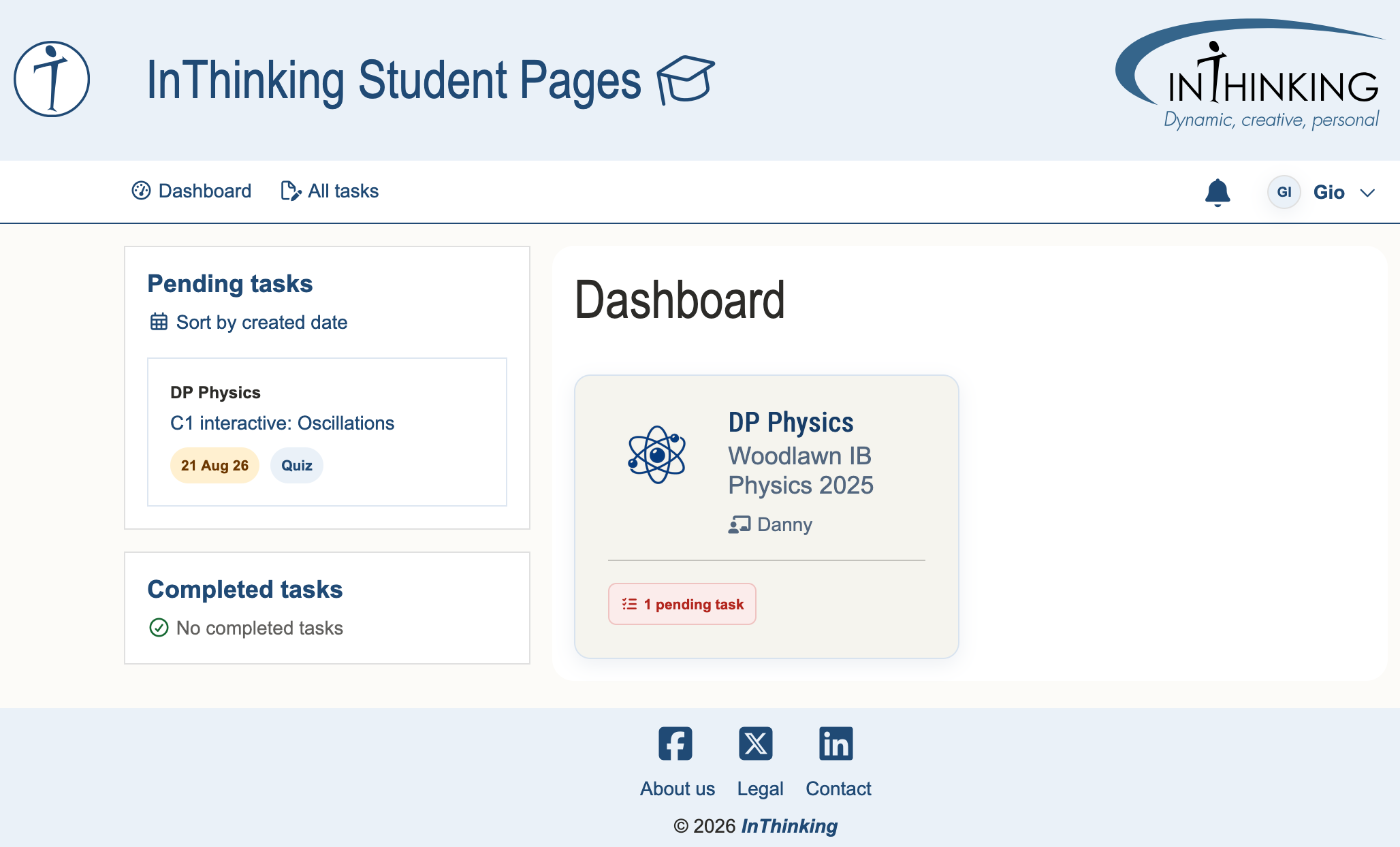 | 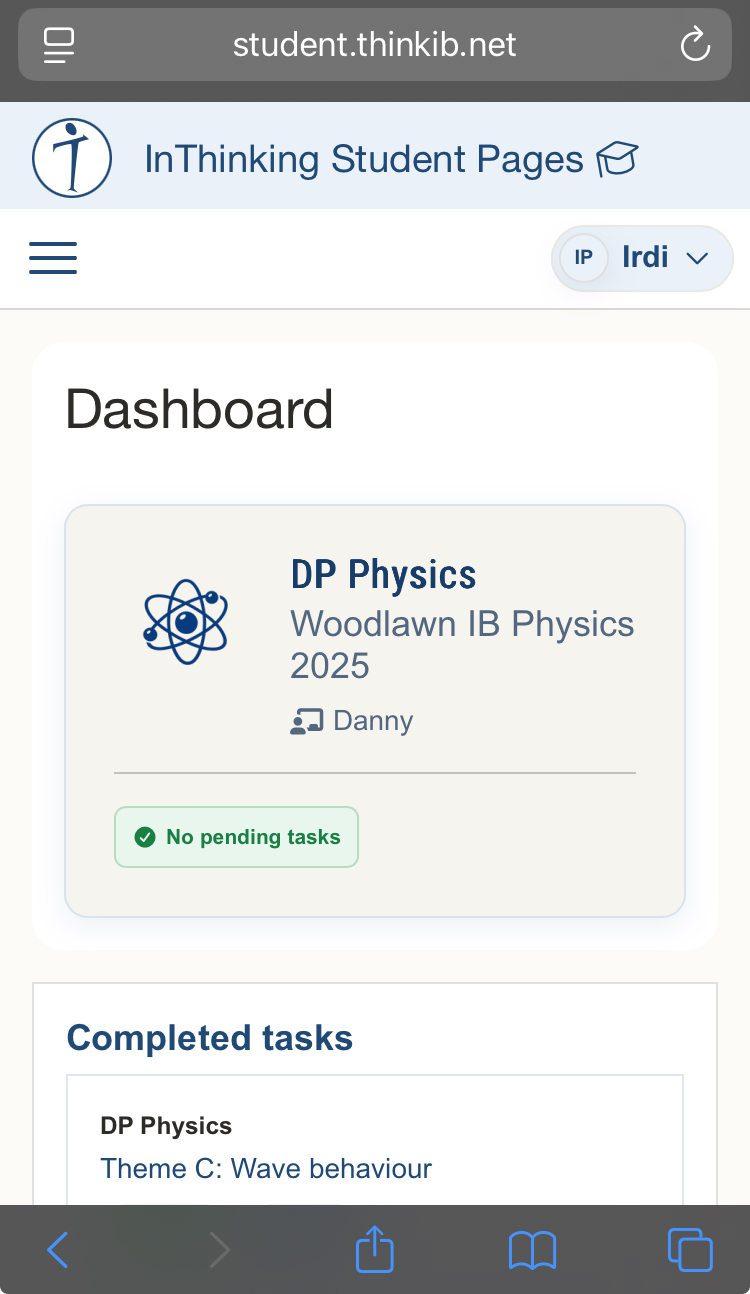 |
The dashboard is a great way to keep on top of assigned work from your teacher. You can access work you need to with via Pending tasks or review past work through your Completed tasks.
The eBook has pages designed for learning new physics topics; practice questions for you; and MCQs, problems, and tests that your teacher can assign. In order to access the eBook, click on the physics course, and then choose eBook.
The eBook is organized by Themes, from A to E (plus “tools for the study of physics”). Each theme has 4 or 5 topics. And each topic has 1 to 4 sub-topics. For example, the first thing many students study in physics is A1 interactive: Displacement and velocity. This sub-topic is part of A.1 Kinematics, which is part of the A Space, time, and motion theme.
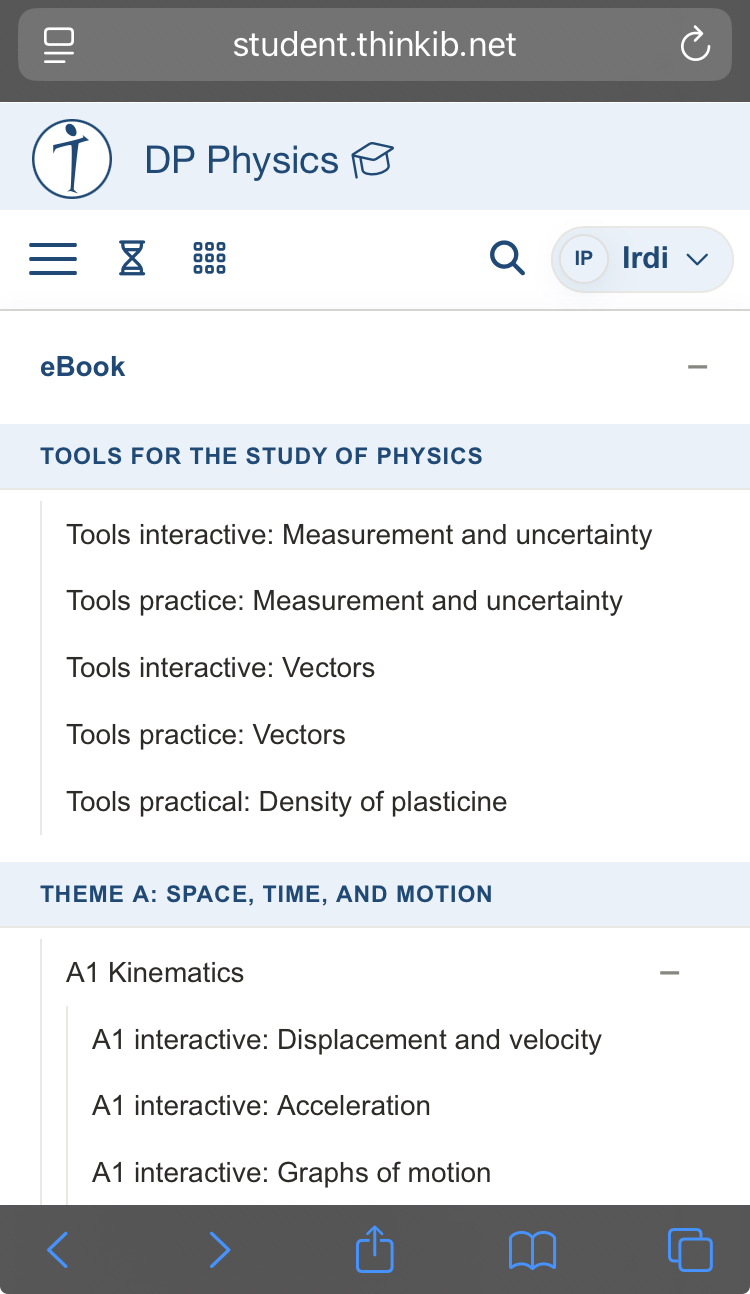
From the eBook menu, you can see the complete list of subtopics in the menu on the left if you are on a computer, or via the “hamburger” (3 horizontal lines) menu on mobile.
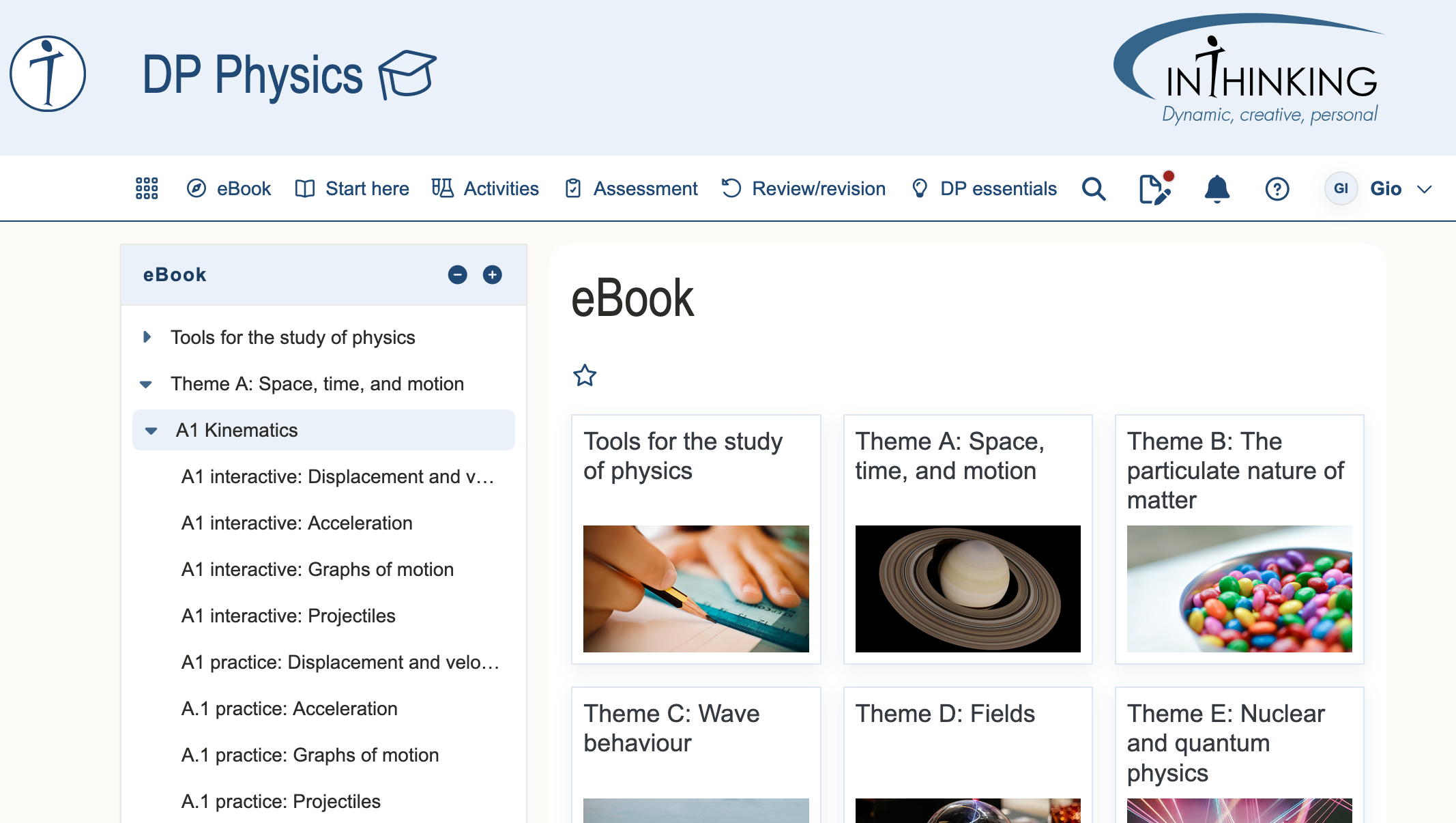 |  |
You can also navigate by clicking on the icons for theme and topic. Within each topic, you will find several types of pages.
- Interactive pages (like A1 interactive: Displacement and velocity) are the interactive eBook pages. They contain explanations of concepts and ideas in physics, along with questions to make sure you are following along. Checkpoint questions are essential because you don't understand a new idea until you can use it. Many of these pages also include flashcards at the start and end of the page, to give you a quick way to check to make sure you got everything.
- Practice pages (like A1 practice: Displacement and velocity ) are questions for you to practice your understanding of new ideas and skills.
- Teacher-assigned pages are not visible to students by default, and include multiple-choice questions (MCQs), physics problems, and tests. Once your teacher assigns one of these pages, it will be visible in the menus shown above (and will also appear on your dashboard).
Other than the eBook, there are many other resources available for you on this website.
- The Activities pages include around 75 lab practicals (also called experiments or investigations). These can be assigned by your teacher, but we've made them visible by default.
- The Assessment pages describe assessment for the IB Physics course, which includes both external assessment (i.e., exams) and internal assessment, which is the Scientific Investigation.
- Our Exam preparation guide may be useful for you as you prepare for progress, mock, or final exams.
- The DP essentials pages give advice on how to connect physics to TOK, CAS, and the Extended Essay; international mindedness, the learner profile, and more.
You can find these sections of the website in the same way you access the eBook.
There are a few useful functions on this website that are designed to help you learn effectively:

Favourites
Below the title of each page is a star icon (see above). Clicking the star icon adds that page to your list of favourites. You can access your favourites using the “waffle” (9 dots) menu on a large screen or “debab” (3 dots) menu on mobile.
Notes
Beside the Favourites icon is the Notes icon, below the title of every page (except a few navigation pages). Think of the Notes and Annotations (see below) as your way to write notes as you read through the eBook. The notes will stay on the page, and you will see them any time you are logged in and view that page. Notes stay at the top of the page.
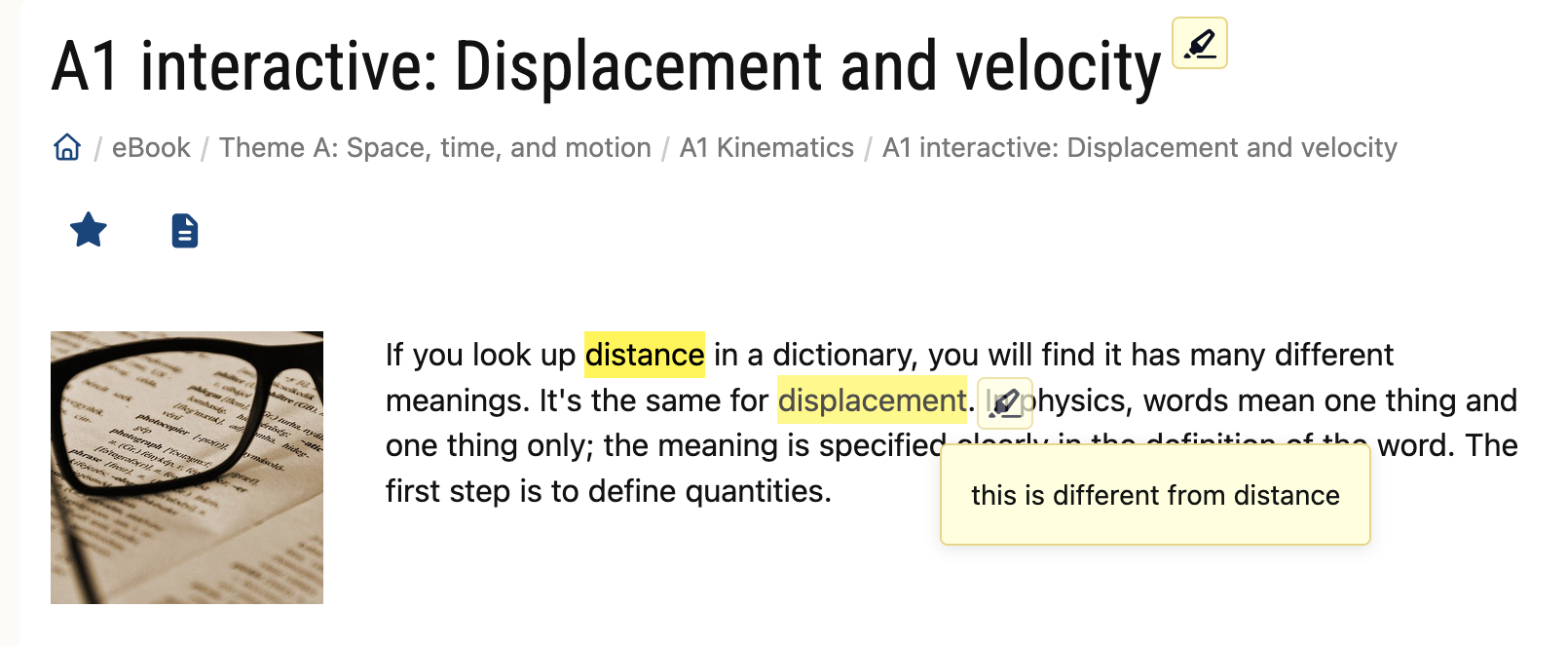
Annotations
Annotations are like a highlighter and sticky notes, and stay on the page like just notes. For more about annotations, see the Annotation and sticky notes guide.

Search
At the top right of the screen, on both larger screens and mobile, are three more icons (see above). The magnifying glass icon allows you to search the website.
Tasks and Notifications
The other two icons show your pending tasks and notifications.