Student access

Set up student access to give your students access to the interactive eBook, practice questions, assignments, exam and IA guides, and much more. Best of all, this is included in your annual InThinking Physics subscription.
Student access on InThinking Physics is one of the best things you can do to support your students learning.
- The interactive eBook is concise, accessible, and uses animations and simulations to help students develop a robust understanding of new concepts. Interactive eBook pages have checkpoint questions so students can ensure they are understanding. This also allows you, as a teacher, to assign eBook pages for homework.
- Practice and MCQ questions give students instantaneous feedback (or you can delay releasing answers until after a deadline).
- Problems and tests include model answers and/or answer keys.
- You can create your own tasks using the qBank.
- You have control over which of the nearly 700 student access pages are visible to your students.
- Use the results manager to track students' performance and task completion.
- We use the website in our own classes, so everything gets updated and improved regularly.
- Spot an error or issue? Leave a comment in the box at the bottom of the page, and we'll address it – usually within 24 hours.
All of this is included in your annual InThinking Physics subscription.
Setting up student access is easy. Use the “waffle” menu and open the Student access manager. Click the green “+ New group” button.
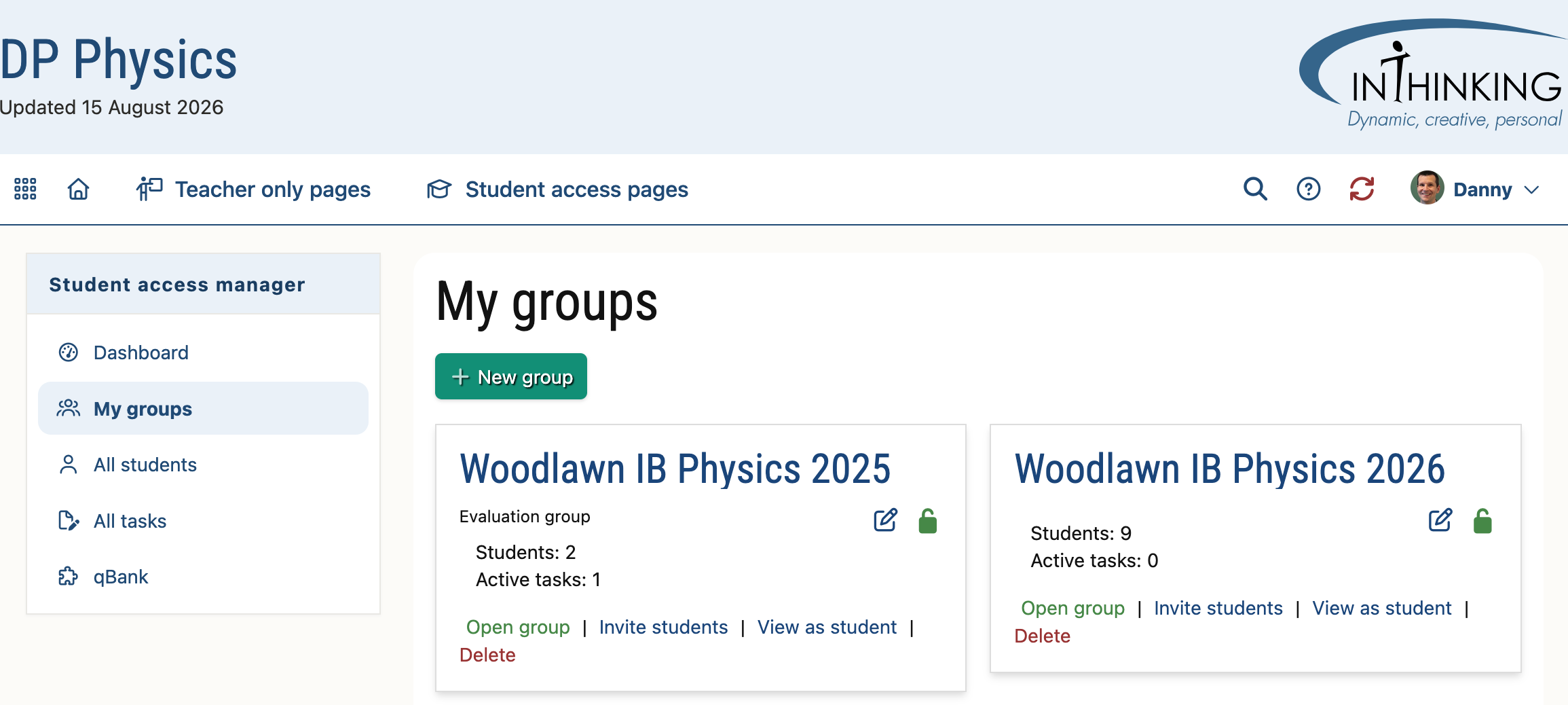
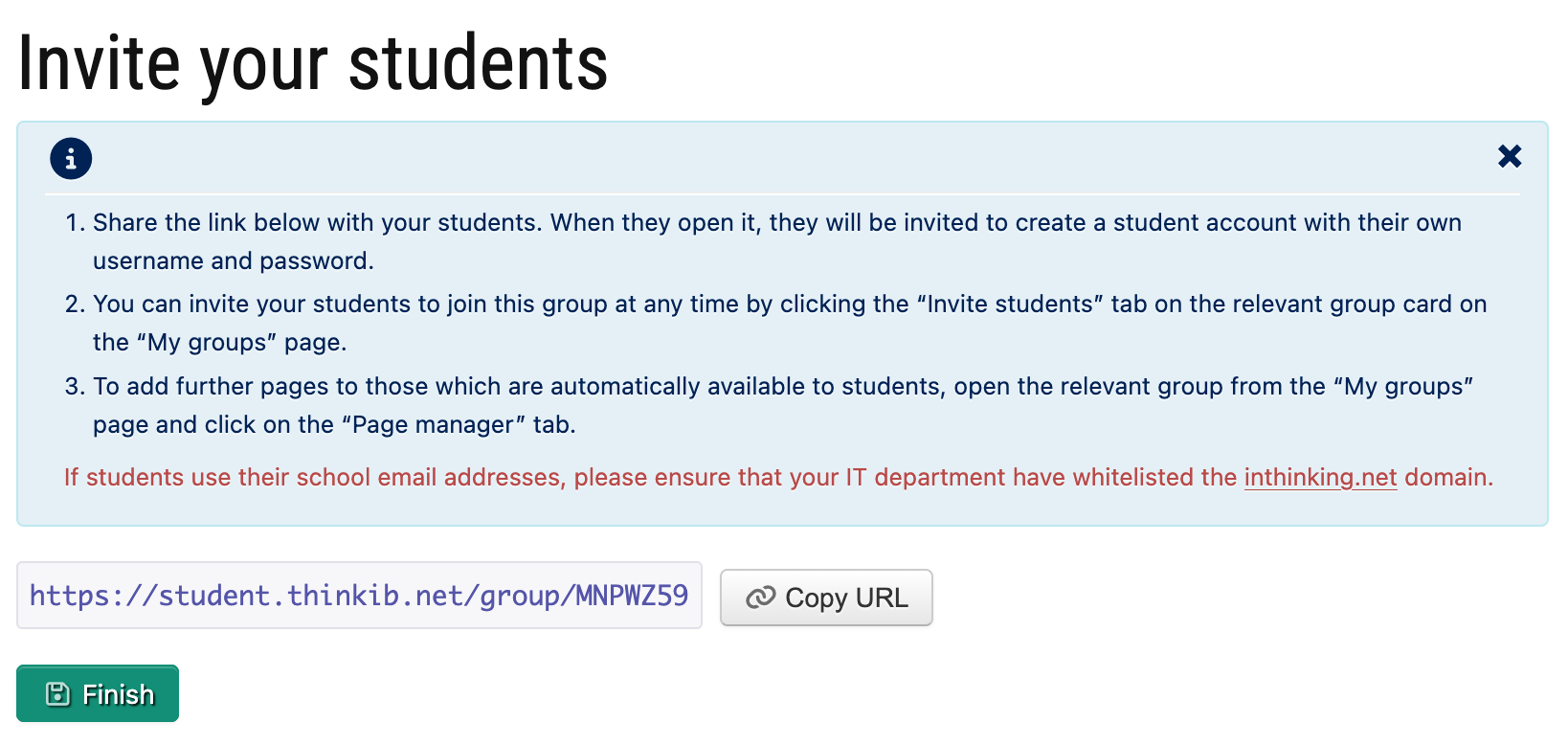
Give your new group (I usually do it by class) a name, and share the URL with them.
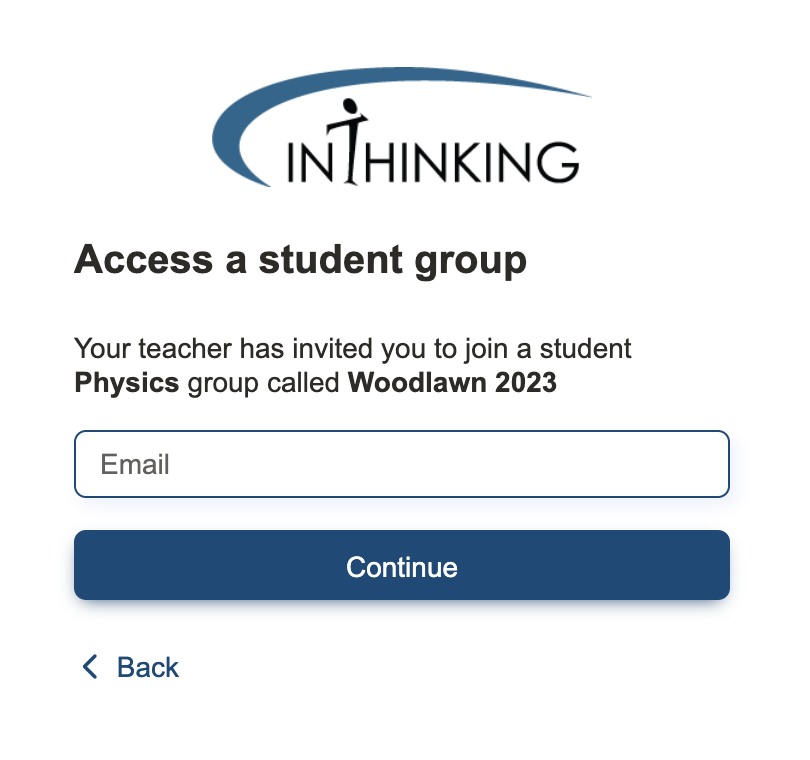
When the students access that URL, they will be asked to submit their email address, and then either login to InThinking or create a new account.
And that's it! When the students log in, they will see any outstanding tasks on their dashboard, and will see links to all their InThinking websites. For more for what this looks like for students, see the student Navigating the website page.
To set an assignment for students, navigate to the assignment in the interactive eBook. Then, click the “Set page as task” button at the top right of the page. You will need to indicate the group for this task, the deadline and, for automatically marked tasks, when the grade and answers will be available to students.
If you want to make your own tasks, choose “qbank” from the Student access manager, and choose from the nearly 1000 questions in the qbank, organized by topic.
To view a performance report, change a deadline, or edit the task, open the student access manager, pick the relevant group, and then choose the Task manager. You can also assign new tasks via the task manager. In this way, you can not only assign tasks from the site pages, but you can also assign essays, audio tasks, and discussion forum posts.
Students can never see the Teacher-only pages. The student access pages can be either ON or OFF. By default, the Interactive eBook pages and practice questions are ON and the MCQs, problems, and tests (and solutions) are OFF.
The easiest way to change student access for a given page is to navigate to that page and click the lock icon. This will open a pop-up menu that will allow you to customize access for each of your groups. In the example below, I have turned off access for my “Woodlawn 2023” group.
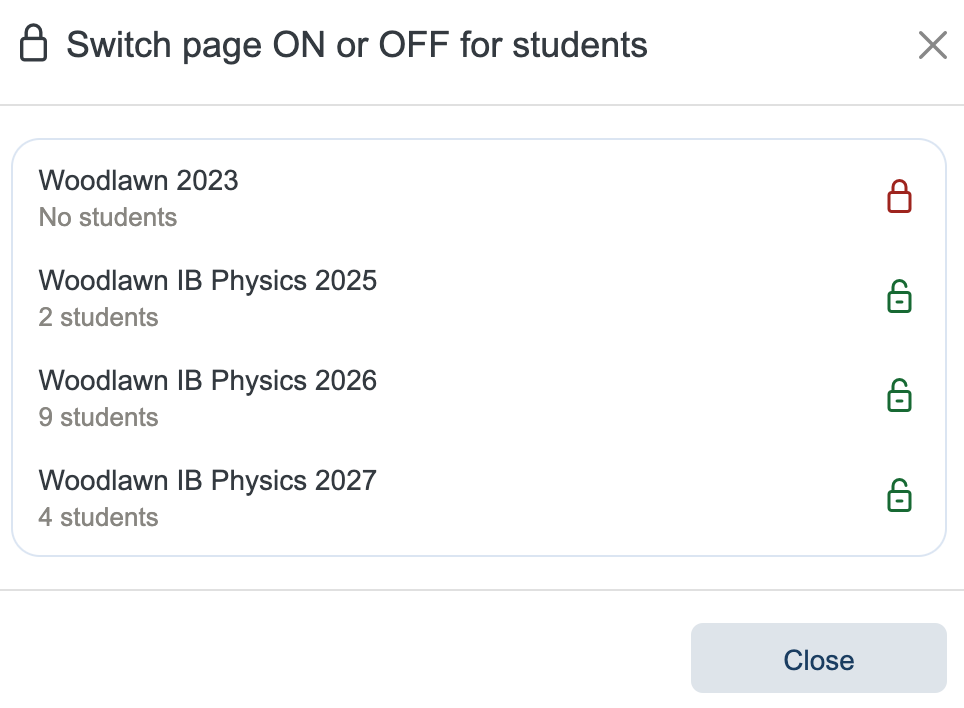
You may want to change student access in order to make available solutions to a problems assignment or a test. Note that assigning a page as a task automatically make that page ON for students.
You can modify access to all of the nearly 700 student access pages via the Student access manager. Choose the group you want to modify, then select Page manager. On the page manager, pages that are visible to students will be highlighted green, and those that are hidden from students will be highlighted orange. A useful option on this page is “Switch all on”, which is a nice thing to do when students are preparing for their final IB exams.