Navigating the site
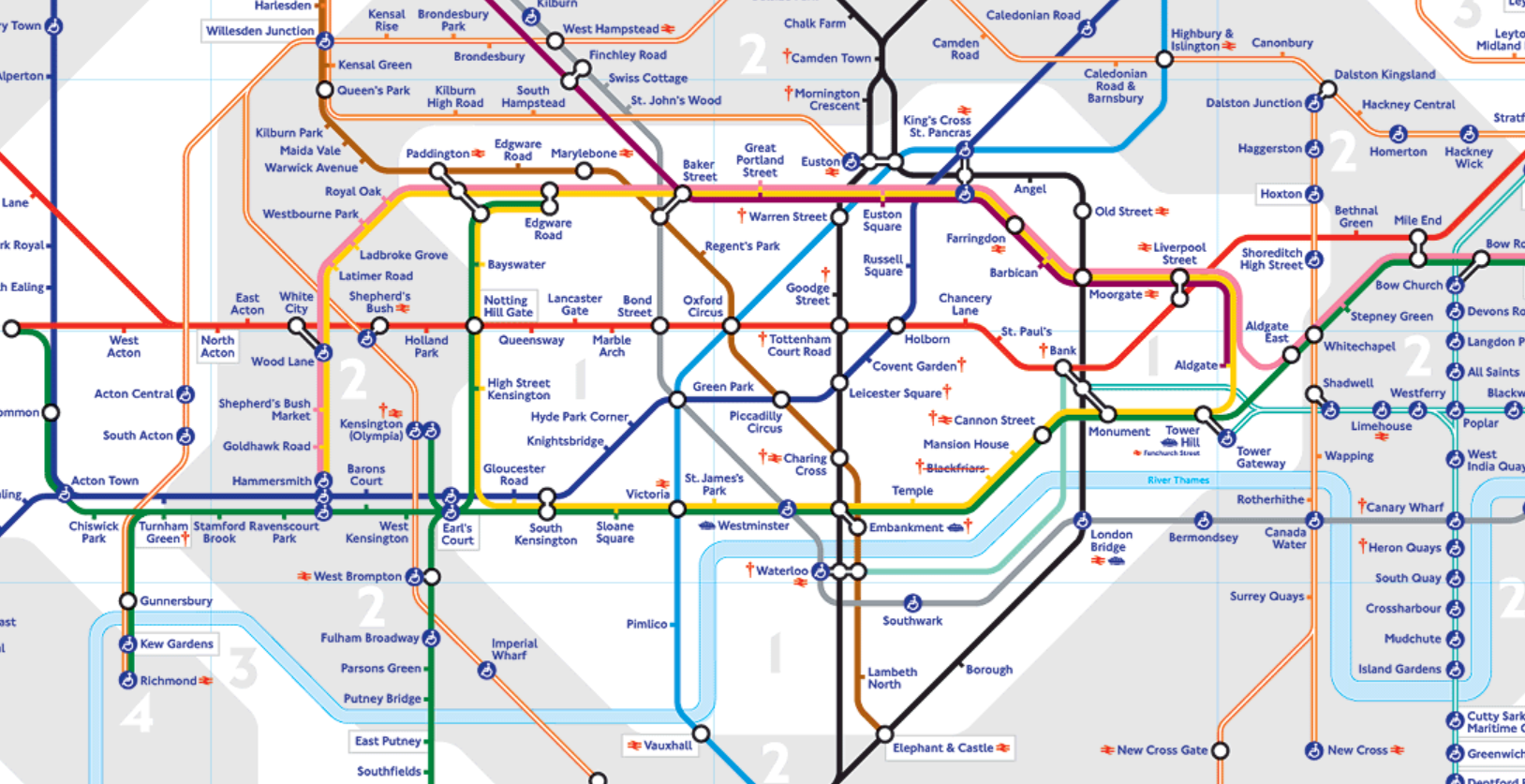
Whether you are a new subscriber or a subscriber who has not had time to familiarize yourself with the site, sometimes ThinkIB sites can be like the underground map. Looking at it can be a bit overwhelming!
The goal of this page is to give you an outline of the layout of the site.

The main headings run along the top menu bar.
Placing your cursor over headings will reveal any additional drop-down menus.
Please note that there are a couple of distinct parts of the site: Student Handbook, Activities for each content area and Assessment. By default, students can see all pages under Core Theme and Areas of Knowledge in the Student Handbook as well as some parts of the Assessment. However, they will not able to see some of the other pages and you will need to share it with them.
The sitemap can be accessed from the menu on the home page or from any page using the drop-down menu from your name on the left of the page. The sitemap shows every page on the site, and you can access each page directly by clicking on it.
At the top of the sitemap, you will see that the pages are colour-coded according to the type of access. The filtered student access pages are only available for students to see when you switch them ‘on’ (see Student Access) for a group of students.
The search bar is in the top-left corner of every page under the site name.
The results will show you all pages on the site where the information may be found and where the information is mentioned in comments made on the site.
If you are typing in the name of a concept, it is best to put the name in quotation marks so that the whole phrase is searched for, limiting the results to only cases where the full name of the concept is addressed - e.g. "Indigenous knowledge".
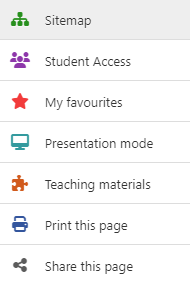
At the right-hand margin of each page, except for the home page, you will find a menu bar that will appear when you place the cursor over it. It has the following functionality:
- You can access Sitemap and Student Access to see whether the pages are visible to the students
- You can bookmark the page as one of your Favourites that is visible on the homepage under your name
- Presentation mode allows you to present to a class in full-screen mode
- There is a link to the Teaching materials on the site
- You can Print this page for classroom use
- You can Share this page through email or social media