How to navigate the site
This page gives a simple guide to help you find your way around the site to locate any page you want or to find any page that contains a particular word, part word or phrase using the search facility. Once you grasp the three different ways of navigating you will be able to explore the site fully to see for yourself the wealth of information, ideas and resources it contains.
Navigating the site
There are essentially three main ways to navigate your way around the site which contains hundreds of pages. Once you have the basics of these three ways you can then simply explore the site yourself to see the quality of exactly what it does contain.
1. Using the main headings
You can go straight to a main headings from the drop down headings on the home page marked ‘Teacher only pages’.
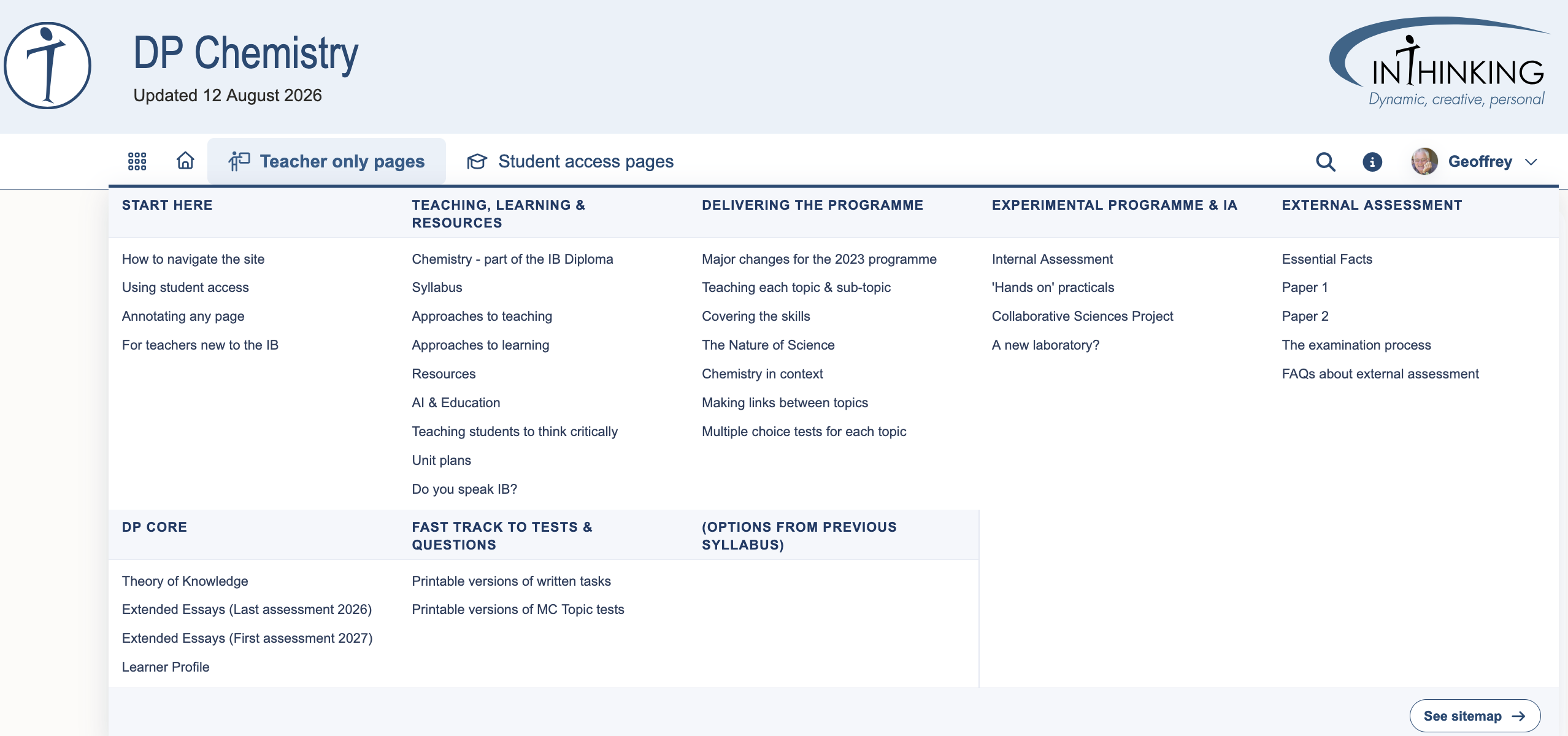
Similarly you can also go to the drop down headings under ‘Student access pages”’ As a subscribing teacher you have access to all the pages on the site.
All the secondary headings contained in each of the eight main topics are listed underneath the main heading, e.g. Delivering the programme contains seven secondary headings. Clicking on one of these will open up further sub-headings, e.g. Teaching each topic & sub-topic will bring up the sub-headings associated with each sub-topic in the left hand column.
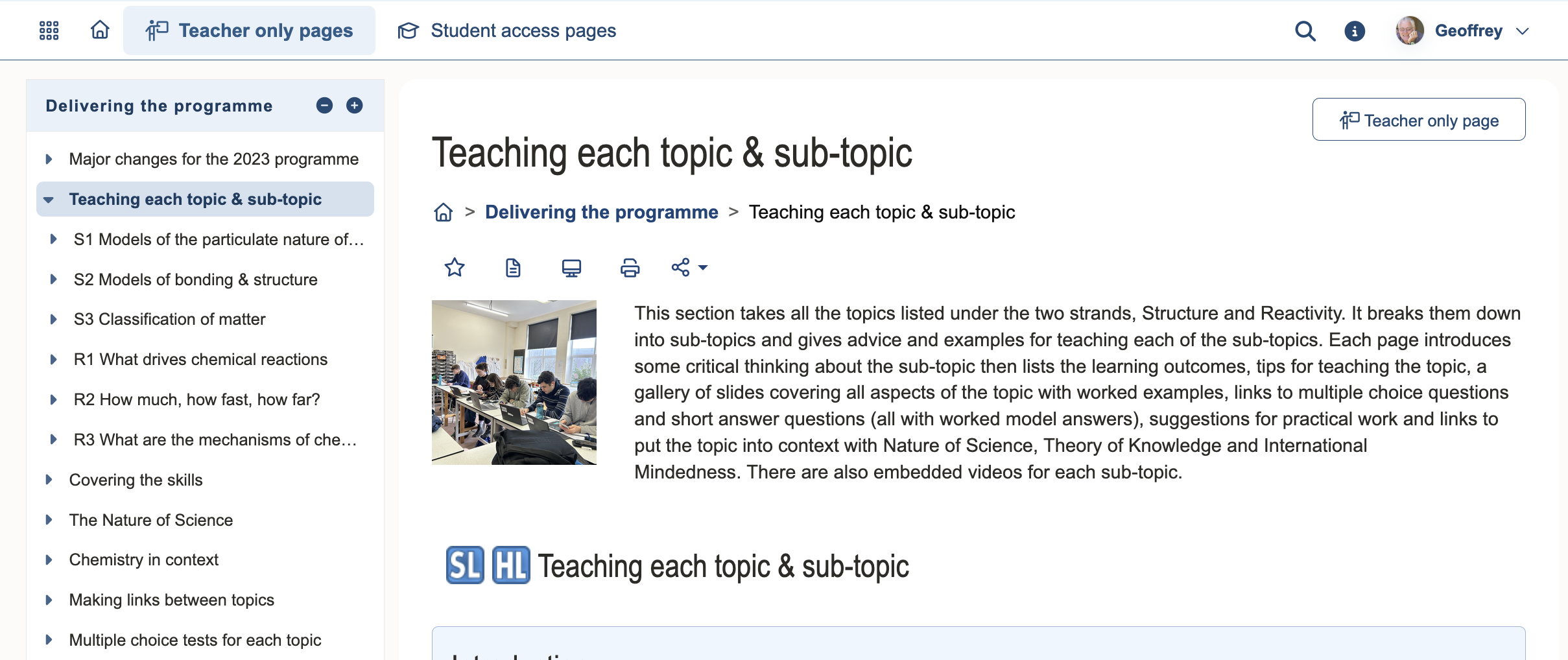
If you then click on one of these, e.g. R3 What are the mechanisms of chemical change?, it will bring up the page itself.
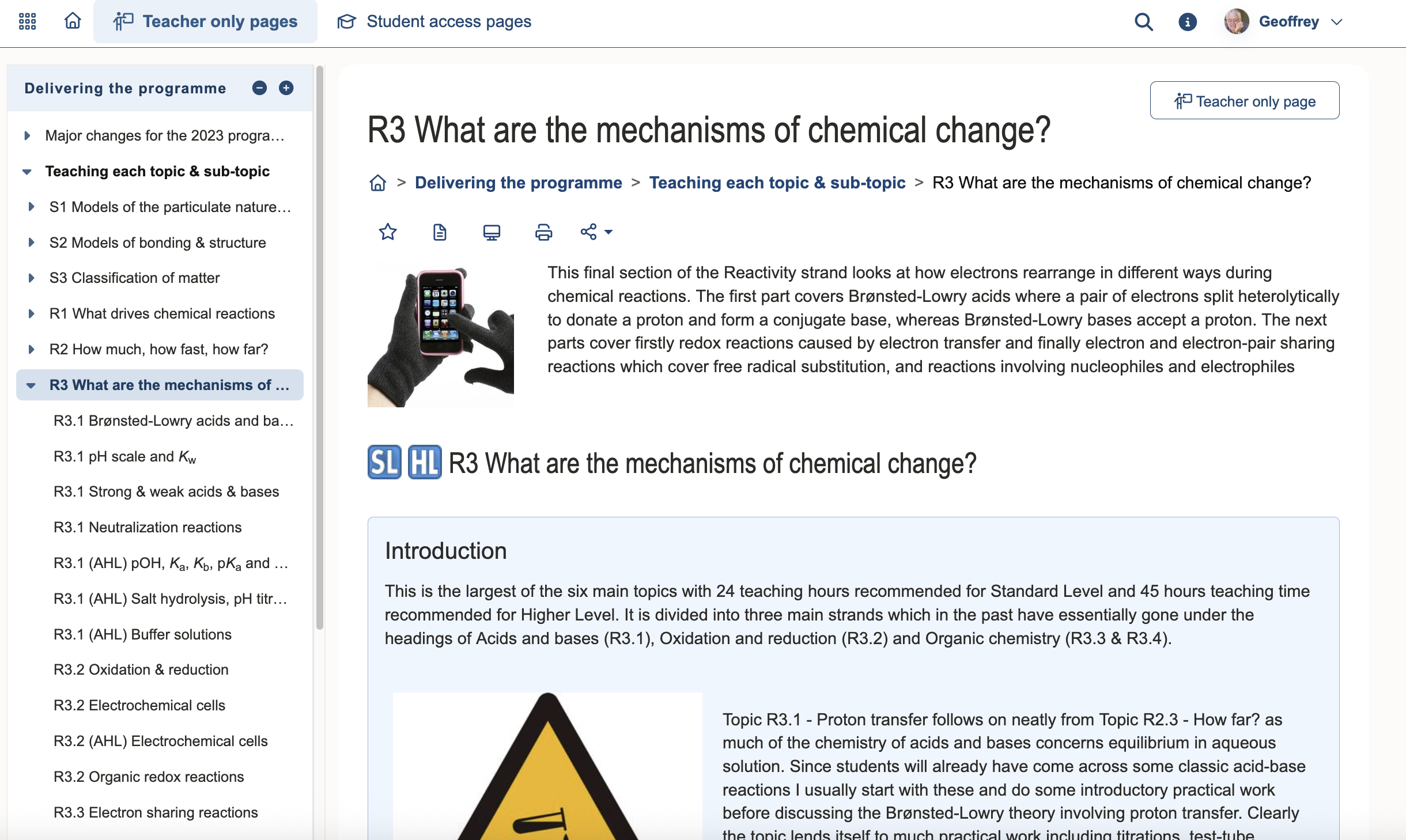
This particular page contains an introduction to the R3 strand which includes proton transfer reactions, electron transfer reactions and electron and electron-pair sharing reactions. On the left you can see a breakdown of all the sub-headings under ‘Delivering the programme’ and the headings under the chosen sub-heading ‘Teaching each topic and sub-topic’. You can see in bold the page that is open and the children pages attached to it. These fourteen children pages are the separate sub-topics under ‘R3 What are the mechanisms of chemical change?’
Clicking on any one of them will open the page, e.g. R3.3 Electron sharing reactions .
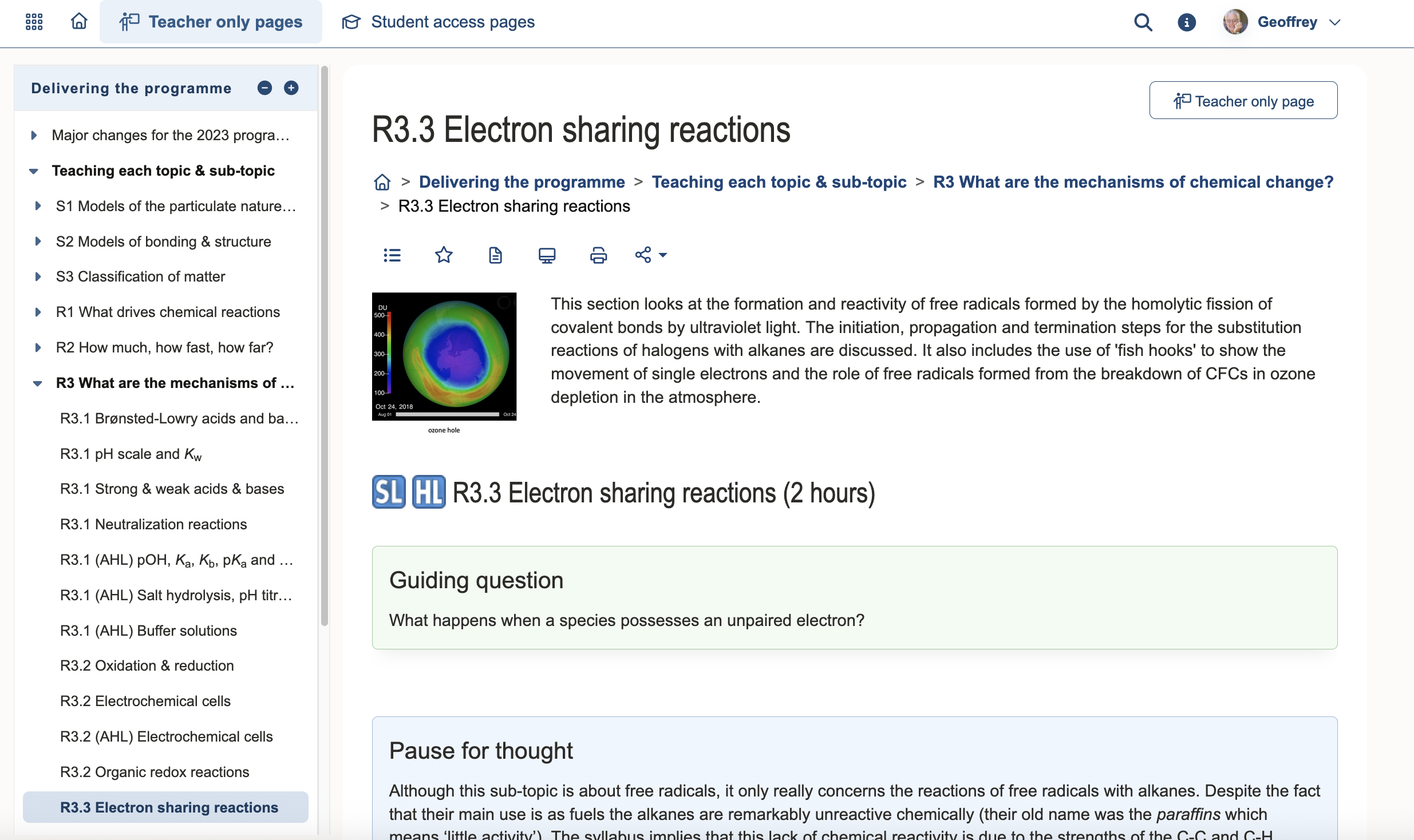
Each sub-topic page under this main heading contains the same layout with the time for teaching the sub-topic, Guiding question, Pause for thought, Nature of Science, Learning outcomes, Teaching tips, Questions, Vocabulary, Practical work, Teaching slides and Other resources etc. etc.
Remember this page is only for teachers. You can see on the left that there are no children associated with this page. This is because students will need access to the tests and quizzes etc. Links to these pages are given in the teacher page itself but you can see that the children are attached to the corresponding page in the student access part of the site.
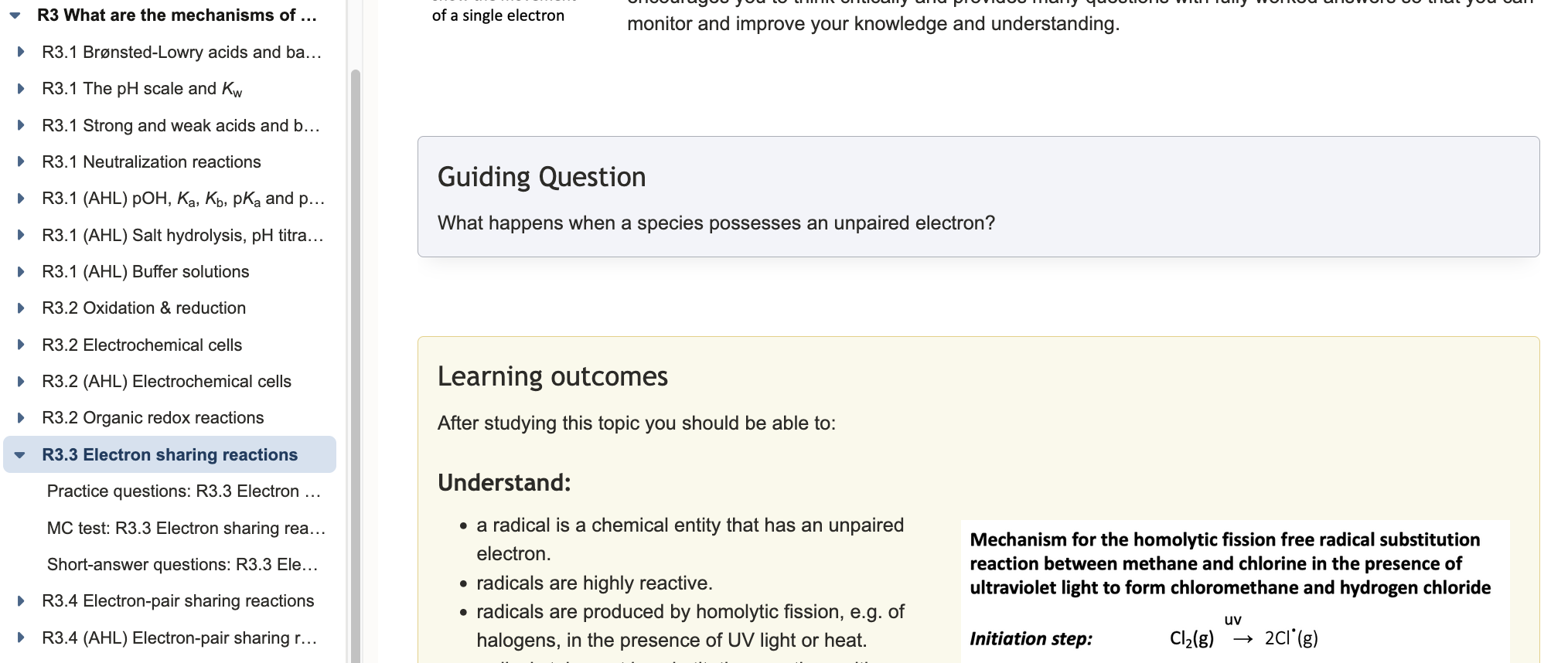
- a practice quiz
- ten-question multiple choice test
- a collection of short-answer questions
The practice quiz is immediately available to students. You have control over the access to the multiple choice test and the short-answer questions depending upon whether you wish to set them as assignments or not (see Short cut to set an ‘in page’ task)
Features menu
Note that each page also contains a features menu. This is located immediately below the main heading and above the page summary, e.g. on this page
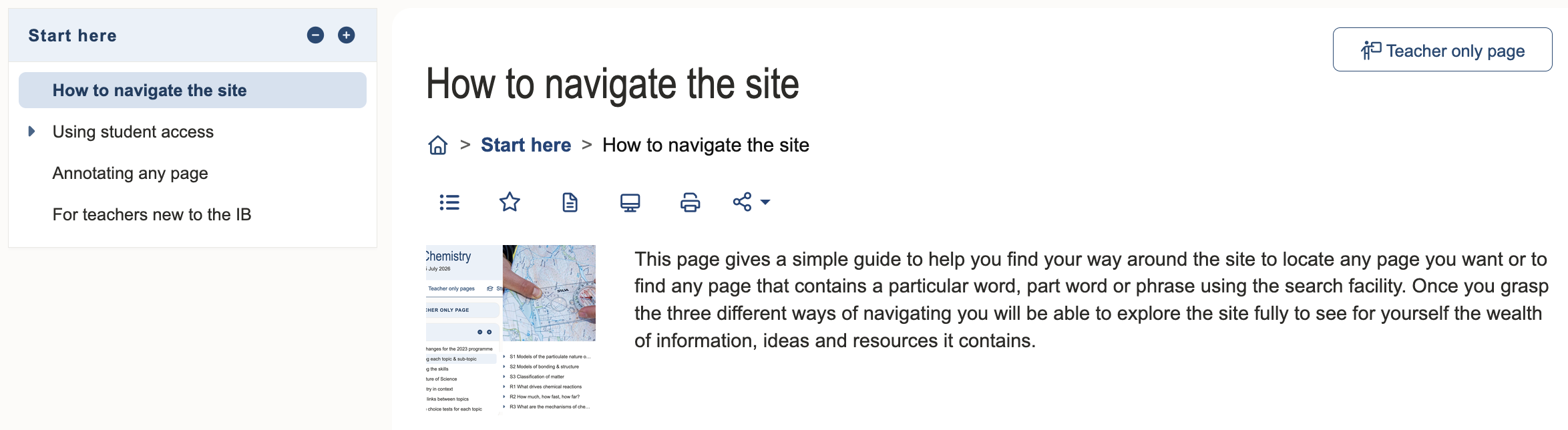
When activated these six icons show 1. Table of contents, 2. Add to favourites, 3. Add notes (you can also use ‘sticky notes’), 4. Show the page in full screen, 5. Print the page and 6. Share the page on social media.
Note that on the ‘Student access pages’ there are two more icons. One in the form of a padlock that enables you to set the default to ‘ON’ or ‘OFF’, and the other in the form of an eye that enables you to view the page as a student.
2. Using the sitemap
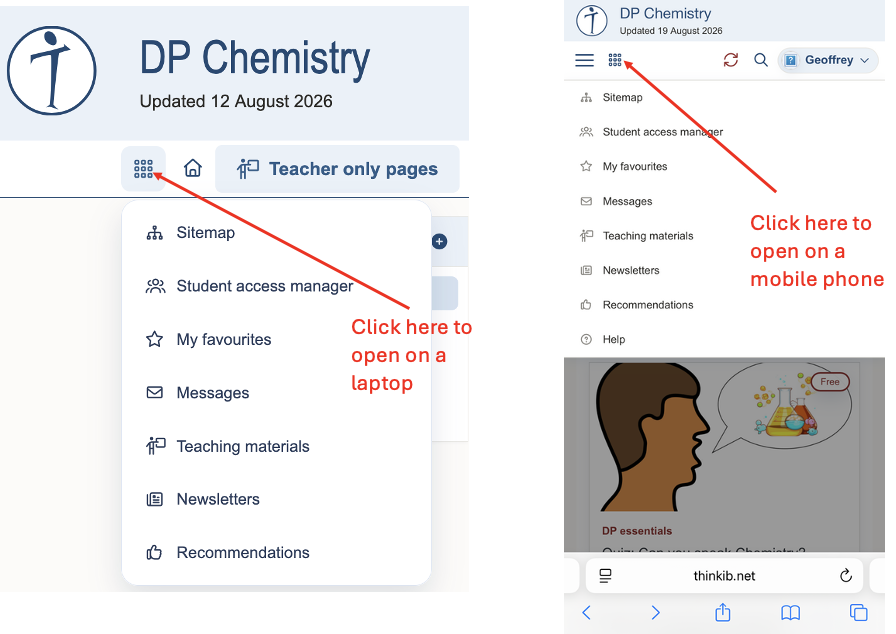
The sitemap can be accessed from the drop down headings from the ‘waffle’ (nine dots) icon to the left of the "Teacher only pages' top heading on any page. This list contains seven items, the first of which is ‘Sitemap’. (Note that on a mobile phone the icon required is the same design but in a different position.)
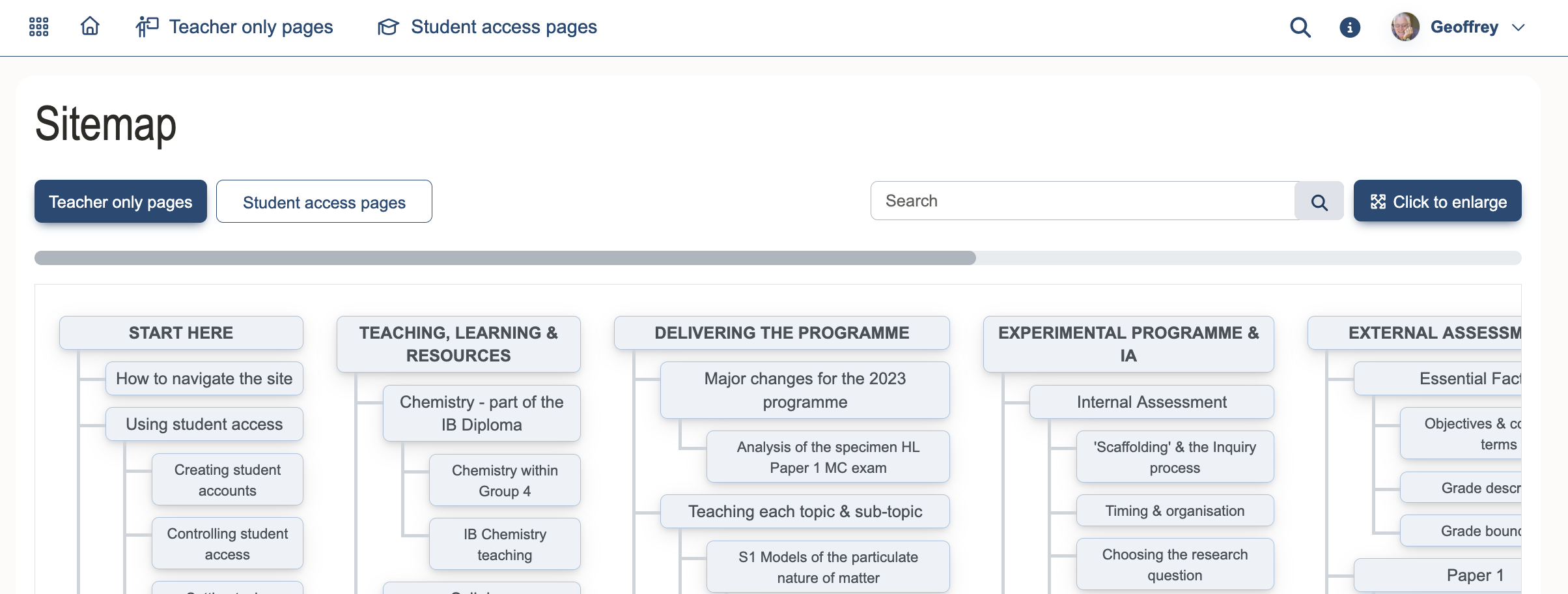
Then clicking on ‘Sitemap’ will show every page on the teacher only part of the site. There are many pages so you may need to scroll down a lot, and also scroll across if you want access to all the main headings, then just click on the page you want.
The site map for the student access pages can be found by clicking on the ‘Student access pages’ box.
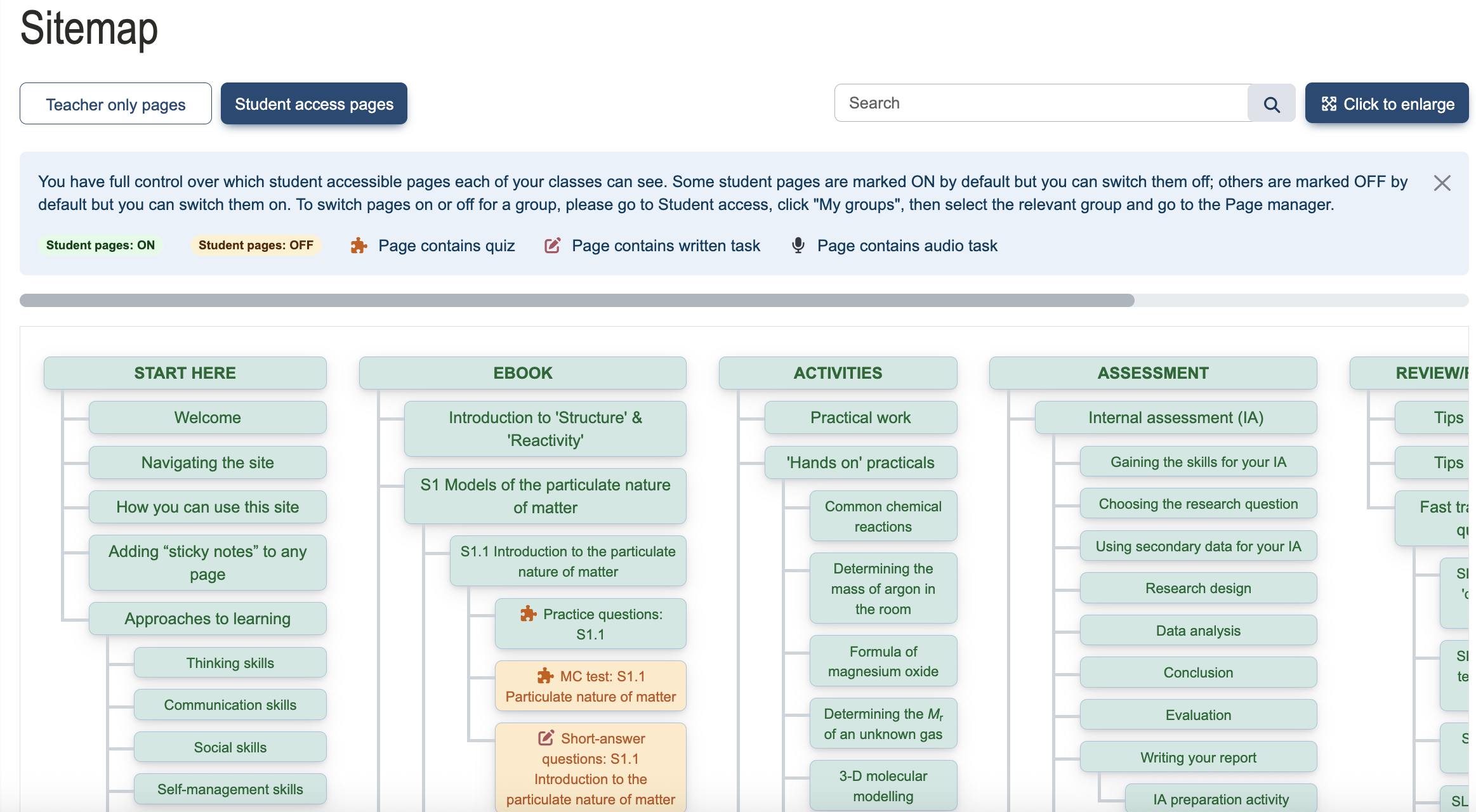
Note that the pages are colour-coded to show which pages are teacher only, which pages can be shared with students (mainly the quizzes, short-answer questions and multiple choice tests) and which pages students always have direct access to.
For example in the student access pages you will see that students have immediate access to all the practice questions in the sub-topics for Structure (S) and Reactivity (R) in the eBook but the multiple choice tests and short answer tests are under your control so students can only access these pages when you allow it.
3. Using search
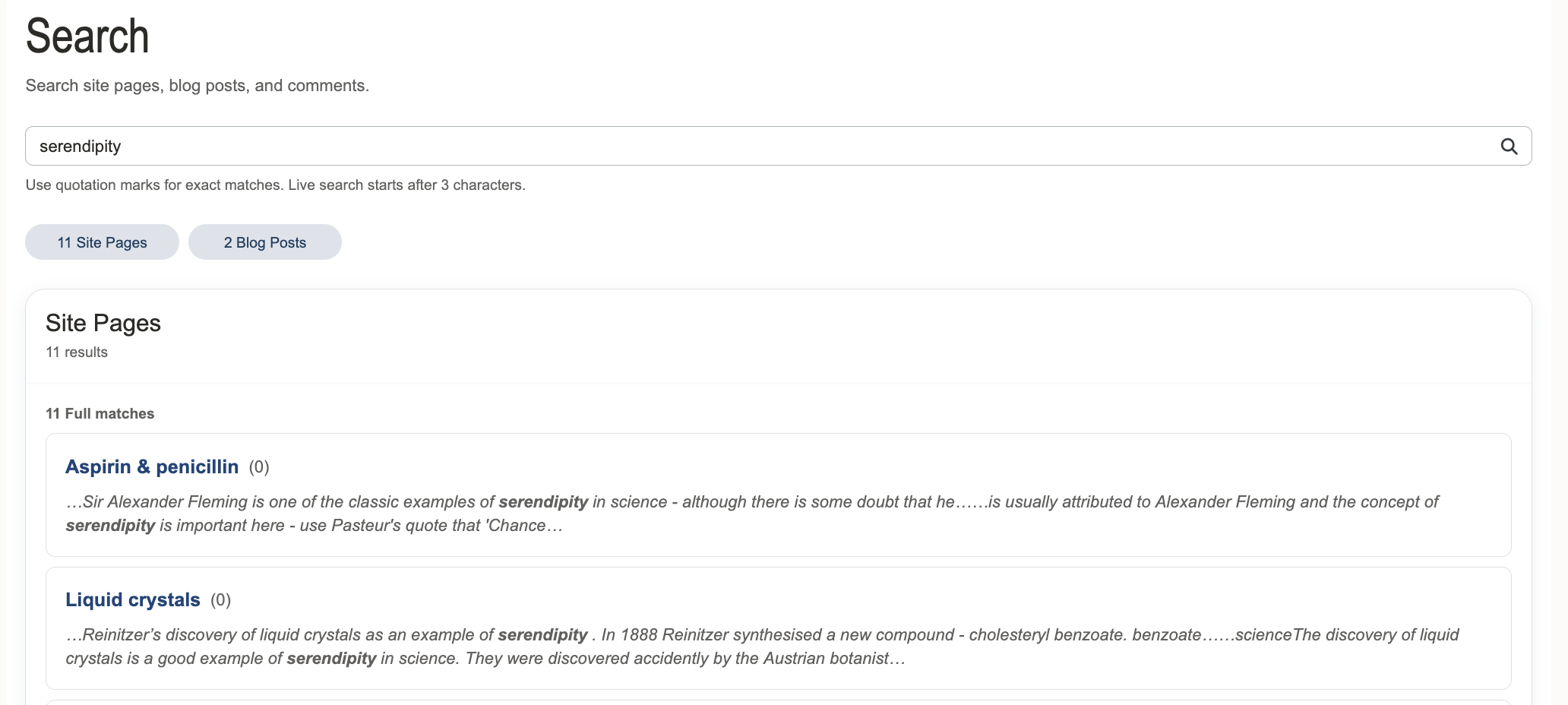
This is particularly useful if you want to find a certain word or phrase. For example “serendipity”. The search button is located to the right of the top headings.

Clicking on the search icon will bring up a box in which you can write a word or phrase. e.g.

Press enter and it will bring up all the pages containing that word or phrase. For example, the word “serendipity” currently appears on eleven website pages and also appears in two blogs. Each of the pages or blogs where it appears are then listed below. You can even search your own name to find any recent comments you may have made.